CoTester 2.0 is LIVE! Your Always-Available AI Teammate for Testing.

- What Are Automated Test Scripts?
- What Should an Automated Test Script Include?
- How to Write Automated Test Scripts
- Different Methods of Creating Automated Test Scripts
- How to Maintain Automated Test Scripts?
- Best Practices for Automated Test Scripts
- Build, Execute, and Maintain Your Automated Test Scripts with TestGrid
- Frequently Asked Questions (FAQs)
The concept of automated test scripts isn’t new. But even in 2026, QA teams have to spend a significant amount of their time writing, debugging, and maintaining scripts. As per a survey, 45% of QA professionals state that test updates take three or more days after a change in a critical system.
Poorly designed scripts might be one of the contributors to this maintenance burden, which can lead to unstable automation, flaky failures, duplicated code, and slower test execution.
In this blog, we’ll guide you on how to maintain automation scripts along with a practical automation test script example.
Leverage scriptless, low-code, and code-based test automation with TestGrid. Request a free trial.

TL;DR
- An automated test script is a program which executes predefined test actions and checks whether the app behaves as expected
- Automated test scripts include information like test scenario, objective, test data, test environment, preconditions, assertions, and expected result
- Different ways of creating tests include record and playback, keyword-driven scripting, and code-based scripting
- To design automation scripts for testing, outline test scenarios, define test cases, choose an automation tool, write and execute the script, debug and document changes
- For effectively maintaining test scripts, update them whenever your app updates, apply version control, make tests independent and isolated, and build reusable modules
What Are Automated Test Scripts?
Automated test scripts are a series of instructions which perform predefined actions on an app to check how it responds and whether it achieves the expected results. Scripts are written in code and help you automate workflows like entering data, navigating interfaces, or submitting requests.
Automated test scripts can be integrated with CI/CD pipelines so that tests can run automatically whenever new app code is committed, merged, or deployed.
Some actions automated test scripts can perform are:
- Launching the app or opening the webpage
- Clicking buttons, links, and menus
- Entering, editing, and submitting data
- Retrieving data
- Verifying text, values, URLs, and messages
What Should an Automated Test Script Include?
Your test automation scripts should have the instructions and mechanisms that are needed to set up the test, provide inputs, perform validations, handle failures, and produce reliable results.
Here are some of the important aspects you should cover:
- Test scenario and objective: The function or workflow being tested and the specific outcome you have to verify
- Preconditions and test environment: Required app state, browser and device configurations, and dependencies
- Test data and inputs: Input values, user credentials, files, parameters, and other data the script will use to perform the test actions
- Assertions and validation checks: Expected results, validation conditions, and checks for comparing actual and expected outcomes
- Error handling and logging: Failure-handling steps, exception handling, logs, screenshots, and traces
- Reusable functions and modules: Shared functions, utilities, fixtures, page objects, and reusable components for common test actions
How to Write Automated Test Scripts
1. Identify the scenarios you want to automate
Review your app’s requirements, workflows, and existing test cases and then recognize the scenarios which are repetitive, time-consuming, stable, frequently executed, or prone to human error.
Make sure your test scenarios include regression tests and the critical user flows. Outline the feature or functionality you want to test as well as its expected behavior.
2. Define the test case and expected outcome
Based on the test scenario, create test cases with a clear objective, preconditions, test data, and execution steps. Specify the expected outcome and pass or fail criteria for each validation so your automated script can determine if the app behaves as intended.
Also Read: Test Case Template: Free Examples & Formats
3. Choose the automation tool and framework
The next phase is to select automated scripting tools and frameworks which support your app type, programming language, testing requirements, and team expertise.
For example, you can use Selenium for web application testing or Appium specifically for testing mobile apps.
You should also consider browser or device coverage, CI/CD integration, parallel execution, reporting, and maintenance capabilities before you pick an automation framework.
Learn More: Best Automation Testing Tools
4. Write the test script
Now, you need to convert the test case into executable code using the syntax and commands that are supported by the framework you’re using.
Include actions, test data, assertions, and exception handling in the appropriate sequence. You should also use parameterization (for data-driven testing) to separate test data from test steps. This will allow the same script to run with multiple inputs without duplicating the underlying test steps.
5. Execute the script and debug
After you have written the test script, integrate it within your CI/CD pipeline to enable continuous testing. Post execution, review the results.
If your test fails, you have to understand the root cause of the failure. It could be an application defect, incorrect test data, synchronization issue, environment problem, or script error.
You can use the error messages, screenshots, stack traces, and execution reports to identify the underlying issue, fix it, and then rerun the test to verify the result.
Pro tip: Before execution, use explicit waits as they will help you sync the script with specific elements or conditions and minimize timing-related failures.
6. Refine and document
You need to regularly review your test script and remove unnecessary steps, refine assertions, and improve error handling. This will help you keep the scripts maintainable and aligned with your app’s current behavior.
Also, document the script’s purpose, prerequisites, test data, dependencies, and results so that your team members can understand, execute, troubleshoot, and maintain it as your app changes.
Different Methods of Creating Automated Test Scripts
To understand how to create automated test scripts, you need to know the different ways available and when you should use each one.
1. Record and playback testing
With the help of record and playback tools, you can interact with your app such as clicking, entering data, and navigating pages, and the tool automatically records and converts them into executable automated test steps. You can then replay the recorded script to assess your app. This method enables you to quickly build tests with minimal coding.
For example, you can manually execute steps like:
- Open the website
- Enter a valid username
- Enter a valid password
- Click on the Login button
- Log out from the dashboard
The automation tool records these actions and creates the test for you.
2. Keyword-driven testing
In the keyword-driven testing approach, you mainly use predefined, reusable keywords, like Login User, Click, or Verify Text, which represent test actions. Each of these keywords is mapped to automation code that performs the action. You can refer to these keywords to create automation test scripts.
3. Code-based testing
Here, you have to write your automated tests in programming languages like Java, Python, or JavaScript. Automation frameworks (e.g., Selenium, Playwright, Appium, Cypress) allow you to script your tests.
This method gives you more control over test actions, assertions, conditions, loops, reusable components, and integrations. So, if your apps have complex, multi-step workflows, then this method can be suitable.
Here’s a code-based test automation scripts example:
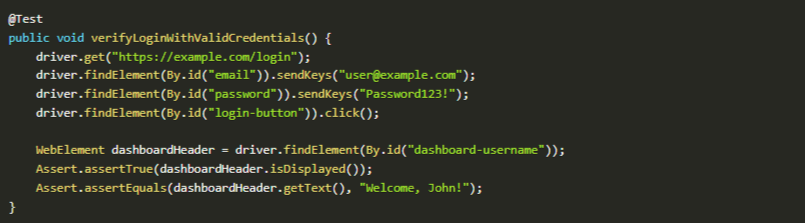
This script can automate the below-mentioned functions:
- Open the login page
- Enter the email address
- Enter the password
- Click the login button
- Find the dashboard heading
- Verify that the dashboard is displayed
- Verify the expected text, i.e., “Welcome John”
Also Read: Scriptless Test Automation: A Complete Guide
How to Maintain Automated Test Scripts?
Now that you know how to write test scripts for automated testing, here are some practical tips to efficiently maintain them.
1. Update scripts when application behavior changes
You should review the automated scripts whenever your app’s functionality, workflows, business rules, or UI interactions change. Make sure you:
- Update the test steps affected by change as well as locators, assertions, or test data so it reflects the modifications
- Remove or revise tests which aren’t relevant or don’t demonstrate your app’s current behavior or version
- Delete the outdated tests as they can produce misleading failures or results
2. Keep locators and UI interactions maintainable
Instead of depending on fragile attributes such as dynamically generated IDs or positional selectors, try to use stable, unique locators to identify UI elements. This will help you reduce the maintenance caused by locator failures.
Also, centralize locators using the Page Object Model so selector changes can be updated in one place rather than across multiple test scripts.
Also Read: XPath Cheat Sheet: Syntax, Functions, and Examples
3. Version-control automated testing scripts
Store your automated scripts in a version control system like Git or your test repository that supports versioning. This way you’ll be able to track changes and collaborate on scripts.
Also, commit changes with clear messages and use branches and pull requests. This will give you a record of script changes and allow you to easily review, revert or investigate changes if a test fails unexpectedly.
Learn More: Why Your Test Suite Is High Maintenance
Best Practices for Automated Test Scripts
1. Keep every test focused on a clear objective
Precisely specify what you test will verify and what result you consider as success. Focused tests which have a specific objective make it easier for you to diagnose failures, ensure that a particular function or feature has been thoroughly tested, and identify the areas that might need attention.
| Pro tip Try to use a test name describing the behavior that’s being assessed. For example, ‘Verify account lockout after five failed login attempts’. This way, if your test fails, you can quickly spot it from the execution reports. |
2. Make tests independent and isolated
When you’re building an automated test, make sure it can produce a valid result without depending on another test’s execution order or state. You should set up the required preconditions within the test and clean up any data or state it creates. This will enable you to reduce dependence between tests and make parallel runs or reruns reliable.
| Pro tip You can reset the test environment before each test and create fresh test data rather than reusing the data which was created by another test to avoid shared state from affecting your test results. |
3. Build reusable and modular test components
Modular test components can help you minimize code duplication and simplify maintenance. To do that, you can divide test actions like authentication, navigation, and test data setup into reusable functions, utilities, or components, and reuse them across multiple test runs.
| Pro tip Identify the actions which appear in multiple tests. Then move them into shared functions or utilities. In case the implementation of a shared action changes, just update the shared function or utility; no need to modify each test individually. |
4. Follow consistent naming and coding conventions
Consistent naming for your test cases, functions, variables, locators, files, and test data enables your cross-functional teams to read, review, troubleshoot, and modify scripts without errors. Make sure you follow the programming language and framework’s formatting practices, and keep the names descriptive for seamless communication.
| Pro tip You can prepare a short guide covering the naming, formatting, file organization, and commenting conventions, and then apply these rules when you’re creating or reviewing test scripts. |
Also Read: Top Test Automation Best Practices for Faster, Scalable QA
Build, Execute, and Maintain Your Automated Test Scripts with TestGrid
TestGrid ONE is the AI operating system for quality engineering. Through it, you can manage test creation, execution, infrastructure, AI-assisted maintenance, and reporting across web, mobile, API, performance, and visual testing workflows.
If you already use frameworks such as Selenium, Appium, Cypress, or Playwright, you can execute those suites on TestGrid without rewriting them for a proprietary framework.
Tests can run across real mobile devices and browser environments, giving you broader execution coverage while preserving the automation your team already uses.
For teams that want to create new automation with less scripting, TestGrid also supports codeless and low-code workflows.
You can use Record & Play to capture browser or application actions, or use CoTester to generate editable tests from requirements, user stories, and application context.
TestGrid also fits into existing CI/CD workflows through integrations with tools such as Jenkins, Azure DevOps, GitHub Actions, and GitLab. You can trigger selected tests from your delivery pipeline, run them in parallel where required, and review execution results, logs, screenshots, and other evidence after each run.
To reduce maintenance effort, AgentRx applies self-healing locator logic when supported UI elements change, helping automation remain stable as the application evolves. Your team can review and refine tests while retaining control over what enters the execution workflow.
Whether you’re automating functional regression, cross-browser, mobile, API, performance, or visual testing, TestGrid ONE gives you one platform for creating tests, executing them on the required infrastructure, maintaining automation, and investigating results.
Request a free trial to see how TestGrid ONE can support your automation workflows.
Frequently Asked Questions (FAQs)
How is an automated test script different from a manual test script?
Automated test scripts mainly rely on code and automation tools to execute predefined test steps and validations. Whereas a manual test script mentions the instructions which a human tester has to perform to verify expected behavior.
What programming languages are commonly used for automated test scripts?
You can write automation test scripts in Java, Python, JavaScript/TypeScript, C#, and Ruby. The language you choose ideally should depend on the automation framework, your app’s requirements, existing project stack, and your team’s expertise.
Why are automated testing scripts important?
Automated test scripts are important because they let your team execute tests faster and consistently with very little manual effort. Scripts can run regression checks at fixed intervals, give you quick feedback on code changes, increase test coverage, and support testing via CI/CD pipelines.
What are the common reasons why automated test scripts fail?
Some reasons why your automated testing scripts might fail include app changes, unstable locators, synchronization issues, incorrect test data, environment problems, and flaky tests. You can overcome these problems by updating scripts with app changes, using stable locators, applying appropriate waits, managing test data carefully, and investigating recurring failures.