


Test Websites and Apps on Real iPhones Online With TestGrid
Get remote access to real iPhones, from iPhone 11 through 17, running iOS 26 and earlier releases. Select the device and OS configuration you need in TestGrid, open your website or app on that iPhone, and interact with it remotely. Test on iPhone hardware without maintaining your own device lab.

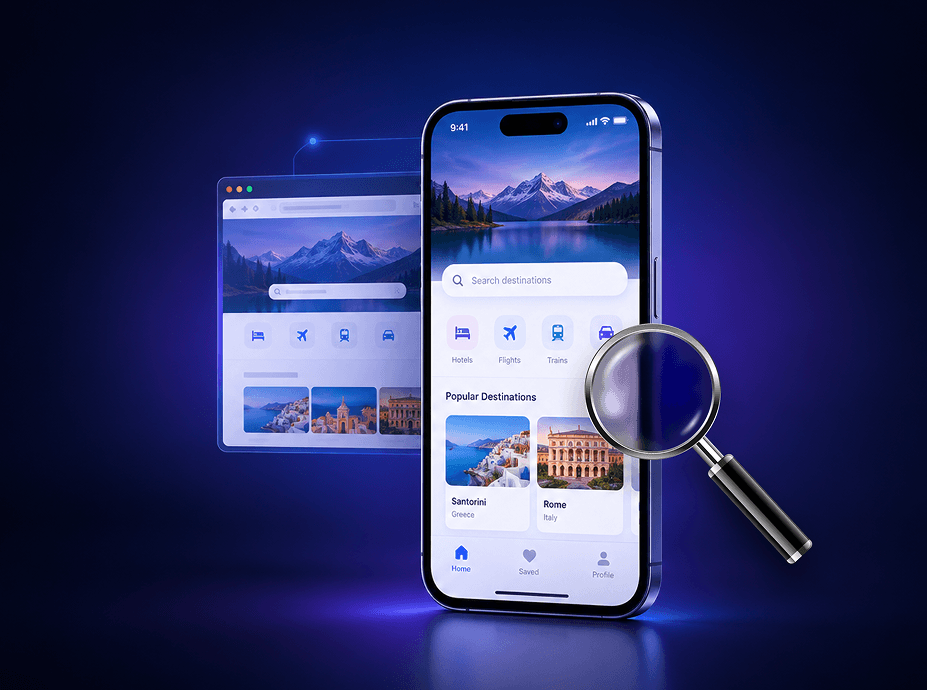
Choose Your iPhone Testing Workflow
The devices and iOS versions remain the same across all three approaches – what changes is how you author, control, and repeat your tests.
Request Free TrialManual iPhone testing
With TestGrid, you can open a remote real iPhone and control it through taps, scrolling, text input, navigation, and orientation changes. Its Screen Broadcasting Turbo Mode supports responsive iOS interaction across varying network conditions.
Appium and XCUITest automation
Connect your existing Appium or XCUITest automation to TestGrid’s real-device infrastructure, select the supported iPhone and iOS combinations you need, and execute your tests across those targets.
Codeless and AI-Assisted Authoring
Use TestGrid’s codeless interface, Record & Play, or AI-assisted scriptless authoring. Describe steps in English or BDD, convert them into executable tests, and use AutoHeal to update broken locators when UI elements change.
Monitor iPhone Performance on Real Devices
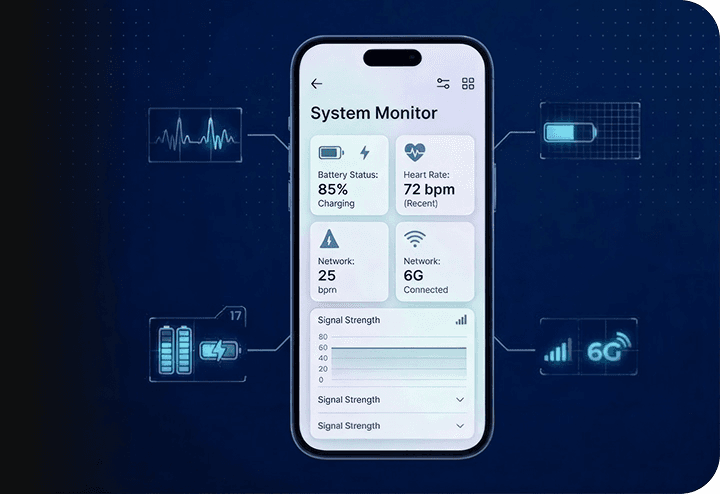
While your test is active, TestGrid identifies CPU usage, memory consumption, battery impact, network performance, and UI response times from the real iPhone. You can also compare baseline and updated screenshots when checking visual changes across device and OS configurations.
Validate iPhone Hardware Features with TestGrid
Use real iPhones on TestGrid to check biometric login, camera input, supported image-injection scenarios, and orientation-specific interactions. Repeat the same application path across different iPhone configurations and compare how hardware-dependent functionality responds.
Request Free Trial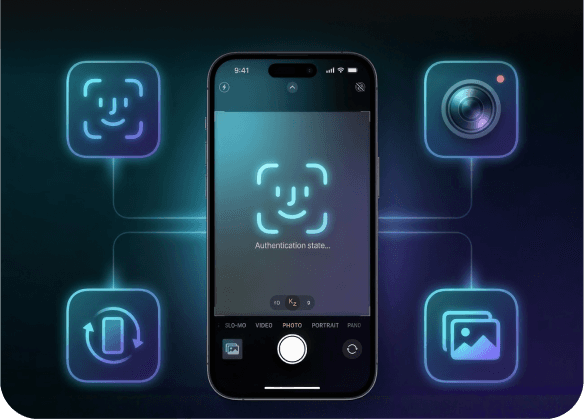
Recreate GPS and Network Conditions in TestGrid
Set up GPS scenarios and various network profiles including 2G, 3G, 4G, 5G, unstable Wi-Fi, and airplane mode within TestGrid. You can then observe how your application responds and reproduce issues tied to location or connectivity on the selected iPhone.
Request Free Trial
Test Websites on Real iPhones
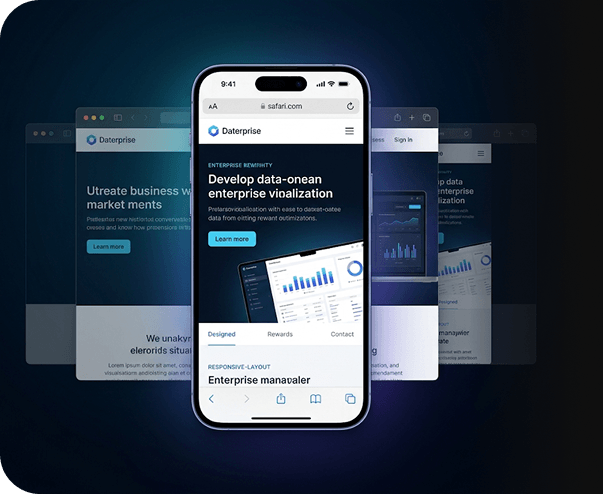
Need to check a website on iPhone? Open it in Safari on a real iPhone and run an iPhone browser test across navigation, forms, responsive layouts, touch interactions, and browser behavior. For localhost or staging environments, connect through TestGrid’s secure tunneling capability before the site is publicly accessible.
Debug iPhone Tests with Session Evidence
TestGrid gives you Appium Inspector, developer tools, network captures, device logs, crash reports, screenshots, error details, and session video. Correlate this evidence with the affected interaction and determine where the application or website failed.
Request Free Trial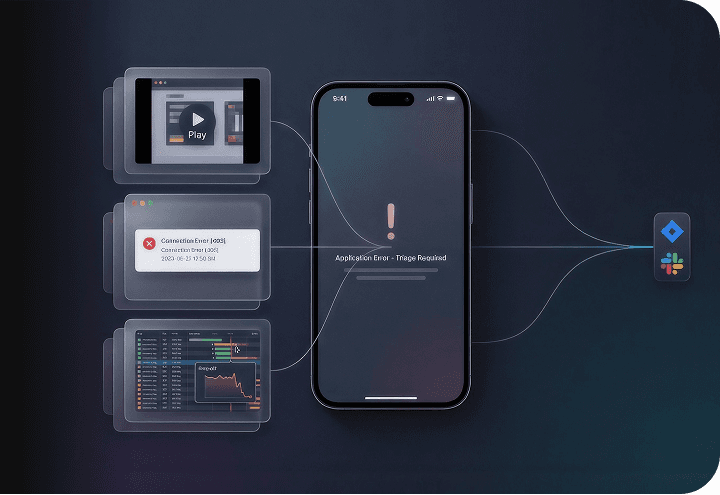
Control Who Can Test on Remote iPhones
Through TestGrid, you can reserve multiple iPhones for scheduled testing, adjust available device settings, and apply lock/unlock controls. If your workflow depends on a direct link between your local environment and the remote device, enable TG Tunnel with Virtual USB.

Configure Enterprise iPhone Testing Environments
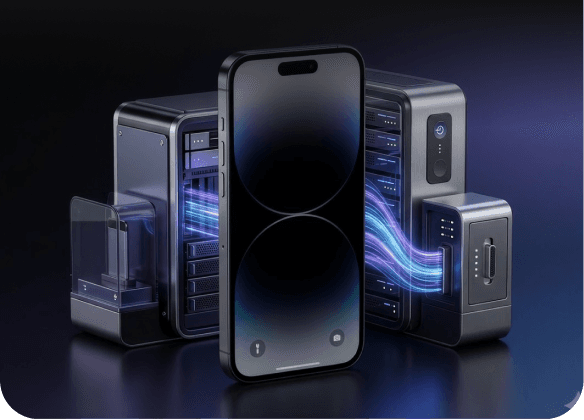
TestGrid supports MDM- and VPN-enabled testing environments alongside hosted, dedicated private, on-premise, and hybrid deployment options. Match the option that fully aligns with your organization’s network access, device-management, and security requirements.

Integrate iPhone Testing with Your CI/CD Pipeline
Bring TestGrid’s real-iPhone coverage into the release workflow your engineering team already maintains. From Jenkins and GitHub Actions to GitLab and Azure DevOps, start automated iPhone tests against various device and iOS combinations. You can parallelize the required coverage, review results in TestGrid, and pass test status into your existing workflow.
Request Free TrialFrequently Asked Questions (FAQs)
What does it mean to test on an iOS device online with TestGrid?

To test on an iOS device online, you connect to a real iPhone remotely through TestGrid rather than plugging the phone into your local machine. You select the device and iOS configuration you need, then use that remote device for your web or app test session.
What does it mean to test on an iOS device online with TestGrid?
To test on an iOS device online, you connect to a real iPhone remotely through TestGrid rather than plugging the phone into your local machine. You select the device and iOS configuration you need, then use that remote device for your web or app test session.
How should I choose device coverage for iPhone testing?
For iPhone testing, choose the device and iOS combinations that matter to the release you are validating. TestGrid runs real iOS devices across multiple OS versions and screen sizes, so you can repeat the same test against more than one target.
How should I choose device coverage for iPhone testing?
For iPhone testing, choose the device and iOS combinations that matter to the release you are validating. TestGrid runs real iOS devices across multiple OS versions and screen sizes, so you can repeat the same test against more than one target.
Can I check my website on an iPhone without keeping physical devices using TestGrid?
Yes. To check your website on an iPhone, you can use real iPhones remotely through TestGrid. Your team can use the same remote device infrastructure without provisioning and maintaining a separate local iPhone inventory for testing.
Can I check my website on an iPhone without keeping physical devices using TestGrid?
Yes. To check your website on an iPhone, you can use real iPhones remotely through TestGrid. Your team can use the same remote device infrastructure without provisioning and maintaining a separate local iPhone inventory for testing.
What should an iPhone test website check cover across different iOS versions?
An iPhone test website check should confirm that the same web flow behaves consistently across the iPhone and iOS combinations included in your test scope. Pay particular attention to responsive layout, interaction behavior, and browser-specific differences when the same site is tested across multiple targets.
What should an iPhone test website check cover across different iOS versions?
An iPhone test website check should confirm that the same web flow behaves consistently across the iPhone and iOS combinations included in your test scope. Pay particular attention to responsive layout, interaction behavior, and browser-specific differences when the same site is tested across multiple targets.
Can an iPhone browser test be part of an automated release workflow?
Yes. An iPhone browser test can be included in an automated testing workflow when the test framework and target environment are supported by TestGrid. TestGrid also integrates with Jenkins, GitHub Actions, GitLab, and Azure DevOps for pipeline-triggered execution.
Can an iPhone browser test be part of an automated release workflow?
Yes. An iPhone browser test can be included in an automated testing workflow when the test framework and target environment are supported by TestGrid. TestGrid also integrates with Jenkins, GitHub Actions, GitLab, and Azure DevOps for pipeline-triggered execution.
Can I test my website on an iPhone before every release?
Yes. You can test your website on an iPhone as part of repeated release validation instead of treating it as a one-time compatibility check. Use the same iPhone and iOS targets across regression runs when you need consistent device coverage from one release to the next.
Can I test my website on an iPhone before every release?
Yes. You can test your website on an iPhone as part of repeated release validation instead of treating it as a one-time compatibility check. Use the same iPhone and iOS targets across regression runs when you need consistent device coverage from one release to the next.
When should I test on an iPhone more than once during a release cycle?
You should test on iPhone again when the application, website, iOS target, or supported device configuration changes in a way that could affect the workflow under validation. Repeating the same coverage across selected real devices helps keep release checks consistent.
When should I test on an iPhone more than once during a release cycle?
You should test on iPhone again when the application, website, iOS target, or supported device configuration changes in a way that could affect the workflow under validation. Repeating the same coverage across selected real devices helps keep release checks consistent.