CoTester 2.0 is LIVE! Your Always-Available AI Teammate for Testing.

Record-and-play automation is widely used because it offers a fast way to validate user flows. You can record a sequence of actions once, replay it across builds, and confirm that critical paths such as login, checkout, and form submission continue to work.
For many teams, this provides a useful tool for detecting visible regressions. However, as apps grow more dynamic, test results start depending increasingly on backend data, authorization rules, feature configuration, and network conditions.
And even when the UI path remains identical, these conditions vary across users, environments, and test runs. This introduces a gap between what record-and-play automation reproduces and how the app responds when those actions occur.
In this blog post, we’ll discuss how that gap affects test reliability and diagnostic value and what you must do to restore visibility into app behavior in stateful web and mobile environments.
Run your automation on TestGrid to capture performance, environment, and response timing. Request a free trial.
Why the Same Recorded Test Can Generate Different Results
When a recorded test fails or behaves differently across runs, the difference typically comes from the conditions present when the app processed the request.
Let’s try to understand with a diagram:
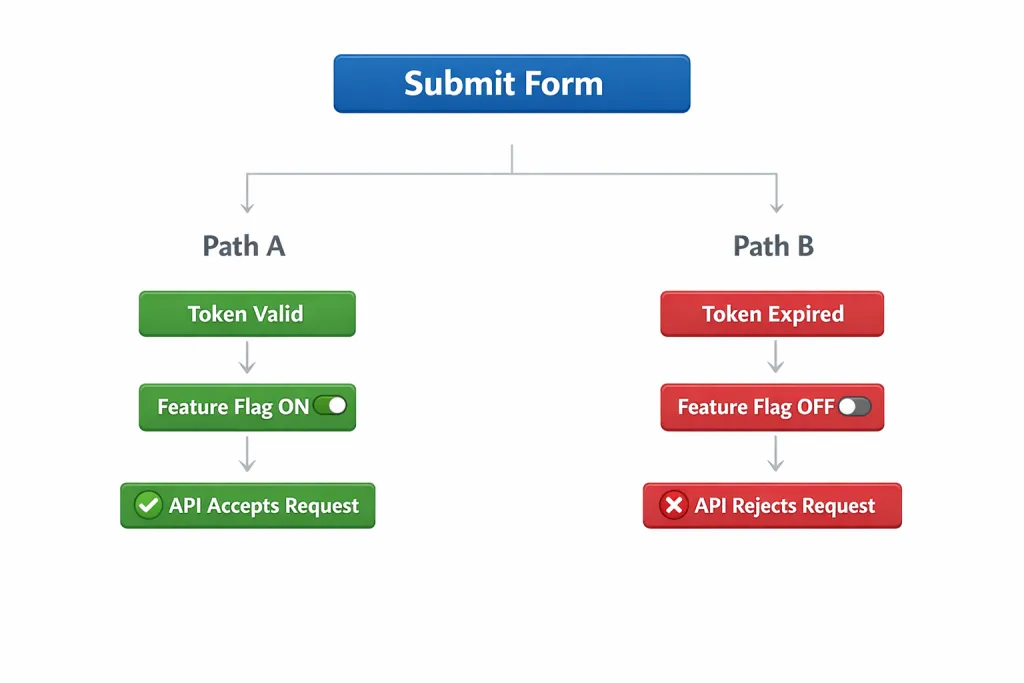
As you can see, the same form submission triggers different outcomes depending on session validity and feature configuration.
In one case, the API accepts the request.
In another, it rejects it.
Record-and-play automation confirms that the form was submitted. But it doesn’t reveal whether the request was accepted for the expected reasons or rejected due to session, configuration, or backend state.
The table below further clarifies what record-and-play automation confirms and what remains invisible during replay:
| Aspect | Record-and-Play Confirms | Record-and-Play Doesn’t Reveal |
|---|---|---|
| UI flow | Clicks, taps, and navigation completed | Conditions that influenced the outcome |
| Authentication | Login screen succeeded | Session validity, token scope, permission context |
| Data handling | Form was submitted | Whether the backend accepted, rejected, or modified the request |
| Performance | The Screen eventually loaded | Response time, retries, backend delays |
| Network | Request completed | Network latency, packet loss, and retry behavior |
Also Read: Comparing Scriptless Automation Testing vs. Record and Playback
Signs That Record-And-Play Has Reached Its Limit
These patterns indicate that record-and-play automation is no longer sufficient to explain test behavior:
1. Outcomes differ across users or accounts: The same script passes for some users and fails for others despite the UI path remaining unchanged. Differences appear only when you vary account tier, role, region, or configuration – that’s something to take note of.
2. Test results change without UI changes: A recorded script fails intermittently, then passes on re-run with no code changes or UI updates. This inconsistency can’t be explained by selectors (e.g., incorrect element IDs), script timing (e.g., insufficient waits), or navigation (e.g., failed redirects).
3. Script fixes improve stability, not insight: After stabilizing scripts, the test suite looks healthier. However, production issues, support tickets, and performance complaints continue to occur at the same rate. The tests pass more steadily, but then, yet again, there isn’t enough visibility to explain why the app behaved a certain way.
4. Failures can’t be explained from the test output: When a test fails, the result doesn’t tell you whether the cause was authorization, validation, latency, retry behavior, or connectivity. The only visible signal is that the UI didn’t reach the expected state.
5. Tests pass while user experience degrades: Recorded flows completed successfully. However, response times increase, screens load more slowly, or actions feel sluggish under certain conditions. The tests don’t capture response time, retries, or degraded service behavior.
Practical Steps to Reduce the Limits of Record-and-Play Automation
Here are the actions to take to ensure recorded tests run under controlled conditions and produce reliable, explainable results:
1. Verify the condition that the app used to evaluate the action
Do this by asserting the state before and after the UI action. In practice, this means inspecting the inputs the backend received when the action occurred. For example, consider a recorded test that upgrades a user from a free plan to a paid plan.
Before replaying a test, verify that the user account is still on the free plan and that the “upgrade” feature flag is enabled for that account. After the UI triggers the upgrade action, confirm that the backend:
- Received the correct account ID
- Validated the user’s eligibility
- Updated the subscription status in the database
Verifying these inputs ensures the upgrade action is evaluated under the expected conditions.
2. Make data state explicit before replay
Query whether the data the test depends on already exists, has been modified, or is in an intermediate state. For example, consider a recorded test that creates a new customer account using the email “testuser@example.com.”
This test assumes that no account with that email exists before the registration step runs.
On the first run, this condition is true, so the registration succeeds.
On a later run, the same email may already exist in the database because it was created during a previous test. The UI steps remain identical. The backend rejects the request because the email is already registered.
Before replaying the test, check whether an account with that email already exists. If it does, delete it or generate a new, unique email for the test. This ensures the registration step runs under the expected data condition and produces a consistent result.
3. Capture timing and execution context during the same test run
Record performance metrics and environment conditions alongside the UI actions. Track response time, retry count, and timeout behavior for API calls triggered by the UI. Also monitor screen load time and action-to-response drag.
These metrics confirm whether backend responses and processing times remained within expected ranges.
For example, let’s say a recorded login test passes consistently but takes longer to complete. When you review the same run, you may find that the authentication API response time increased from 300 ms to 2 seconds due to backend latency.
The UI flow completes. A delay, though, indicates a performance regression that record-and-play alone wouldn’t explain. In addition, examine runtime conditions, such as device resource usage, network latency, and API error responses.
This allows you to determine whether changes in performance or runtime conditions influenced the test result.
The Role TestGrid Plays in Reducing the Limits of Record-and-Play Automation
TestGrid is an AI-powered end-to-end testing platform. It runs recorded tests on real devices and browsers while capturing app performance metrics, network timing, and environment conditions during the same run.
For example, if a recorded login test suddenly becomes slower or fails intermittently, TestGrid enables you to review request timing, network latency, and device conditions from that run.
This helps determine whether the change resulted from backend response delays, session validity issues, or environmental factors rather than a problem with the recorded script itself.
TestGrid also provides the context needed to understand why the app produced a specific result. To find out more, request a free trial with TestGrid today.