 CoTester 2.0 is LIVE! Your Always-Available AI Teammate for Testing.
- Linux Browsers Overview
- How We Evaluated These Linux Browsers
- Best Linux Browsers at a Glance
- Best Browsers for Linux in 2027
- Everyday browsing and strong compatibility
- Privacy and security
- Customization and productivity
- Test Websites Across Popular Browsers with TestGrid
- Which Linux Browser Should You Pick
- Frequently Asked Questions (FAQs)
On Linux, choosing a browser involves more than picking a favorite. Your distribution, desktop environment, and preferred install method (native package, Flatpak, or Snap) all affect how a browser runs, updates, and integrates with your system.
Those details matter to a growing number of people: Linux reached 5.63% of worldwide desktop OS usage in October 2026, up from 3.33% a year earlier, according to StatCounter.
To help you find the right fit, we compared seven Linux browsers on browser engine, compatibility, resource usage, privacy, installation options, and everyday usability.
Test your website across the browsers you use with TestGrid. Request a free trial
Linux Browsers Overview
TL;DR
- Mozilla Firefox: Open-source browser offering cross-platform compatibility, enhanced tracking protection, developer tools, and extensive customization
- Google Chrome: Chromium-based browser with fast browsing, Google services integration, automatic updates, and extensive extension support
- Brave: Privacy-focused browser with built-in ad and tracker blocking, fingerprinting protection, and Chromium extension support
- LibreWolf: Browser focused on privacy, reduced telemetry, fingerprinting resistance, and strict default security settings
- Vivaldi: Chromium-based browser with deep customization options, tab management, workspaces, built-in productivity tools, and interface controls
- Floorp: Browser offering customizable workspaces, split view, web panels, and flexible interface layouts
- Zen Browser: Open-source browser featuring vertical tabs, split view, workspaces, and a streamlined browsing interface
How We Evaluated These Linux Browsers
Our experience with cross-browser testing has shown us that the same website can function very differently depending on the browser engine, rendering implementation, and underlying system environment of different browsers.
So, when we were evaluating the Linux browsers available, we considered some of the most critical criteria, which are: distribution compatibility, installation and updates, browsing performance, privacy and security, desktop integration, and everyday usability.
Apart from this, we also looked at HTML, CSS, and JavaScript compatibility, support for modern web APIs, rendering consistency, form handling, media playback, accessibility, and developer tools.
Before we finalized the best browser for Linux, we checked if it has:
- Extensive documentation for easy onboarding and usage
- Support for Linux architectures and the latest OS versions
- Active maintenance and security updates
- Compatibility with established automation frameworks
- Support for browser extensions used in testing
- Tools for inspecting page elements, network requests, and accessibility issues
Also Read: Best Cross-Browser Testing Tools for QA
Best Linux Browsers at a Glance
This table covers all seven Linux browsers and compares them across their core strengths, browser engines, and privacy features.
| Browser | Engine | Best For | RAM Footprint | Privacy Focus |
|---|---|---|---|---|
| Mozilla Firefox | Gecko | Cross-platform web compatibility | Moderate | Tracking, cookie, and fingerprinting protection |
| Google Chrome | Blink | Google ecosystem compatibility | High | Privacy controls, incognito mode |
| Brave | Blink | Private everyday browsing | Low | Built-in ad and tracker blocking, fingerprinting protection |
| Librewolf | Gecko | Privacy-focused browsing | Moderate to high | uBlock Origin, anti-fingerprinting, automatic cookie deletion |
| Vivaldi | Blink | Desktop productivity | High | Tracker and ad blocker, customizable privacy settings |
| Floorp | Gecko | Flexible workspace management | Moderate | Disabled telemetry by default, tracking protection |
| Zen Browser | Gecko | Multitasking and interface customization | High | No telemetry, tracking protection |
Best Browsers for Linux in 2027
Everyday browsing and strong compatibility
These are the best web browsers for Linux that focus on daily browsing tasks, load websites reliably, support modern web standards, and work consistently across different Linux distributions and desktop environments.
1. Firefox
Best for: Users who are searching for a flexible browser with strong developer tools and extensive extension support
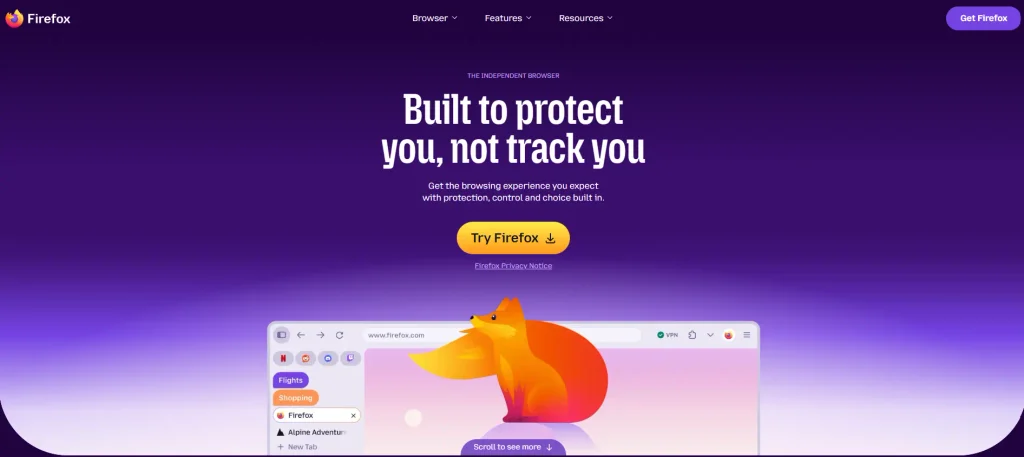
Mozilla Firefox is an independent, open-source browser that comes with features like automatic tracker blocking, customizable privacy settings, and optional AI features. It also offers tab groups, Reader Mode, Picture-in-Picture, over 30,000 extensions, PDF editing, and encrypted cross-device synchronization.
Engine: Gecko
What stands out
- Block trackers automatically and protect your privacy by default
- Create new passwords, auto-fill online forms, and log in automatically
- Access your Firefox bookmarks, accounts, and open tabs seamlessly on any Linux device
Watch out for
- Linux package-manager installations may depend on the distribution’s release schedule for Firefox updates; this might limit a user’s control over update timing
Linux install route
- You can visit the official Firefox download page, download the Linux package, and follow the installation instructions for your Linux distribution. Other than this, you can also install Firefox through your distribution’s software manager
Our take
- Since this is the default Linux browser, it’s a good choice for users who value privacy, customization, and an open-source browsing experience without the hassle of downloading a separate browser
2. Chrome
Best for: Users who depend heavily on Google Workspace and web-based apps

Google Chrome is a secure web browser developed by Google. Here, you get capabilities like cross-device synchronization, built-in password management, Google Lens, tab organization, and integrated Google services.
And with its AI features that are offered through Gemini integration, you can easily find information, summarize content, and complete tasks when browsing.
Engine: Blink
What stands out
- Sign in to Chrome on any device to access your bookmarks, saved passwords, and more
- Automatically select a protocol or let users specify one through command-line flags or Chrome flags
- Ensure you have the latest security updates, check your passwords and extensions for potential security risks, and reset permissions from unused sites to protect your privacy
Watch out for
- Chrome currently supports 64-bit Ubuntu 18.04+, Debian 10+, openSUSE 15.5+, and Fedora 39+; therefore, if you have other distributions, you may need community-supported packages
Linux install route
- You can go to the official Chrome download page, download the appropriate DEB package for Debian/Ubuntu or RPM package for Fedora/openSUSE, open the downloaded file, and select Install to Chrome on your machine
Our take
- This is a dependable option if you prioritize Google services, website compatibility, and a familiar browsing experience
Privacy and security
The best internet browser for Linux should let you enforce tracking protection, ad blocking, fingerprinting resistance, telemetry policies, and controls so you can safeguard your browsing, development, and testing data. These are some of your options.
3. Brave
Best for: Users who want to reduce tracking without installing additional extensions
Brave is a privacy-focused, Chromium-based web browser that enables you to block ads, trackers, and third-party cookies by default through its built-in Brave Shields. You get features such as private browsing, an integrated AI assistant (Brave Leo), cross-device sync, and support for Chrome Web Store extensions.
Engine: Blink
What stands out
- Block third-party ads on every website (e.g., video ads, search ads, social media ads)
- Download Brave, import favorites from your old browser, and resume working seamlessly
- Save Wi-Fi bandwidth and mobile data, battery life and CPU, and websites load 3x-6x faster
Watch out for
- Brave mentions in its official documentation that its Flatpak and Snap packages don’t work as well as native packages
Linux install route
- From the official Brave download page, select your Linux distribution, and follow the instructions given to add Brave’s official repository and install the browser from your distribution’s package manager
Our take
- Brave is worth considering if your top priorities are built-in ad blocking and privacy protection
4. Librewolf
Best for: Users who want a browser with privacy protections enabled by default and minimal telemetry
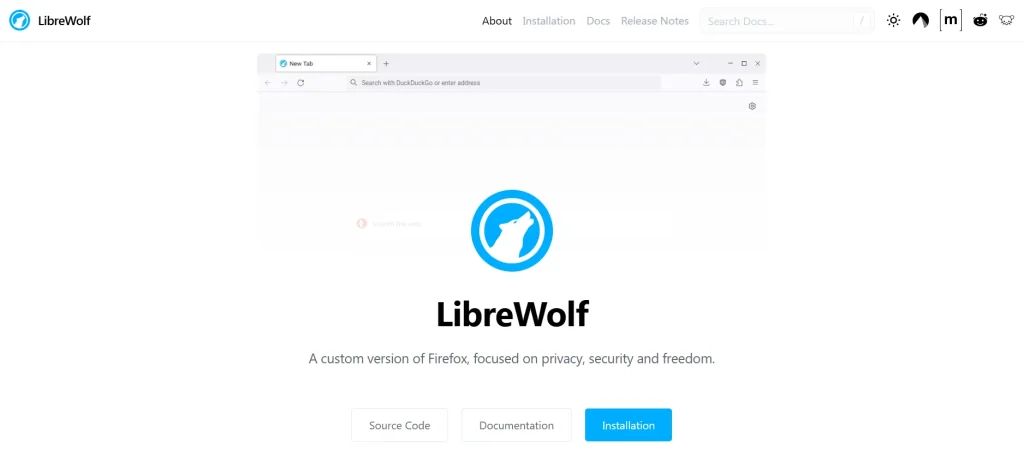
LibreWolf is an open-source web browser based on Mozilla Firefox. It has enhanced tracking protection, fingerprinting resistance, and reduced telemetry via default privacy settings. The browser also includes built-in content blocking, private search options, and regular security updates.
Engine: Gecko
What stands out
- Prevent your websites from accessing the operating system’s location services; Librewolf uses Mozilla’s location API and reduces direct exposure of OS-level location information
- Enforce DNS and WebRTC traffic through a proxy; this helps you block network information from leaking outside the proxy connection
- Disable disk caching and clear temporary files when the browser closes, so you can minimize the amount of browsing data retained on your local system
Watch out for
- LibreWolf relies on Linux package managers to install updates; it doesn’t have auto-update capabilities, so you must update it manually or via your distribution’s update mechanism
Linux install route
- Select your Linux distribution from the official LibreWolf installation page, and follow the instructions to add the LibreWolf repository and install the browser using your system’s package manager
Our take
- This browser is suitable for those who want tighter control over browser data collection and tracking
Also Read: Best Browsers for Privacy (Tested & Compared)
Customization and productivity
These browsers offer flexible interfaces, tab management, workspace organization, keyboard shortcuts, and tools that help you tailor your browsing workflows to your preferences.
5. Vivaldi
Best for: Power users who manage multiple tabs and complex browsing workflows
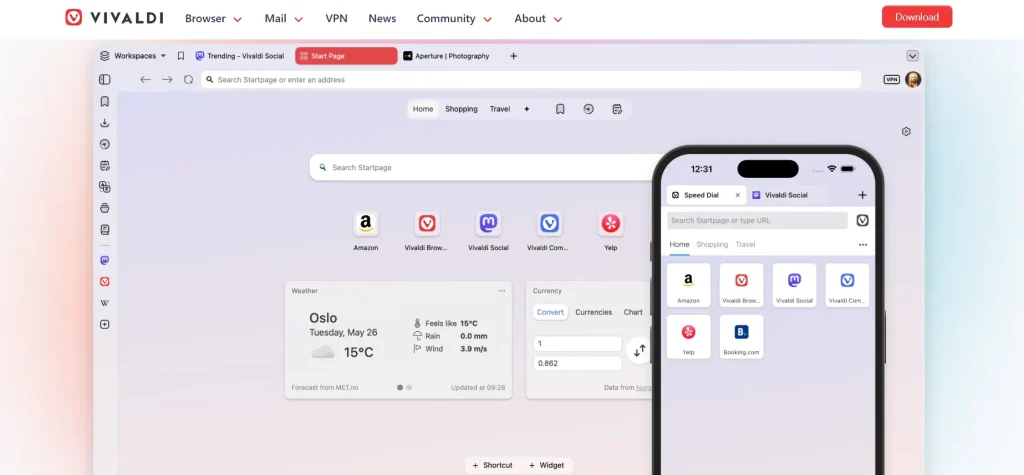
Vivaldi is a deeply customizable, Chromium-based web browser that’s designed for users who want more flexibility over their browsing experience with features like tab stacking, built-in ad and tracker blocking, integrated mail and calendar, workspaces, and extensive interface customization options.
Engine: Blink
What stands out
- Add any website to keep your favorite sites easily accessible in Vivaldi’s sidebar; you can easily add a page and decide to view it in mobile or desktop mode
- Instantly search tabs, bookmarks, history, or the web, and quickly execute browser commands, all in one place
- Securely sync your Vivaldi browser data across multiple devices
Watch out for
- Vivaldi supports 64-bit Ubuntu 24.04+, Debian 13+, openSUSE 16+, and Fedora 43+; so users using older or other distributions may need alternative installation methods
Linux install route
- You can download the DEB package for Debian/Ubuntu or RPM package for Fedora/openSUSE from Vivaldi’s installation page. Then open the downloaded file to install Vivaldi with the help of your system’s software installer
Our take
- This is a good fit for those who want extensive customization and productivity tools incorporated within their browser
6. Floorp
Best for: Users who want browsers to organize research and multitasking through flexible browsing layouts
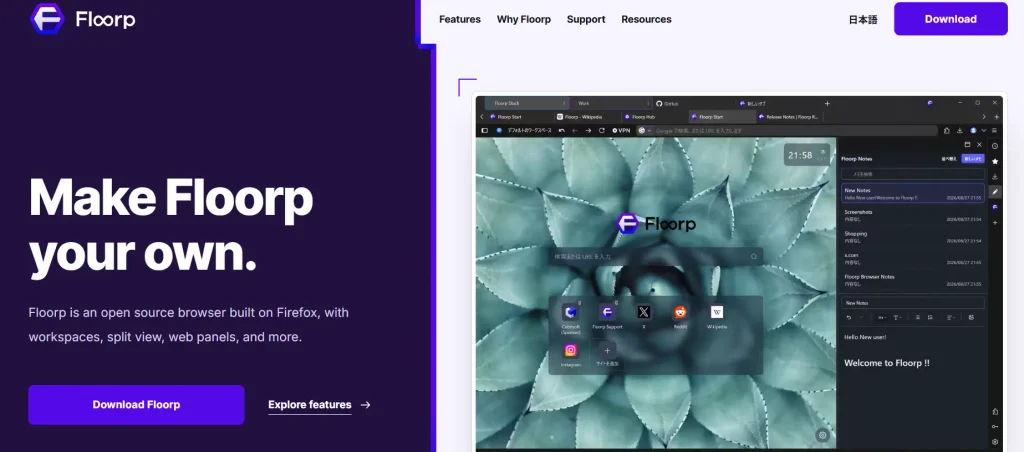
Floorp is an open-source web browser built on Firefox which has features like customizable workspaces, split view for displaying up to four pages simultaneously, web panels, mouse gestures, and extensive interface customization. It’s available for Windows, macOS, and Linux.
Engine: Gecko
What stands out
- Place several pages in one window to compare, research, and write at the same time; adjust each panel to the width that works for you
- Pin the sites you frequently visit or use to the sidebar without leaving the page you’re viewing
- Group tabs by task and assign Firefox containers when needed to keep cookies and sign-ins separate
Watch out for
- Floorp presently supports Debian-based and Arch-based Linux distributions. So, if you use other distributions, you may need to rely on Flatpak or tarball installations
Linux install route
- You can select the Linux version compatible with your distribution from the browser’s website and then download the package and follow the installation guide for your system
Our take
- This one is a great option for users who want flexible customization and workspace management options
7. Zen Browser
Best for: Users who are searching for a keyboard-friendly browsing experience with streamlined navigation
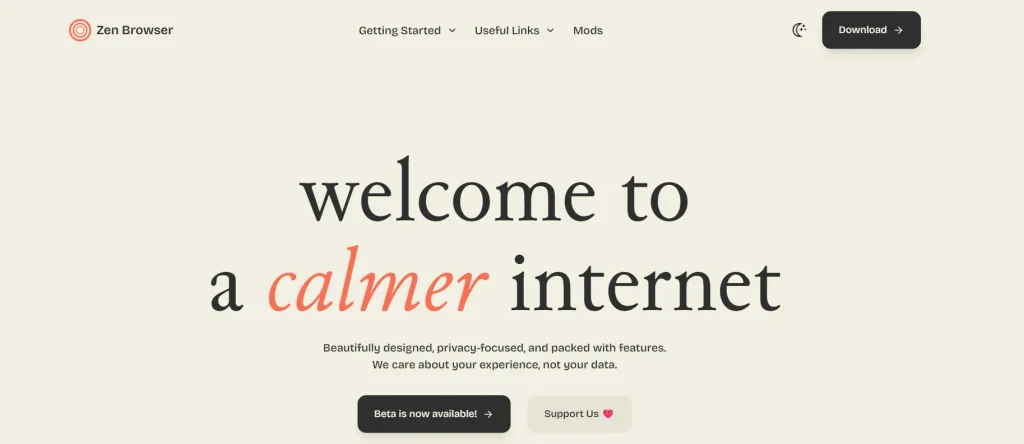
Zen Browser is a free Firefox-based web browser that enables you to improve browsing productivity, privacy, and customization with capabilities like vertical tabs, customizable workspaces, split view, compact mode, and Glance for quickly previewing links.
Engine: Gecko
What stands out
- Organize your tabs into Workspaces, separate your projects, and switch between them easily
- Get more screen space when working by hiding the tab bar with Compact Mode
- Increase your work efficiency and productivity with side-by-side tabs
Watch out for
- Zen is still in beta, so users may encounter bugs or unexpected behavior. They even mentioned in their documentation that limited resources can affect how quickly your issues are addressed
Linux install route
- You first need to open the Zen Linux installation guide and install Zen through Flathub using your software manager, such as GNOME Software or KDE Discover. You can also download the Linux tarball or AppImage from the official releases page
Our take
- You can go for this browser if you want a modern browsing interface, streamlined tab organization, and customizable keyboard shortcuts
Learn More: 11 Best AI Browsers (Tested & Compared)
Test Websites Across Popular Browsers with TestGrid
As a QA team, when you pick browsers to test your apps, you should verify that your website renders correctly, interactive elements behave as expected, and critical user journeys work across browsers your customers normally use.
Built by TestGrid, TestGrid ONE is the AI operating system that runs quality engineering. Its cross-browser testing capabilities let QA teams access real browsers and devices, execute manual and automated tests, and identify browser-specific compatibility issues with precision.
You can check online forms, buttons, and navigation, and make sure they work across browsers like Chrome, Firefox, Safari, Edge, and Opera. You have the option to test your websites hosted on staging or local environments seamlessly using TestGrid’s secure tunneling feature.
With TestGrid’s scalable cloud infrastructure, you can run your tests in parallel across multiple browser and OS combinations and minimize the feedback time during regression cycles. You can also connect with tools like Jenkins, Azure DevOps, and GitHub Actions, and execute automated runs after code changes via the CI/CD pipeline.
TestGrid gives you detailed results along with logs, screenshots, videos, and performance insights for precise failure investigation. Moreover, you can efficiently assess your website’s speed, responsiveness, and stability across browsers under high-traffic scenarios and slow network conditions.
Apart from this, the platform can also handle testing for multiple languages, currencies, and regional nuances so you can validate compatibility from different regions by simulating IP locations and using GPS.
Which Linux Browser Should You Pick
Your Linux distribution, available hardware resources, privacy expectations, and day-to-day tasks influence which browser will work best for you. A browser may install easily on Ubuntu but might need a totally different setup on Arch.
We have compiled a few common scenarios that reflect Linux users’ needs. This table might help you make a better and more informed decision to find the best browser for Linux.
| Situation | Recommended Browser | Why it’s a suitable choice |
|---|---|---|
| Mint/Ubuntu beginners | Mozilla Firefox | This is available through Linux distributions, with straightforward installation options |
| Arch/Fedora users | Floorp | Offers Linux installation options for Debian-based and Arch-based distributions, alongside Flatpak support |
| Older hardware | Brave | Comes with built-in ad and tracker blocking; this can reduce unnecessary content loading |
| Privacy-conscious users | LibreWolf | Gives you strict privacy protections, anti-fingerprinting measures, and disabled telemetry by default |
| Web developers | Google Chrome | Has comprehensive DevTools for debugging, performance analysis, and web app inspection |
Assess your preferred desktop environment, software requirements, and compatibility needs before settling on a daily driver. And ensure your websites and apps deliver peak performance every time across browsers. Request a free trial.
Frequently Asked Questions (FAQs)
Which browser uses the least RAM on Linux?
Brave is the lightest option in our comparison, although actual memory usage depends on your tab count, extensions, websites, and Linux setup. Firefox and Floorp sit closer to the middle, while Chrome, Vivaldi, and Zen Browser can consume more memory in heavier workflows.
What is the best browser for Linux Mint?
Firefox is the best browser for Linux Mint for most users because it offers strong compatibility, privacy controls, extensions, and straightforward Linux support. Chrome is worth considering if your workflow depends heavily on Google Workspace or Chromium-specific compatibility.
What is the best Chromium browser for Linux?
Brave is a strong all-round Chromium browser for Linux if you want Chromium compatibility with built-in tracker and ad blocking. Chrome remains the stronger choice when Google services, Chrome DevTools, or maximum compatibility with Chromium-targeted web applications matter more.
Is Chrome good on Linux?
Yes. Chrome is a strong Linux browser for Google Workspace, web applications, extensions, and developer tooling. Its main trade-offs are higher resource usage than some alternatives and fewer privacy protections by default than browsers such as Brave or LibreWolf.
What is the most private browser for Linux?
LibreWolf is the most privacy-focused option in this comparison. It disables telemetry by default and adds stricter tracking and fingerprinting protections, although those defaults can occasionally require adjustments on websites that depend on less restrictive browser behavior.
What is the best browser for Linux Ubuntu?
Firefox is the best browser for Ubuntu for most users because it integrates well with the Linux desktop and provides a balanced mix of compatibility, privacy, extensions, and developer tools. Chrome is a good alternative for users centered on Google services and Chromium-based web applications.


