CoTester 2.0 is LIVE! Your Always-Available AI Teammate for Testing.

- What is a Playwright?
- How Does Playwright Testing Work?
- Key Features of Playwright Framework
- Playwright Automation Framework Overview
- Playwright Automation Tutorial (Step-by-Step)
- Playwright Automation Tool Folder Structure
- Creating Your First Playwright Automation Script
- Automate Your First Playwright Test Case
- Executing Playwright Test Cases Locally
- Best Practices for Playwright Automation
- Running Playwright Tests in the Cloud with TestGrid
- Frequently Asked Questions
- Conclusion
Playwright is an automation library developed by Microsoft in 2020. It enables developers and testers to automate web applications across multiple browsers with ease. The framework has earned 83.6k stars and 5.2k forks on GitHub, with detailed documentation available there to help you get started quickly.
In this blog, we will take a deep dive into the features of Playwright and how we can perform end-to-end testing with it, using detailed examples. But before we do that, let’s first understand what Playwright actually is and what it does.
TL;DR
- Playwright testing allows teams to validate user interactions across Chromium, Firefox, and WebKit, making cross-browser testing easier with a single automation framework.
- The Playwright testing framework includes built-in capabilities such as automatic waiting, network interception, and powerful selectors, which help reduce flaky tests and improve execution reliability.
- Playwright automation testing supports multiple programming languages, including JavaScript, TypeScript, Python, Java, and C#, giving development and QA teams flexibility in writing test scripts.
- With features like parallel execution, browser context isolation, and headless execution, Playwright test automation helps teams run faster and more scalable test suites.
- Developers can learn Playwright through structured tutorials and automation examples, making it easier to adopt Playwright automation for modern web applications.
- As a modern Playwright automation tool, the framework integrates easily with CI/CD pipelines and cloud testing platforms to support scalable automated testing workflows.
What is a Playwright?
Playwright is an open-source browser automation framework created by Microsoft for testing modern web applications. It lets developers and QA teams write a single test script and run it across Chromium, Firefox, and WebKit, simulating real user actions like clicking, typing, and navigating to verify that a web app works correctly.
Quick Start: Your First Playwright Test in 5 Steps
Want to jump straight in? Here’s the fastest path from zero to a running test. Each step links to the detailed walkthrough further down this page.
- Install Node.js: Playwright runs on Node.js. Download it from nodejs.org and confirm the installation with node -v and npm -v.
- Create your project: Run mkdir my-playwright-project && cd my-playwright-project && npm init -y to set up a new Node.js project.
- Install Playwright: Run npm install -D @playwright/test followed by npx playwright install.
- Write your first test: Create a file in the tests folder and add a test using test() and expect(). See the full example below.
- Run it: Use npx playwright test to run headless, or npx playwright test –ui to watch it run in a visible browser.
Want the full breakdown folder structure, async/await, hooks, and a real end-to-end example? Continue reading below.
How Does Playwright Testing Work?
The Playwright testing framework makes use of a layered architecture to connect test scripts to browser engines via a communication protocol.
Let’s see how the process works:
1. Create the test script: You write Playwright automation scripts in languages such as TypeScript, Python, C#, Java, and JavaScript. These scripts define actions, like clicking elements, capturing network activity, or navigating pages.
2. Playwright client sends commands: When tests run, the scripts communicate with a Playwright server (Node.js) using a WebSocket connection. The server receives the commands and translates them into instructions the browser can execute.
3. Driver communicates with browser engines: Playwright interacts with Chromium, Firefox, and WebKit using browser-specific automation protocols such as the Chrome DevTools Protocol. This enables the browser to perform the requested actions, such as loading pages and interacting with elements.
4. Results return to the test script: In the end, the browser returns execution results to the Playwright driver, which sends them back to the test script. Assertions then verify whether or not the app behaved as expected.
Key Features of Playwright Framework
Below are some of the key features of the Playwright testing tool
1. Cross-browser Testing: Playwright supports testing across multiple browsers, including Chromium, Firefox, and WebKit (Safari). This cross-browser support allows you to write tests once and run them across multiple browsers without any additional configuration or setup. Playwright ensures consistent behavior and a consistent API across all supported browsers, making it easier to maintain and scale your test suite. Playwright also provides built-in support for device emulation using browsers like Safari and Chrome.
2. Headless and Headful Modes: Playwright allows you to run tests in headless mode (without a visible browser window) or headful mode (with a visible browser window). Headless mode is useful for running tests in CI/CD pipelines. Headful mode is beneficial for debugging, visual inspection, or when you need to interact with the browser during test execution.
3. Automatic Waiting: Playwright automatically waits for elements to be ready before interacting with them, reducing the risk of test flakiness caused by timing issues. It employs intelligent waiting strategies, such as waiting for network requests to complete or DOM mutations to occur, ensuring that tests are executed reliably and consistently.
4. Network Interception: Playwright provides powerful network interception capabilities, allowing you to intercept and modify network requests and responses during test execution. This feature is useful for testing scenarios involving APIs, mocking responses, simulating network conditions, or bypassing authentication mechanisms.
5. Multiple Contexts: Playwright allows you to create multiple browser contexts within a single test run, effectively simulating different user sessions or environments. This feature is particularly useful for testing scenarios involving multi-user interactions, such as chat applications or collaborative tools.
6. Powerful Selectors: Playwright offers a rich set of selector strategies, including CSS selectors, XPath, text selectors, and more. It also provides advanced selector options, such as handling dynamic elements, selecting elements based on their visibility or accessibility, and selecting elements within iframes and shadow DOMs, which are common in modern web applications.
7. Screenshot and Video Capture: Playwright enables you to capture screenshots and record videos of your test runs with a single line of code. This feature is invaluable for debugging, visual regression testing, and generating visual artifacts for documentation or reporting purposes.
8. Isolation and Parallelism: The playwright provides built-in support for running tests in isolation and in parallel. Test isolation ensures that each test run is independent and doesn’t interfere with other tests, preventing state pollution and improving test reliability. Parallel test execution can significantly speed up your test suite by utilizing multiple CPU cores or machines, reducing overall test execution time.
Playwright Automation Framework Overview
Playwright’s architecture is designed to provide a robust, flexible, and high-performance framework for browser automation. Its support for multiple browser engines, isolated browser contexts, and powerful API makes it an excellent choice for web scraping, automated testing, and other browser automation tasks. The architecture ensures that tests and scripts are reliable, efficient, and easy to maintain.
Key Components and Processes
- Client Side (Automation Scripts)
- Languages Supported: Playwright supports JavaScript and TypeScript “natively”, while also providing “bindings” for Java, Python, and C# for writing automation scripts.
- Test Script Creation: Users write test scripts in their preferred language. These scripts include test cases, interaction commands, and assertions. JSON is often used for configuration and data exchange.
- WebSocket Connection
- Handshake: When a test script executes, it establishes a connection to the Playwright server (Node.js). This connection involves an initial handshake to establish communication.
- Full Duplex (Bi-Directional) Communication: Once connected, there is a bi-directional communication channel between the client and the server. This is essential for sending commands to the browser and receiving responses or events in real time.
- Open and Persistent Connection: The WebSocket connection remains open and persistent throughout the session, allowing continuous interaction between the test scripts and the browser.
- Connection Closure: After test execution, the connection can be closed either by the client or the server, marking the end of the session.
- Server Side (Node.js)
- Node.js Server: The server side is managed by a Node.js application, which orchestrates the interaction between the client scripts and the browsers.
- Handling Commands and Events: The Node.js server receives commands from the client, processes them, and sends appropriate instructions to the browsers. It also listens for events from the browser and relays them back to the client.
- Browser Automation (CDP and CDP+)
- CDP (Chrome DevTools Protocol): Playwright utilizes the CDP for interacting with Chromium-based browsers. CDP manages the render, browser, and network processes, which are essential for rendering pages, managing browser sessions, and handling network interactions.
- CDP+: The image also mentions CDP+ for browsers like Firefox and WebKit (Safari). Playwright extends support to these browsers by using protocols similar to CDP, ensuring a consistent API across different browsers. Each browser process (render, browser, network) is managed to simulate user interactions accurately.
Playwright Test Execution Workflow
- The client (test script) sends instructions to the server over the WebSocket connection.
- The server receives these instructions and translates them into commands that can be understood by the browser instances.
- The server communicates with the browser instances using either CDP or CDP+, depending on the requirements.
- The browser instances execute the commands, such as navigating to web pages, interacting with elements, or capturing screenshots.
- The results or data from the browser instances are sent back to the server.
- The server relays the results or data back to the client over the WebSocket connection.
Also Read: Playwright vs Cypress: Head-to-Head Comparison
Playwright Automation Tutorial (Step-by-Step)
Learn how to automate web testing using Playwright in JavaScript, TypeScript, or Python with real-world examples. Includes code snippets, project folder structure, and cloud execution guides.
Below are the steps for performing Playwright installation on a Windows machine:
Step 1: Installation of Node.js
Playwright is based on Node.js, so we need Node.js installed in our system. We can do this using the official website and download the latest version (https://nodejs.org/), after installing it be can validate the installation status using a command on the terminal.
node -v
npm -v
// These commands will display the installed Node.js and npm versions
Step 2: Create a New Node.js Project
In this step, we will be creating a new directory for the Playwright project and navigating to it using the terminal.
mkdir my-playwright-project
cd my-playwright-project
npm init -y
The above commands will create a new Node.js project with a `package.json` file.
For a step-by-step walkthrough, check out our dedicated Playwright Installation Guide.
Playwright Automation Tool Folder Structure
The screenshots below demonstrate how Playwright creates a default folder hierarchy when it first launches. Below is a detailed description of each of these files and folders that the Playwright framework has.

The image shows the folder structure of a Playwright automation tool project. Here’s an explanation of each item in the structure:
- .github: This directory typically contains GitHub-specific files and configurations, such as GitHub Actions workflows.
- node_modules: This directory contains all the Node.js modules installed for the project. These are the dependencies specified in package.json.
- tests: This directory likely contains the Playwright test files. These files define the tests that will be executed using Playwright. We normally create a new test file in this folder.
- tests-examples: This directory contains example test files or templates that can be used as references when writing new tests.
- .gitignore: This file specifies which files and directories should be ignored by Git. Commonly ignored files include node_modules, logs, and build directories.
- package-lock.json: This file is automatically generated and includes the exact versions of installed dependencies. It ensures that the project is consistently installed across different environments.
- package.json: This file contains metadata about the project, including its dependencies, scripts, and other configurations. It is crucial to manage the project with Node.js.
- playwright.config.js: This configuration file is specific to Playwright. It defines settings and options for running Playwright tests, such as the browser settings, test directory, timeout configurations, etc.
Best Practices for Playwright Folder Structure
Organizing your Playwright project efficiently is key to scalable and maintainable automation.
Below are best practices for structuring your tests and configuration files:
- Keep test scripts in a dedicated
testsfolder. - Use a separate
tests-examplesfolder for sample scripts. - Maintain a
playwright.config.jsor.tsFile at the root for all configuration settings. - Include
.gitignoreunnecessary filesnode_modulesand logs. - Group-related tests using subfolders
testsfor better clarity. - Optional: Add a
utilsorhelpersFolder for reusable functions.
Creating Your First Playwright Automation Script
Before creating the first script, we need to understand a few concepts in Playwright.
async and await
async and await are used to work with asynchronous code in JavaScript. They are essential when dealing with operations that take time to complete, such as network requests or file operations.
- async: This keyword is used to define an asynchronous function.
- await: This keyword is used to wait for a Promise to resolve before continuing execution.
Example:
const { chromium } = require('playwright');

(async () => {
 const browser = await chromium.launch();
 const page = await browser.newPage();
 await page.goto('https://www.example.com');
 // Wait for the page to load and get the title
 const title = await page.title();
 console.log(`Page title: ${title}`);
 await browser.close();
})();
test()
In Playwright’s test runner (@playwright/test), a test is used to define individual test cases.
Example:
const { test, expect } = require('@playwright/test');

test('basic test', async ({ page }) => {
await page.goto('https://example.com');
const title = await page.title();
expect(title).toBe('Example Domain');
});
This example defines a basic test that navigates to a page and checks if the title is “Example Domain”.
describe()
Describe is used to group related tests together. This helps in organizing tests better, especially when you have a large number of tests.
const { test, expect } = require('@playwright/test');
test.describe('Example Group', () => {
 test('first test', async ({ page }) => {
   await page.goto('https://example.com');
   const title = await page.title();
   expect(title).toBe('Example Domain');
 });

 test('second test', async ({ page }) => {
   await page.goto('https://example.com');
   const content = await page.textContent('h1');
   expect(content).toBe('Example Domain');
 });
});
Hooks
Hooks are functions that are executed at specific points in the test lifecycle. Common hooks include beforeAll, afterAll, beforeEach, and afterEach.
const { test, expect } = require('@playwright/test');

test.describe('Example Group with Hooks', () => {
 test.beforeAll(async () => {
   console.log('Setup before all tests');
 });

 test.afterAll(async () => {
   console.log('Cleanup after all tests');
 });

 test.beforeEach(async ({ page }) => {
   await page.goto('https://example.com');
 });

 test.afterEach(async ({ page }) => {
   await page.close();
 });

 test('test with hooks', async ({ page }) => {
   const title = await page.title();
   expect(title).toBe('Example Domain');
 });
});
Assertions
Assertions are used to verify that the application behaves as expected. Playwright uses except for assertions. The expect function takes an actual value and provides various matcher methods to assert against the expected value.
const { test, expect } = require('@playwright/test');

test('assertion test', async ({ page }) => {
 await page.goto('https://example.com');
 const title = await page.title();
 expect(title).toBe('Example Domain');

 const content = await page.textContent('h1');
 expect(content).toBe('Example Domain');
});
Automate Your First Playwright Test Case
Let’s create a .spec file ‘testGrid.spec.js’ under the folder tests.
We are covering the scenario where the user can log in, navigate to the codeless automation section, verify the navigation to a new tab by clicking on the link ‘Real Device Cloud’, return to the parent page, and log out successfully
Let’s take Playwright testing examples to test end-to-end test scenarios from login to the site https://testgrid.io/ with valid credentials, navigate to the codeless automation section, verify the navigation to a new tab by clicking on the link ‘Real Device Cloud’, return to the parent page, and log out successfully
Test Scenario
- Visit the Site https://testgrid.io/
- Log in to the site with valid credentials
- Verify user is logged in by varying the text “Dashboard.”
- Click on the ‘Codeless’ link under the Automation section
- Verify the text “Let’s get you started with codeless automation.”
- Open The Link ‘Real Device Cloud‘ in a New Tab, and then go back to the parent page
- Verify text “Selenium” to make sure the user is back to the parent page
- Log out of the application
Write a simple Playwright test in the file ‘testGrid.spec.js’ which covers the following functionality for the website https://testgrid.io/
const { chromium, test, expect } = require("@playwright/test");

test("Testgrid.io Scenario", async ({ browser }) => {
const context = await browser.newContext();
const page = await context.newPage();

// 1. Visit the Site https://testgrid.io/
await page.goto("https://public.testgrid.io/");

// 2. Login into the site with valid credentials
await page.fill('input[name="email"]', "jarryliurobert@gmail.com");
await page.fill('input[name="password"]', "Test@1234");
await page.click('button:has-text("Sign in")');
await page.waitForTimeout(7000);


 // 3. Verify user is logged in by verifying the text "Dashboard"
await expect(page.locator("text=Dashboard")).toBeVisible();

// 4. Click on 'Codeless' link under Automation section
await page.click("text=Codeless");

// 5. Verify the text "Let's get you started with codeless automation"
await expect(
  page.locator("text=Lets get you started with codeless automation")
).toBeVisible();
await page.click('[id="testcase_back_button"]');

// 6. Open the link 'Real Device Cloud' in a new tab and then back to the parent page
const [newPage] = await Promise.all([
  context.waitForEvent("page"),
  page.click("text=Real Device Cloud"),
]);
await newPage.waitForLoadState("domcontentloaded");
await newPage.close();
await page.bringToFront();

// 7. Verify the text "Selenium" to make sure the user is back on the parent page
await expect(page.locator("text=Selenium")).toBeVisible();

// 8. Logout from the application
await page.click('[data-toggle="dropdown"]');
page.click("text=Logout");
await expect(page.locator("text=ForgotPassword?")).toBeVisible();
await context.close();
});
Code walkthrough
To understand the Playwright testing example script in detail. Let’s undertake the above code walkthrough.
Imports the necessary Playwright modules for browser automation, testing, and assertions.
Import Required Modules:
const { chromium, test, expect } = require("@playwright/test");
Defines a test named “Testgrid.io Scenario” that uses a browser instance.
Define a Test Scenario
test("Testgrid.io Scenario", async ({ browser }) => {- Set up Browser Context and Page: Creates a new browser context and a new page within that context.
const context = await browser.newContext();
const page = await context.newPage();- Navigate to Testgrid.io: Opens the Testgrid.io website.
await page.goto("https://public.testgrid.io/");- Log in to the Site: Fill in the login form with email and password, clicks the sign-in button, and waits for 7 seconds.
await page.fill('input[name="email"]', "xxxxx@gmail.com");
await page.fill('input[name="password"]', "xxxx@1234");
await page.click('button:has-text("Sign in")');
await page.waitForTimeout(7000);- Verify Successful Login: Checks if the “Dashboard” text is visible, indicating a successful login.
await expect(page.locator("text=Dashboard")).toBeVisible();- Navigate to Codeless Automation: Click on the “Codeless” link under the Automation section.
await page.click("text=Codeless");- Verify Codeless Automation Page: Verifies the presence of the text related to codeless automation and clicks the back button.
await expect(page.locator("text=Lets get you started with codeless automation")).toBeVisible();
await page.click('[id="testcase_back_button"]');- Open Real Device Cloud in New Tab: Opens the “Real Device Cloud” link in a new tab, waits for the new page to load, closes the new page, and returns to the original page.
const [newPage] = await Promise.all([
  context.waitForEvent("page"),
  page.click("text=Real Device Cloud"),
]);
await newPage.waitForLoadState("domcontentloaded");
await newPage.close();
await page.bringToFront();- Verify Return to Parent Page: Checks if the “Selenium” text is visible to confirm the user is back on the parent page.
await expect(page.locator("text=Selenium")).toBeVisible();- Logout from the Application: Clicks on the drop-down menu, selects “Logout”, and closes the browser context.
await page.click('[data-toggle="dropdown"]');
page.click("text=Logout");await expect(page.locator("text=Forgot Password?")).toBeVisible();
await context.close();
Executing Playwright Test Cases Locally
To execute the test cases, you can use Playwright commands in your terminal. Playwright supports both headed mode (where you can see the browser window) and headless mode (where tests run in the background without a visible browser window).
In the section below, you will see how we can run Playwright test automation in headed and headless mode.
Running Tests in Headed Mode
In the headless mode, you can see that test cases are executed in the visible browser window.
- Open your terminal.
- Navigate to the directory where your Playwright tests are located.
- Run the command to execute the tests in headless mode.
Run the command npx playwright test –ui or yarn playwright test –ui. As we run the command, it will open a screen below. Click on the .spec file ‘testGrid.spec.js’ to run the test case in headless mode.

When we click on testGrid.spec.js, the test case starts executing, and finally, the test case passes successfully.
Below are the screenshots of the test case execution locally


In the final step, the user logs out of the application

Running Tests in Headless Mode
By default, Playwright runs in “headless mode,” where the browser runs in the background without opening a visible browser window.
Command to run the test case in headless mode: npx playwright test or yarn playwright test
Run the command
‘npx playwright test tests/testGrid.spec.js’. As you execute this command, the test case starts executing in headless mode.
In the screenshot below, you can see the test case start executing in headless mode in the Chrome browser. Once execution is completed, the test cases are passed in Chrome

Run the command ‘npx playwright show-report’ Below the attached HTML report

Best Practices for Playwright Automation
Below are a few best practices of Playwright. By following these best practices, you can streamline your testing process, enhance reliability, and maintain code readability:
Using Playwright Assertions
Playwright provides built-in assertions like toBeVisible, toHaveText, and toHaveURL to validate the application state after user interactions. This simplifies test logic and improves maintainability.
test('login form is displayed', async ({ page }) => {
  await page.goto('https://your-app.com/login');
  await expect(page.locator('#username')).toBeVisible();
  await expect(page.locator('#password')).toBeVisible();  await expect(page).toHaveText('Thank you for your order!')
});
Applying Playwright Wait Strategies
Playwright offers functionalities like waitForSelector, waitForNavigation, and expect with timeouts to ensure elements are loaded and ready before interaction. This improves test reliability.
Example
Use await page.waitForSelector(‘#submit-button’) before clicking the submit button.
Ensuring Independent Playwright Tests
Each test should function independently, with its own data, cookies, and local storage. This makes tests more reliable and easier to debug. Playwright offers hooks like beforeEach and afterEach to set up and tear down test environments.
test.beforeEach(async ({ page }) => {
  // Login before each test
  await page.goto('https://your-app.com/login');
  await page.fill('#username', 'user1');
  await page.fill('#password', 'password123');
  await page.click('button[type="submit"]');
});
test('profile page loads correctly', async ({ page }) => {
  // Navigate to profile page after login (already done in beforeEach)
  await page.goto('https://your-app.com/profile');
  // Assert elements on profile page
  await expect(page).toHaveURL(/profile/);
});
Leveraging Playwright Tooling
Playwright offers tools such as Playwright Inspector for visually debugging tests, Trace Viewer for analyzing test failures, and Codegen for generating test code from recorded browser actions.
Using Chaining & Filtering in Playwright
Locators can be combined to focus the search on a specific section of the page.
const product = page.getByRole('listitem').filter({ hasText: 'Product 2' });You can also use filter locators by text or by another locator.
await page
    .getByRole('listitem')
    .filter({ hasText: 'Product 2' })
    .getByRole('button', { name: 'Add to cart' })
    .click();
Running Playwright Tests in the Cloud with TestGrid
Before diving deep into how to run Playwright test cases in the cloud, the following requirements should be met
Pre-Execution Setup for Cloud Testing
Install Node.js for Playwright
- Node.js (version 14 or later). Confirm by running
node -v
npm -v
Install Playwright Framework
- Install the Playwright test framework if it’s not already set up.
- Run the following commands in your terminal
npm install -D @playwright/test
npx playwright install
Set Up TestGrid for Cloud Execution
- Sign up or log in to your TestGrid account at testgrid.io.
- Obtain the following credentials from your TestGrid dashboard
- User Token: Your unique authentication token.
- SELENIUM_REMOTE_URL: The URL for TestGrid’s remote browser execution.
- Device ID (UDID): The unique identifier for the device or browser you’ll use for testing.
Set Up and Execute Test Case In the Cloud
Before you can execute your Playwright test cases on TestGrid’s cloud infrastructure, a proper setup is essential to ensure seamless remote testing. Below are the key steps to prepare your environment and configure the necessary components.
Step 1: Access the Playwright Section
- Log in to your TestGrid account.
- From the sidebar, select the Playwright option. Here, you’ll find device selections, setup details, and the command for remote test execution.
Step 2: Set Up Your Test Project
You can either build a new Playwright project or use a sample project from the TestGrid dashboard.

- Download the sample project and navigate to its directory in your terminal:
cd ~/Downloads/sample_playwright_project, Or Create your own folder, install Playwright, and create a test case under this folder. - Verify that the directory includes a valid playwright.config.ts or playwright.config.js file.
- In our case, we are creating our own project by installing Playwright and creating the test cases inside it.
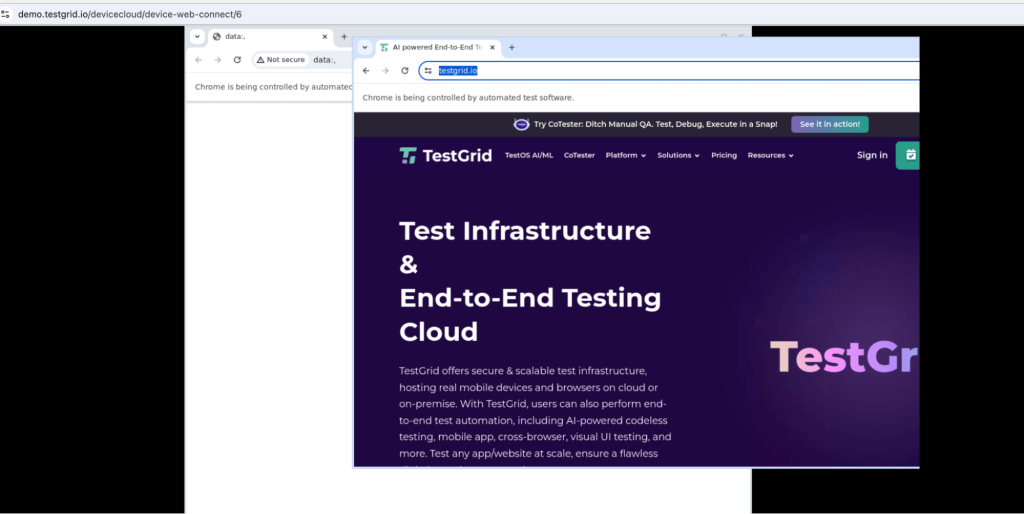
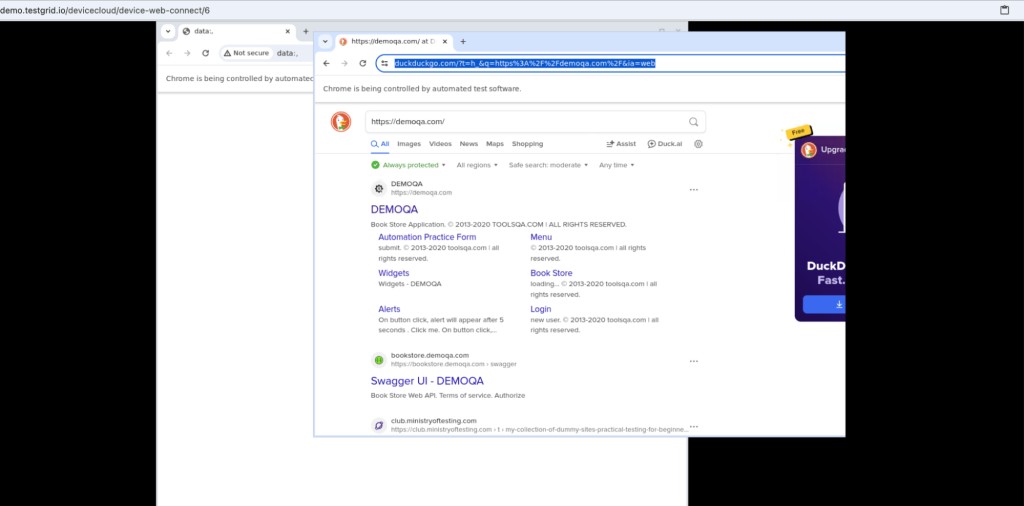
We are using the scenario below to automate and execute the same test case in the cloud.
Test Case 1
- Searches for the TestGrid website on DuckDuckGo.
- Click the search result titled: “AI-powered End-to-End Testing Platform – TestGrid”.
- Navigates to the Sign In page.
- Enter credentials:
- Email: demo@demo.com
- Password: demo
- Click the Sign In button to attempt login.
Test Case 2
- Searches for the DemoQA website on DuckDuckGo.
- Click on the “DEMOQA” link from the search results.
- Navigates to the “Elements” section.
- Clicks on the “Check Box” item.
- Interacts with a specific node in the checkbox tree structure.
Code snippet
// @ts-check
const { test, expect } = require('@playwright/test');
test('TestGrid website on DuckDuckGo.', async ({ page }) => {
 await page.goto('https://duckduckgo.com/?t=h_&q=https%3A%2F%2Ftestgrid.io%2F&ia=web', { waitUntil: 'load' });
 await page.goto('https://duckduckgo.com/?t=h_&q=https%3A%2F%2Ftestgrid.io%2F&ia=web', { waitUntil: 'load' });
 await page.getByRole('link', { name: 'AI powered End-to-End Testing Platform - TestGrid', exact: true }).click();
 await page.getByRole('link', { name: 'Sign in' }).click();
 await page.getByPlaceholder('Email').click();
 await page.getByPlaceholder('Email').fill('demo@demo.com');
 await page.getByPlaceholder('Password').click();
 await page.getByPlaceholder('Password').fill('demo');
 await page.getByRole('button', { name: 'Sign In' }).click();
});
test('DemoQA website on DuckDuckGo.', async ({ page }) => {
 await page.goto('https://duckduckgo.com/?t=h_&q=https%3A%2F%2Fdemoqa.com%2F&ia=web', { waitUntil: 'load' });
 await page.goto('https://duckduckgo.com/?t=h_&q=https%3A%2F%2Fdemoqa.com%2F&ia=web', { waitUntil: 'load' });
 await page.getByRole('link', { name: 'DEMOQA', exact: true }).first().click();
 await page.getByRole('heading', { name: 'Elements' }).click();
 await page.getByText('Check Box').click();
 await page.locator('#tree-node').getByRole('img').nth(3).click();
});
Step 3: Run Tests Remotely
Copy the remote execution command from the TestGrid dashboard and run it in your terminal within the project directory.

Here’s an example
SELENIUM_REMOTE_URL=http://{your_domain}.testgrid.io/browserrun{port} \
SELENIUM_REMOTE_CAPABILITIES='{
“browserName”: “chrome”,
“tg:udid”: “101”,
“tg:userToken”: “{User_token}”
}’ \
npx playwright test –headed
Replace {your_domain}, {port}, and {User_token} with your specific TestGrid credentials.
As soon as we trigger the above test command from the terminal, the test case starts executing on the local machine and the TestGrid cloud environment.
Step 4: Check Your Results
After running the above command, we can see the report in two convenient ways:
Locally: See execution logs in your terminal and access a generated HTML report.


Test Case Execution TestGrid
Once the execution starts, you will see that the browser ‘chrome’ is connected, and the test case starts execution.

Below are some of the screenshots of the TestGrid cloud, where you can see the test case mentioned above executing.
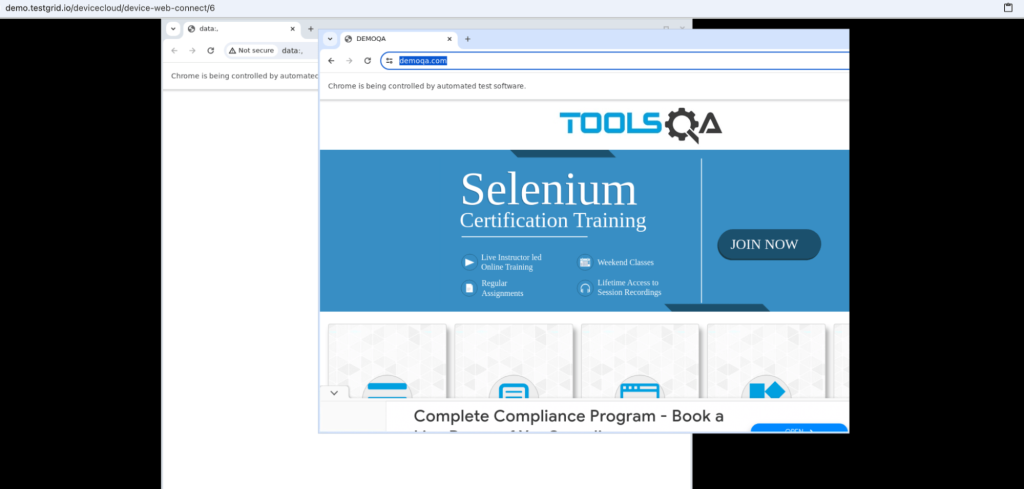

Dashboard:
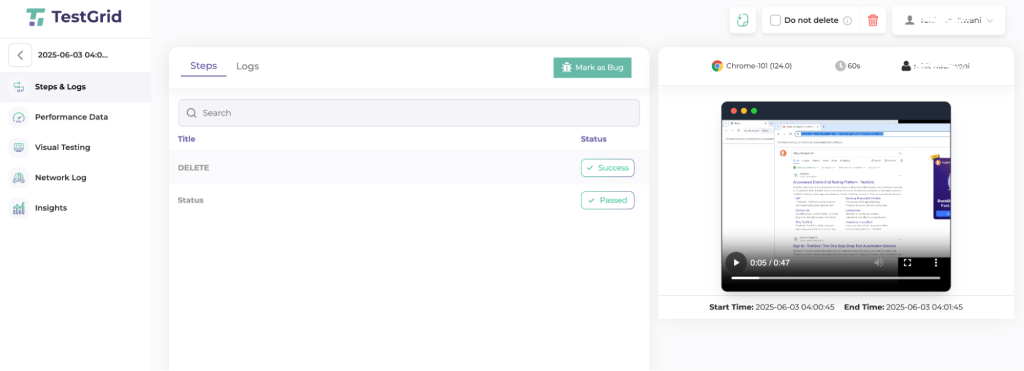
To view the report in the Test Grid dashboard, follow the Path: Automations –> Select Browser Chrome-101.
You will see the screen below

Click on the first executed session from the screenshot below, and you will see the test case that we executed displayed with VIDEO

Frequently Asked Questions
Is Playwright better than Selenium or Cypress?
Playwright offers built-in cross-browser support, automatic waiting, and faster parallel execution out of the box, which Selenium and Cypress require more setup to achieve.
What programming languages does Playwright support?
Playwright natively supports JavaScript and TypeScript, with official bindings for Python, Java, and C#.
Is Playwright free to use?
Yes. Playwright is a free, open-source framework maintained by Microsoft.
Which browsers does Playwright support?
Playwright supports Chromium, Firefox, and WebKit (Safari’s engine), covering all major browser engines from a single API.
Conclusion
Playwright offers a powerful and versatile framework for test automation, making it a valuable tool for developers and testers alike. Its ability to handle multiple browsers, provide cross-platform support, and offer rich APIs for interaction and validation makes it stand out in the test automation landscape. By following the step-by-step guide, users can leverage Playwright’s capabilities to create reliable, efficient, and scalable automated tests, ultimately enhancing the quality and performance of their applications. Embracing Playwright can streamline testing processes, reduce manual effort, and ensure a more robust and seamless user experience.