 CoTester 2.0 is LIVE! Your Always-Available AI Teammate for Testing.

In Selenium, to perform any action on a web element, such as clicking, typing, or selecting, you first need to locate that element on the web page. Selenium provides various locator strategies based on the element’s attributes, like ID, class, name, etc. However, in real-world scenarios, you may encounter dynamic web elements whose attribute values change frequently, or elements that cannot be uniquely identified using a single attribute.
In such cases, you need to create more flexible or dynamic locators by combining multiple attributes or using special syntax. CSS selectors are one such powerful locator strategy. It allows you to create dynamic and complex locators using combinations of attributes, classes, and element hierarchy, which makes it extremely useful for locating tricky or dynamic elements.
Most of the web pages are styled using CSS (Cascading Style Sheets), and as a result, using CSS-based locator strategies is often an efficient choice for locating elements in Selenium web automation.
What are CSS Selectors?
CSS Selectors in Selenium WebDriver are pattern-based locator expressions that identify and target specific HTML elements on a web page by matching their tag names, attributes, IDs, classes, or structural position within the DOM.
Defined by the W3C CSS specification and natively supported by all modern browsers, CSS selectors follow a standardized syntax such as #id, .class, [attribute=’value’], or parent > child that allows test automation engineers to construct both simple and highly complex element locators within a single expression. Unlike other locator strategies, CSS selectors can match elements using partial attribute values (via ^=, $=, and *= operators), traverse parent-child hierarchies, and target elements by their positional index, making them the preferred choice for locating dynamic or non-unique web elements in robust, scalable Selenium test suites.

Read Also: The Ultimate Guide to Locators in Selenium
Types of CSS Selectors in Selenium with Examples
In Selenium WebDriver, CSS Selectors can be used to locate web elements using the By.cssSelector() method.
The following are the various CSS Selector strategies that can be used to locate web elements.
1. ID
The ID selector is one of the most straightforward and commonly used CSS selectors. It uses the “#“ symbol followed by the element’s “id” value to select the desired element.
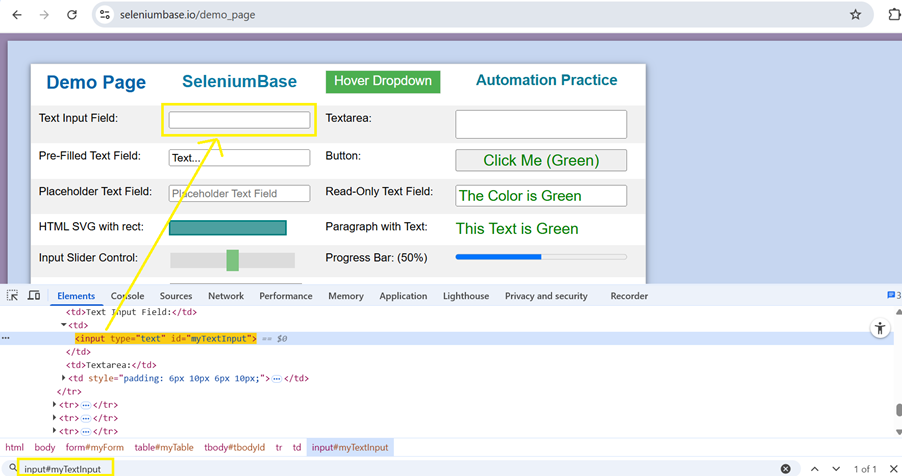
In the above example, inspecting the text input field shows that the input tag has an id value of “myTextInput”.
To locate a text input field with an id attribute, the following syntax can be used:
driver.findElement(By.cssSelector(“<tagname>#<id value>”));
driver.findElement(By.cssSelector(“#<id value>”));
driver.findElement(By.cssSelector(“<tagname>[id=’<id value>’]”));
Different CSS selectors to locate the text input field are:
driver.findElement(By.cssSelector("input#myTextInput"));
driver.findElement(By.cssSelector("#myTextInput"));
driver.findElement(By.cssSelector("input[id=’myTextInput’]"));
2. Class
The class selector is another way of locating the element based on their class attribute. Using class selectors may identify more than one web element, as the same class name can be used for various elements on the web page.
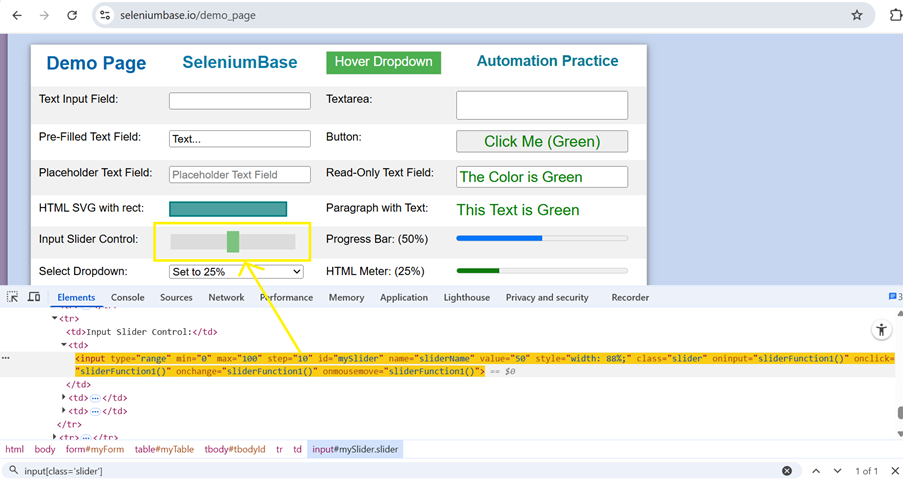
In the above example, inspecting the input slider control element shows that the input tag has a class value of “slider”.
To locate a slider control with a class attribute, the following syntax can be used:
driver.findElement(By.cssSelector(“<tagname>.<class value>”));
driver.findElement(By.cssSelector(“.<class value>”));
driver.findElement(By.cssSelector(“<tagname>[id=’<id value>’]”));
Different CSS selectors to locate the slider control element are:
driver.findElement(By.cssSelector("input.slider"));
driver.findElement(By.cssSelector(".slider"));
driver.findElement(By.cssSelector("input[class='slider']"));
3. Attribute
In addition to ID and class attributes, you can use other attributes such as type, name, style, value, or any other unique attribute to locate elements using CSS selectors.
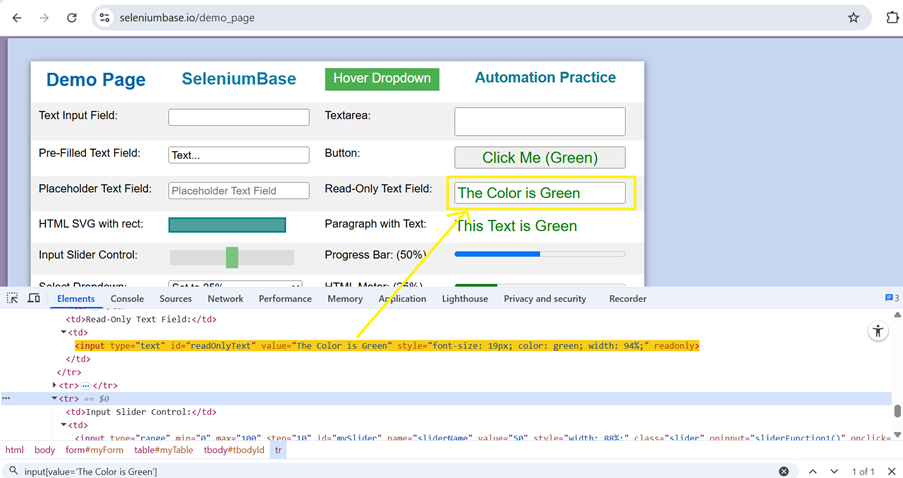
In the above example, inspecting the read-only text field element shows that the input tag has a value attribute as “The Color is Green”.

To locate a slider control with a value attribute, the following syntax can be used:
driver.findElement(By.cssSelector(“<tagname>[attribute_name=’<attribute value>’]”));and the CSS Selector would be,
input[value=‘The Color is Green’]4. Combining attributes
In the above examples, you can uniquely identify elements using ID, class, and a unique attribute. However, sometimes using only a class, ID, or a single attribute does not yield a unique locator for a given web element. In such cases, you can combine multiple attributes to create a unique selector.
- ID and attribute example:
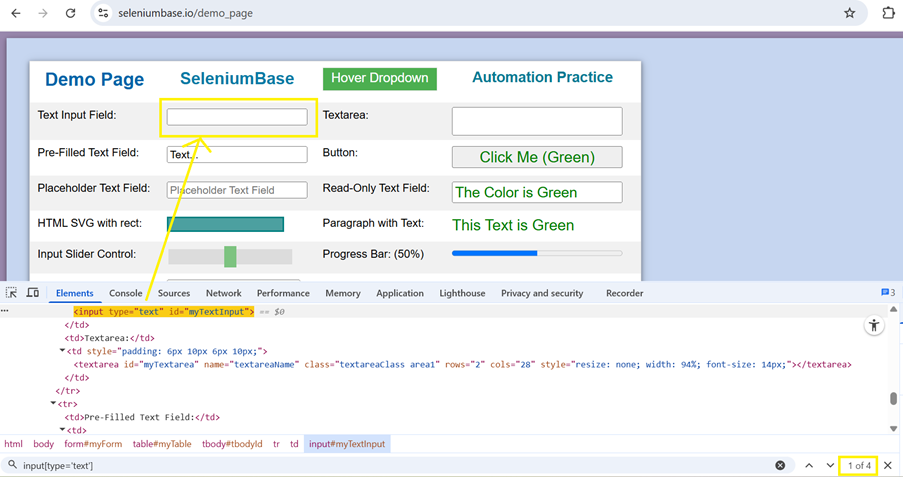
In the above example, if you try to locate the text input field using only the type attribute, you will find four elements on the web page. To uniquely identify the desired element, you need to use one more attribute, which is ID. The complete selector would be:
CSS Selector: input#myTextInput[type='text']- Class and attribute example:
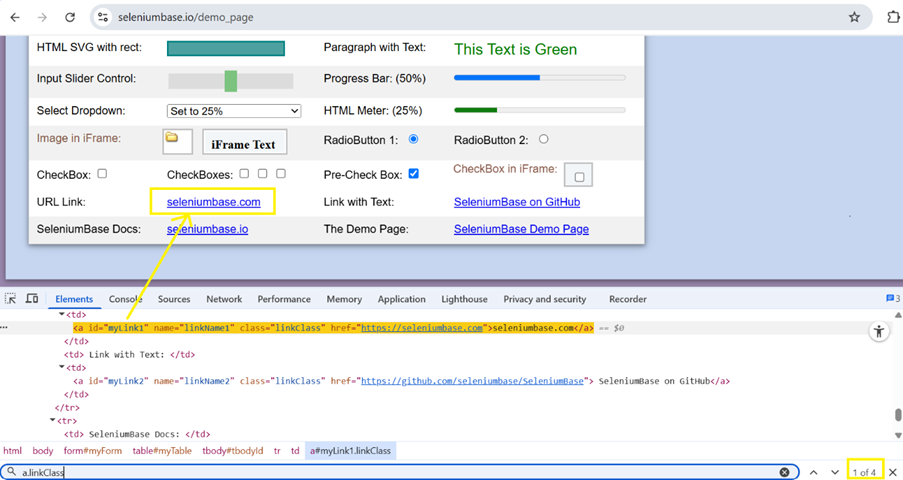
In the above example, if you try to locate the seleniumbase.com URL using only the class attribute, you will find four elements on the web page that have “linkClass” as a class value. To uniquely identify the URL, you need to use one more attribute, which is the name. The complete selector would be:
CSS Selector: a.linkClass[name='linkName1']Building reliable locators is an important part of Selenium automation. Along with CSS Selectors, understanding other locator techniques helps you handle different types of web elements more effectively. If you’d like to learn another widely used locator strategy, check out our guide on XPath in Selenium.
5. Substring selector
In Selenium, CSS selectors support partial string matching with the help of specific symbols to match the beginning (^), end ($), or any part (*) of an attribute’s value. These are especially helpful when the attribute’s exact value is dynamic, but a part of it is known and is always fixed.
- Matching a prefix (starts with: ^): To locate a web element using the substring that starts with a specific value.
Syntax:
driver.findElement(By.cssSelector(“<tagname>[<attribute>^=’string prefix’]”));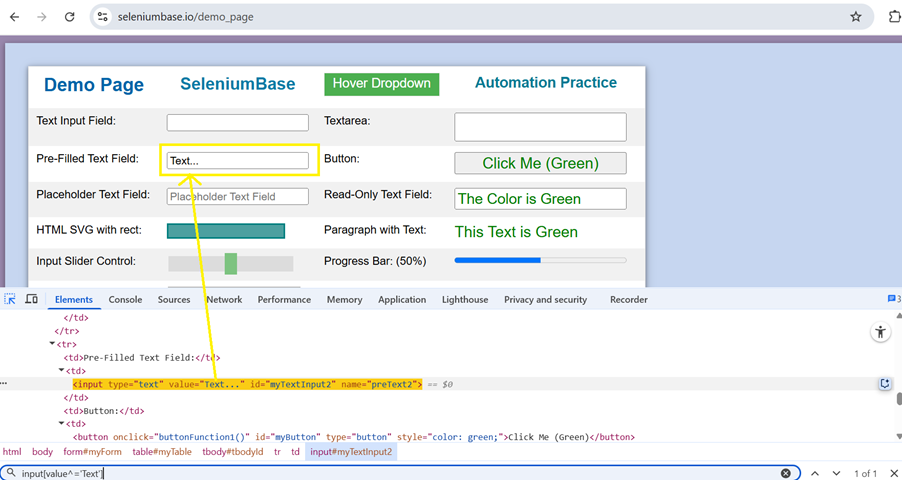
In the above example, the pre-filled text field has a value of “Text…”. If the value is dynamic, for example, “Text…1” or “Text…2”, you can use a CSS selector that matches elements whose value attribute starts with “Text“. Here is how you can write it:
CSS Selector: input[value^='Text']b. Matching a suffix (ends with: $): To locate a web element using the substring that ends with a specific value.
Syntax:
driver.findElement(By.cssSelector(“<tagname>[<attribute>$=’string suffix]”));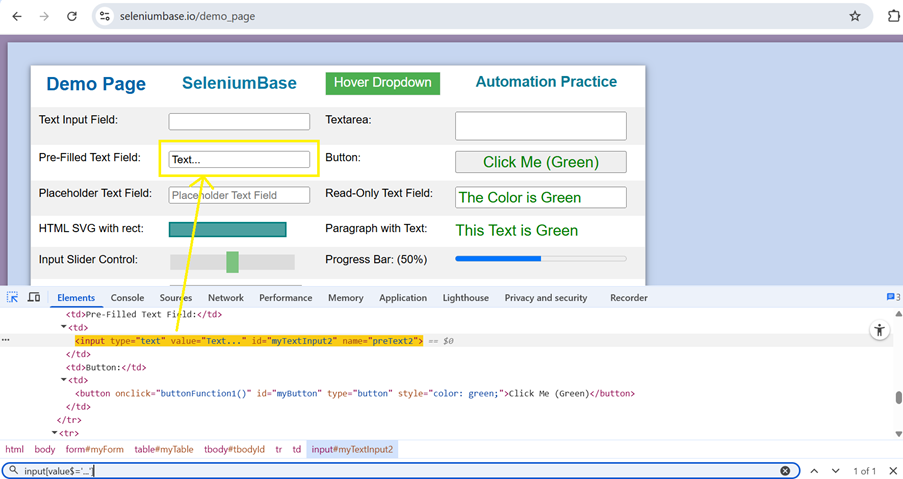
In the above example, the pre-filled text field has a value of “Text…”. If the value is dynamic but you are sure that it always ends with “…”, you can use a CSS selector like below:
CSS Selector: input[value$='...']c. Matching a substring (contains: *): To locate a web element using the substring that appears anywhere in the attribute value.
Syntax:
driver.findElement(By.cssSelector(“<tagname>[<attribute>*=’substring]”));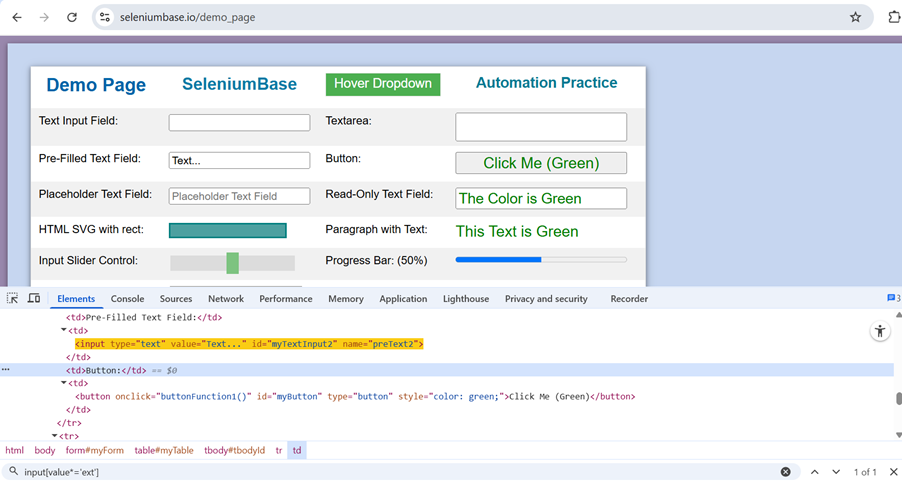
In the above example, the pre-filled text field has a value of “Text…”. If the value is dynamic, for example, “Text…” or “Next…”, you can use a CSS selector that matches elements whose value attribute always contains “ext“. Here is how you can write it:
CSS Selector: input[value*='ext']6. Parent Child hierarchy
Selenium allows you to locate elements in the HTML DOM based on their relationship with other elements. The following are some of the ways by which child elements can be selected using CSS selectors.
a. Descendant selector: It is used to select all elements that are descendants of another element. It is represented by a space between two or more tags.
Syntax:
<tag_name1> <tag_name>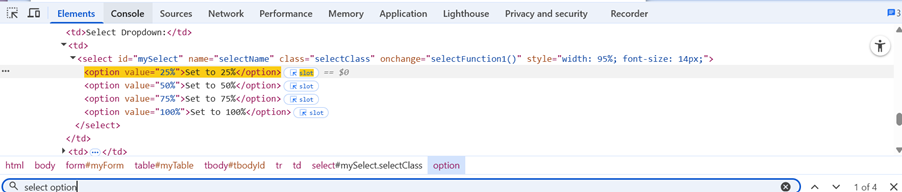
Example:
select optionIn the above example, all four options are located. If you need to locate the option with a value of “25%”, the following selector can be used:
select option[value='25%']b. Direct child selector: It is similar to the descendant selector, but only selects elements that are direct children of another element. It is represented by > between two tags.
Syntax:
<tag_name1> > <tag_name>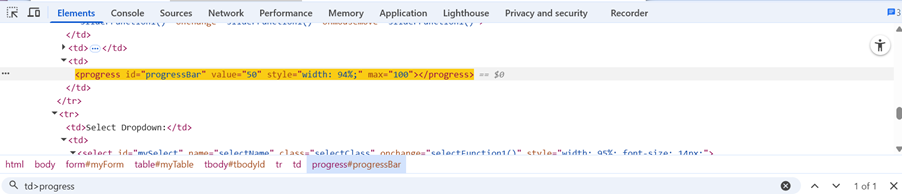
Example:
td>progressHere, the <progress> tag is the direct child of the <td> tag.
c. Tagname with “nth-of-type(n)”: It is used to locate the child web element from the list using the index number.
Syntax:
<tag_name>:nth-of-type(index#)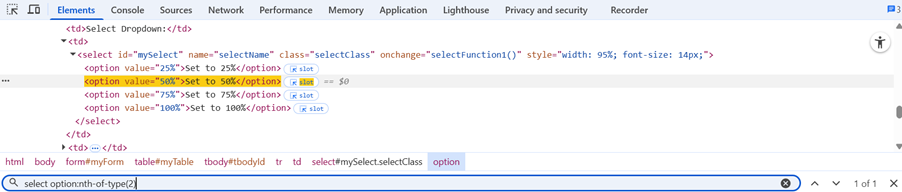
Example:
select option:nth-of-type(2)In the above example, nth-of-type(2) selects the second element from the list of four, since the “select option” selector matches four <option> elements.
d. Tagname with “first-of-type”: It is used to locate the first tag web element from the list of web elements.
Syntax:
<tag_name>:first-of-type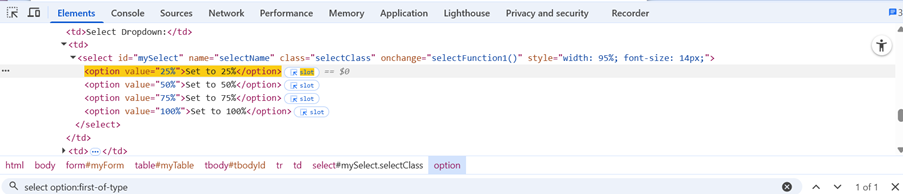
Example:
select option:first-of-typeIn the above example, from the list of four elements, it selects the first web element.
e. Tagname with “last-of-type”: It is used to locate the last web element from the list of web elements.
Syntax:
<tag_name>:last-of-type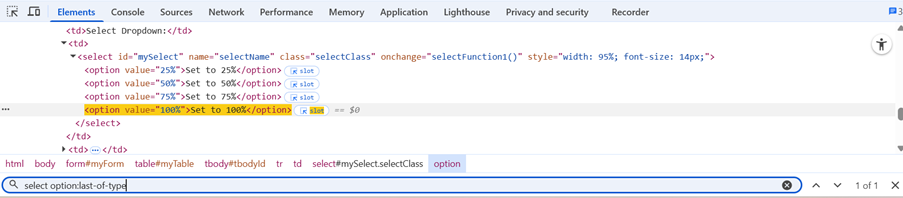
Example:
select option:last-of-typeIn the above example, from the list of four elements, it selects the last web element.
Why use CSS Selectors
1. Fast execution: CSS selectors are generally faster than XPath in most of the browsers, as they do not require traversing the entire DOM and can directly target specific elements.
2. Easy syntax: CSS Selectors are shorter and cleaner as compared to XPath, which makes it more readable.
3. Supports partial matches: CSS supports partial matches using special symbols such as ^(starts with), $(ends with), and *(contains), which makes it easier to handle dynamic attributes of web elements.
Conclusion
In Selenium web automation, creating CSS selectors is a skill that every tester should master, as it is essential for accurately identifying and interacting with web elements. Whether you are working with elements that have simple attributes or ones with dynamic and complex properties, using CSS selectors to create the locators makes your test scripts more efficient and maintainable. By mastering these selectors, you can write more efficient and scalable automated tests.


