CoTester 2.0 is LIVE! Your Always-Available AI Teammate for Testing.
- What Is Playwright?
- What Is Selenium?
- What Is Cypress?
- Features Comparison: Playwright vs Selenium vs Cypress
- How to Run Tests: Playwright vs Cypress vs Selenium
- Selenium vs Playwright vs Cypress: Trends and Performance/Speed
- Comparison of Playwright vs Cypress vs Selenium
- Playwright vs Cypress vs Selenium: Which One Is the Right Choice for You?
- Selenium vs Playwright vs Cypress: Quick overview
- Scale Automation and Parallel Testing with TestGrid
- Frequently Asked Questions (FAQs)
- Is Playwright replacing Selenium?
- Can I use all three frameworks together in the same project?
- Which testing framework is easiest to set up among Selenium, Playwright, and Cypress?
- Can I use Playwright, Selenium, or Cypress for mobile testing?
- Which automation tool is best for Angular or React component testing?
- Which tool is better for running tests in a distributed automation setup?
- Should You Migrate from Selenium to Playwright?
Playwright, Selenium, and Cypress are all popular names in the test automation space, and each has its unique capabilities, limitations, and ideal use cases.
That’s probably why we have often seen QA teams get confused about which of these automation tools is apt for their product, test setup, and team.
A report shows that the automation testing market can touch $84.22 billion by 2034 from $20.60 billion in 2025. This growth signals that it’s more important than ever to invest in the right automation tool.
In this blog, we will compare Playwright vs Selenium vs Cypress in detail, so you know which one to go for.
For scalable end-to-end test automation, request a free trial of TestGrid.

TL;DR
- Playwright is an automation testing framework with parallel execution, cross-browser testing, and auto-waiting features
- Selenium web app test automation framework that supports multiple programming languages and enables testing across many browsers
- Cypress is a JavaScript-based testing framework with real-time debugging capabilities
- Selecting between Playwright, Selenium, and Cypress depends on your app architecture, team expertise, and testing goals
- Assessing execution speed and parallelization is important before selecting automation tools, so that teams can test and release after
- When choosing between the tools, make sure you look at cross-platform testing support, test stability, ease of use, and integrations
What Is Playwright?
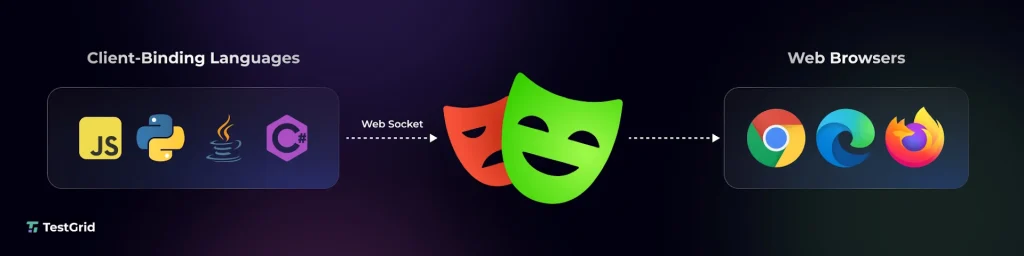
Playwright is one of the best open source test automation tools, which helps you perform end-to-end testing on major modern browsers like Chromium, Firefox, and WebKit, as well as operating systems like Linux, Windows, and macOS.
Playwright’s Codegen command enables you to record test cases and then save them in any language of your choice, including JavaScript, Python, Java, TypeScript, and .NET.
The playwright also works with WebSocket directly. This means when you trigger a test, the code will get converted into JSON format and sent to the server via the WebSocket protocol.
What Is Selenium?
Selenium is an open-source automation framework for software testing that allows you to write scripts in many languages, like Java, JavaScript, PHP, Python, and Ruby, and execute them across multiple browsers and platforms, upload files, and debug seamlessly.
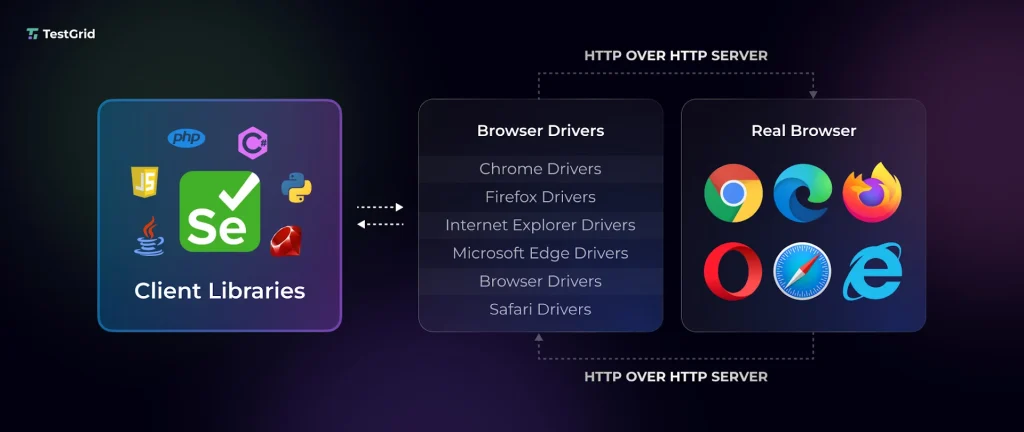
This tool specifically helps you test web apps. Your testers can use a grid of browser instances to run tests in parallel. The Selenium suite includes tools like Selenium WebDriver (for writing and running tests), Selenium IDE (to record tests), and Selenium Grid (to scale execution).
Also Read: Playwright vs Selenium: Head-to-Head Comparison
What Is Cypress?
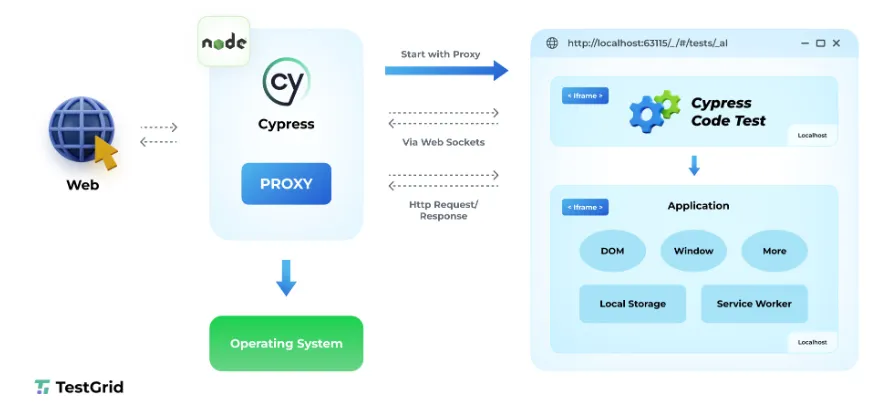
Cypress is a modern testing framework that comes with AI-powered guidance. This tool provides you with features like natural language authoring, interactive test recording, self-healing, time travel debugging, and comprehensive reporting.
You can watch your tests in real time as you develop your app, get AI recommendations, and describe your test flows in plain English. Cypress runs right inside your browser, which helps you debug your failed tests with the in-browser developer tools you already use.
Also Read: Cypress vs Selenium: Which is Best for Automation
Features Comparison: Playwright vs Selenium vs Cypress
1. Installation and configuration
How you set up and configure automation tools depends on the architecture and dependencies of each tool. Here we will see how you can prepare each tool for creating and executing your tests.
Playwright: Playwright can be fairly easy and quick to install and start testing. But before you begin the configuration process, make sure that you download the latest version of Node.js.
There are normally two ways to install Playwright;
- One by using the init command
- Another via the VS Code extension
Init command: First, you need to create a folder, then open it in the editor, and then choose and run any of the commands mentioned below.
npm init playwright@latestyarn create playwrightpnpm create playwrightSelect your project language (JavaScript or TypeScript) while installation, and after setup, you’ll already have a .spec file ready for use.
2. VS Code extension
You should download Visual Studio Code, go to Extensions, and then install Playwright Tests. This will automatically download all the required browser binaries and dependencies.
Cypress: Check the system requirements, including the OS configurations, Node.js versions, and a supported package manager. Then, run the command below to install Cypress locally as a dev dependency for your project.

After that, run this command, and it will open the Cypress app. Now, you can start writing your tests.

Selenium: Usually, configuring Selenium includes multiple steps and can be a bit challenging because it depends on browser drivers and language bindings.
So, for using Selenium, you’ll first have to install the Selenium bindings for your automation project. How you install, and the process relies on which programming languages you want to write your scripts in.
Say, you want to build your tests in Python, you can use the command,
pip install seleniumMake sure you check the minimum supported Python versions before you set it up.
Learn More: How to Handle Common Exceptions in Selenium
2. Runner
A runner is actually an engine that helps you run your tests. It scans your source code directory, finds your test files, runs them in the correct order, detects errors or issues, and gives you a report of test results.
Playwright: Playwright has its own built-in test runner, but it also supports integrations with third-party runners like Jasmine or Jest, AVA, Mocha, and Vitest. You can execute your test cases in multiple browsers in headless mode. And you get your results directly in the terminal.
Selenium: There are different runners, each with its own set of unique features, which you can use to execute your Selenium scripts. Here’s a quick overview of the test runners that this automation tool supports:
- Selenium WebDriver – this is probably used by most testers. It helps you automate web browser actions like clicking and navigating
- TestNG – this test framework allows you to design test cases, define test suites, and enable parallel testing
- JUnit – this is another framework that has similar capabilities to TestNG, and helps you create and run tests in parallel
- Maven – this is a build automation tool that lets you manage your tests, define dependencies, and automate deployment
- Jenkins – this CI tool allows you to automate your build, test, and deployment process
Cypress: Cypress comes with a runner that lets you see the executing commands and the app under test in real time. Apart from this, the Cypress runner gives you an intuitive graphical interface to visualize and debug your tests.
You can also see your test status, the number of tests you executed, the time it took to run the tests, and test results in the test status menu.
3. Record and Playback
This feature helps you create tests just by interacting with your app. You can click buttons, fill out forms, or switch between pages, and a recorder will capture this and turn these actions into structured test scripts.
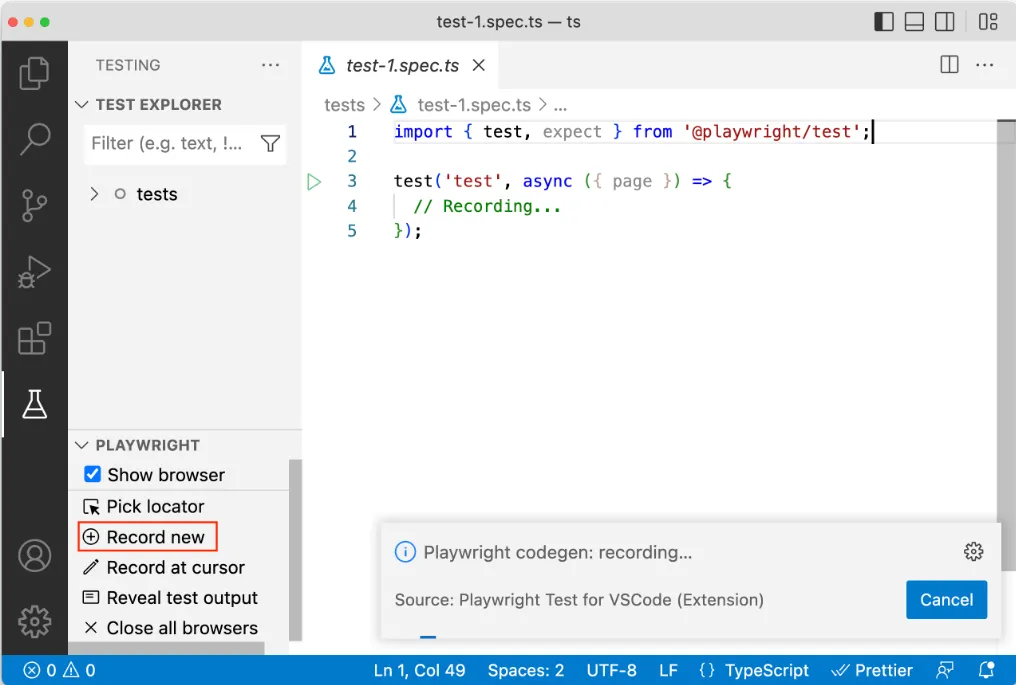
Playwright: If you want to record a new test in Playwright, click on the Record new button that you’ll find in the testing sidebar. This will create a test-1.spec.ts file and open a browser window. Then you can go to the URL you want to test and start clicking around your app to record your actions.
This tool will automatically capture the actions and then generate code right in VS Code.
Selenium: The Selenium IDE is a browser extension that allows you to record your actions with the help of existing Selenium commands. When you create your first test, you’ll be asked to name it and provide a URL of the app you wish to test.
A new browser will open where you can begin recording your test by engaging with your app. Every single one of your actions will be logged in the IDE.
Learn More: Test Creation using Record and Playback Testing
Cypress: You can record your tests in Cypress with the help of Studio AI. For that, you have to first link Studio AI with your Cypress Cloud account. Click New Test to create your test, give the test a descriptive name, and enter the URL.
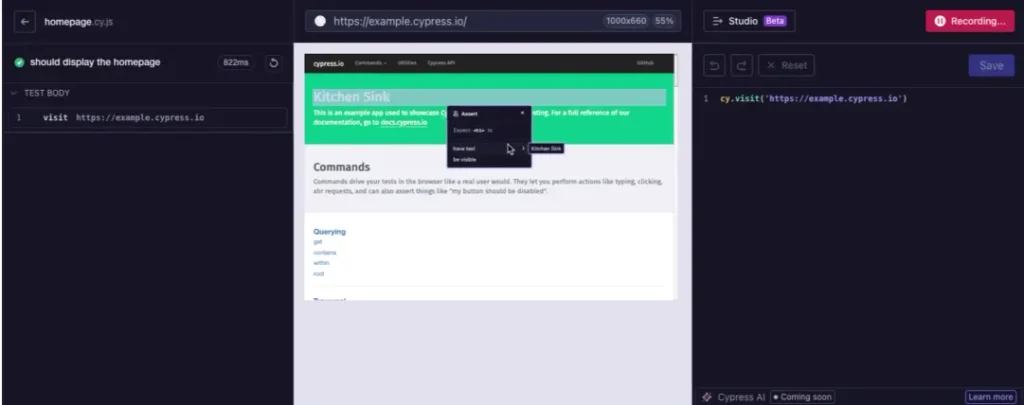
Studio AI will put you in recording mode, after which you can normally use your app, and each action will be converted into a Cypress command in real time. These are some supported actions: .click(), .type(), .check(), .uncheck(), .select().
4. Parallel execution
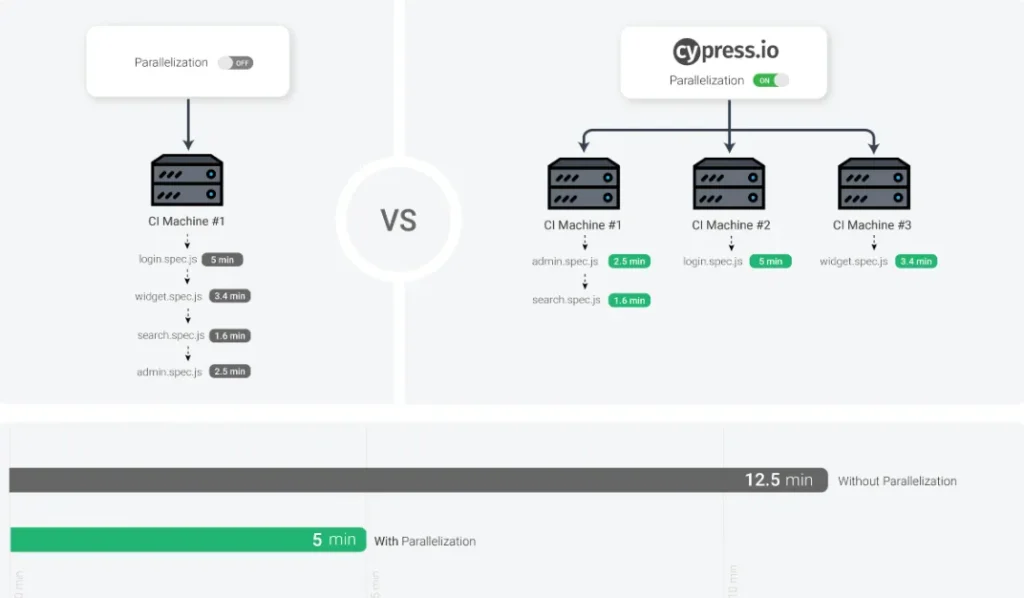
Parallel execution is a method where you run multiple tests at once across browsers, machines, or threads rather than executing tests one after the other. This helps you speed up execution and reduce overall testing time.
Playwright: In Playwright, by default, your tests run in parallel. You can configure tests via test.describe.configure, which will allow parallel testing of test cases in a single file across browsers. Other than this, you can also run all your tests in all files to run in parallel with configuration settings like testProject.fullyParallel or testConfig.fullyParallel.
If you want, you can even control the maximum number of parallel worker processes with this command:
npx playwright test --workers 4Selenium: Selenium Grid helps you execute WebDriver scripts on multiple remote machines in parallel. You can also test on different browser versions and enable cross-platform testing. Moreover, you can do parallel testing via TestNG, too, by setting parameters such as methods, tests, instances, and classes.
Cypress: Cypress can help you run your recorded tests in parallel on many machines. But for that, your tests will have to be split across separate files. After you have machines available within your CI environment, you can then pass the –parallel key to cypress run to parallelize your tests.
5. Element Selection
Element selection is the way your tests identify and interact with the elements on the webpage, like buttons or links, by leveraging locators such as CSS selectors, XPath, or text-based queries.
Playwright: Playwright offers you recommended built-in locators. You should focus more on the user-facing attributes and explicit contracts to make your tests more resilient. You can use the code generators to generate a locator and then edit it as you like. One big benefit of Playwright is that it relocates elements before every action so you can ensure your tests interact with only your latest DOM state.
Selenium: Selenium gives you support for different traditional locator strategies in WebDriver to find and select elements on your webpage. These are:
| Locator | Description |
|---|---|
| class name | Locates elements whose class name contains the search value (compound class names are not permitted) |
| css selector | Locates elements matching a CSS selector |
| id | Locates elements whose ID attribute matches the search value |
| name | Locates elements whose NAME attribute matches the search value |
| link text | Locates anchor elements whose visible text matches the search value |
| partial link text | Locate anchor elements whose visible text contains the search value. If multiple elements match, only the first one will be selected. |
| tag name | Locates elements whose tag name matches the search value |
| xpath | Locates elements matching an XPath expression |
Other than this, Selenium also has relative locator strategies. So, if an email text field element couldn’t be identified for some reason, but the password field element is visible, Selenium can find the email field based on its position, i.e., the input field above the password field.
Cypress: This tool mainly depends on the CSS selectors and text-based queries to identify and locate DOM elements before it performs actions. Cypress also has retryability for automatically re-querying the DOM elements till they appear.
This snippet will help you understand how Cypress selects elements.
cy.get(selector)
cy.get(alias)
cy.get(selector, options)
cy.get(alias, options)
6. Community Support
Community support is extremely important for the long-term usability of any automation tool. A strong and active community helps you easily troubleshoot issues, gives you tips and guides on how to use a tool, and speeds up your learning process via shared examples, real solutions, plugins, and discussions.
Playwright: Playwright is a relatively newer tool compared to the other two and hence has a smaller but growing community.
You get numerous resources that will help you quickly learn and start using the tool, as well as solve any issues that you may face. It has an active presence on GitHub, where you can submit bug reports and feature requests.
Selenium: Selenium has a large community of developers and users. The tool offers you a robust and rich documentation that has help guides for installation and setup.
Plus, there are forums where you can participate in active discussions and solve issues. There’s also a Selenium Slack channel where you’ll find users or developers who are available to answer your questions.
Cypress: Cypress, too, has a growing community, extensive documentation, and unofficial forums where users can connect. There are resources like comprehensive API references, installation guides, a library of example projects, blogs, and tutorials.
How to Run Tests: Playwright vs Cypress vs Selenium
Playwright
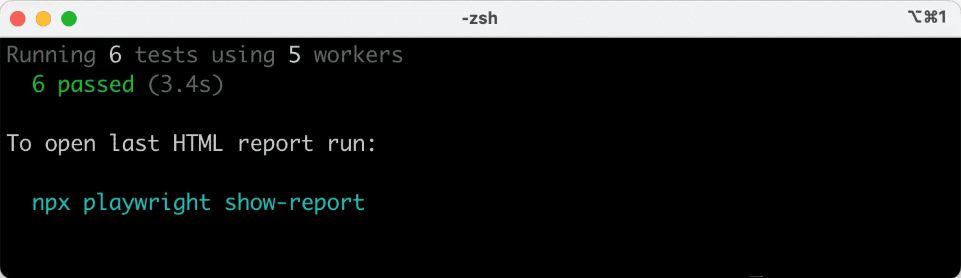
With the help of Playwright, you can run a single test, a set of tests, or all tests. And you can execute them on one browser, multiple browsers, in headed mode, or in UI mode. You can easily execute your tests with the Playwright test command and get results in the terminal.
As Playwright test suites grow, teams often need better visibility into flaky tests, retries, and execution history across CI runs.
Alongside Playwright’s built-in reporting, some teams use tools like TestDino to review and organize test execution data across different environments and CI workflows.
Learn More: Guide to Component Testing with Playwright
Cypress
After you set up Cypress and open the app, you’ll be guided to the Launchpad, where you can select your testing type, and it’ll scaffold out a set of configuration files which you can review.
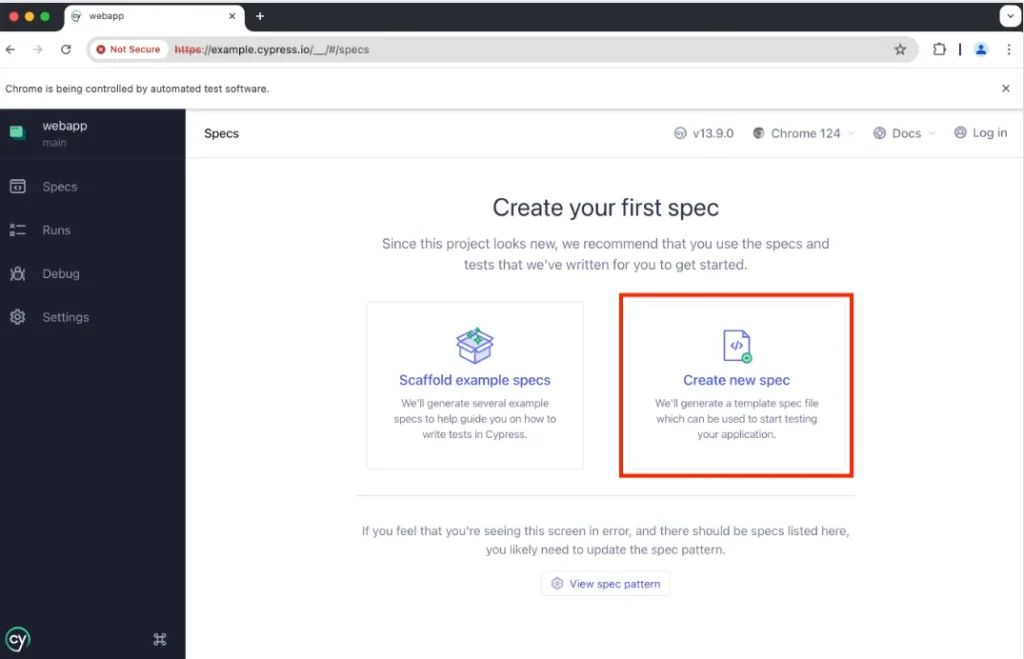
Next, you will be shown the list of compatible browsers that Cypress found on your machine. Then you can add a test file and write your first test. Now you can execute tests in a headless mode and watch them in real time.
Selenium
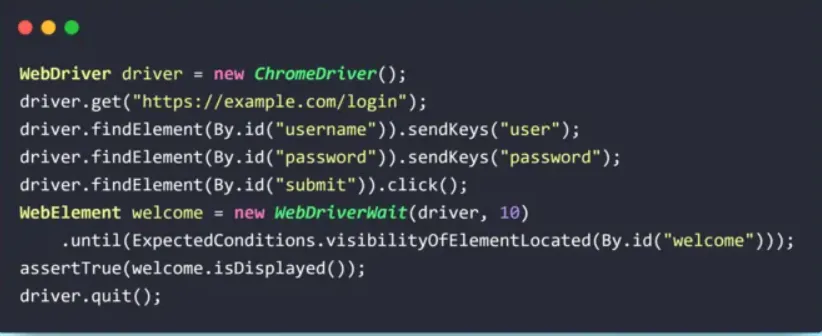
Selenium allows you to run the same instructions or your scripts against multiple browsers and operating systems. You can write your scripts in Java, Python, C#, JavaScript, and Kotlin, and then execute them via frameworks like TestNG, pytest, or JUnit.
Here’s an example of a Java Selenium WebDriver test script to help you get started.
Learn More: AI in Test Automation: A Detailed Overview
Selenium vs Playwright vs Cypress: Trends and Performance/Speed
You can analyze how efficient an automation tool is based on how much time it takes for test execution, whether its tests are stable, and how well it can support parallel execution and debugging.
From the data below, you can see that Playwright shows the fastest cold start, i.e., in 2-4 seconds as well as the quickest execution (3-8 seconds).
Cypress executes tests more slowly than Playwright and takes an average of 5-10 seconds. Selenium is the slowest in terms of test execution and takes the longest to initialize before running tests.
| Scenario | Selenium | Playwright | Cypress |
|---|---|---|---|
| Cold Start (sec) | 6-10 | 3-6 | 2-4 |
| Avg. E2E Test (sec) | 10-20 | 5-10 | 3-8 |
| Flakiness | Higher | Low | Lowest |
| Native Parallel | Grid required | Paid Cloud/DIY | Yes, built-in |
| Trace/Video Debug | Plugin/manual | Built-in | Built-in |
NPM Trend Analysis – Cypress vs Playwright vs Selenium
The npm trends in the last 5 years show that Playwright is steadily growing with the largest number of downloads. Cypress maintains a consistent usage and moderate growth.
Selenium may be the most preferred automation tool for legacy and large enterprises, but its adoption remains relatively flat over the years.
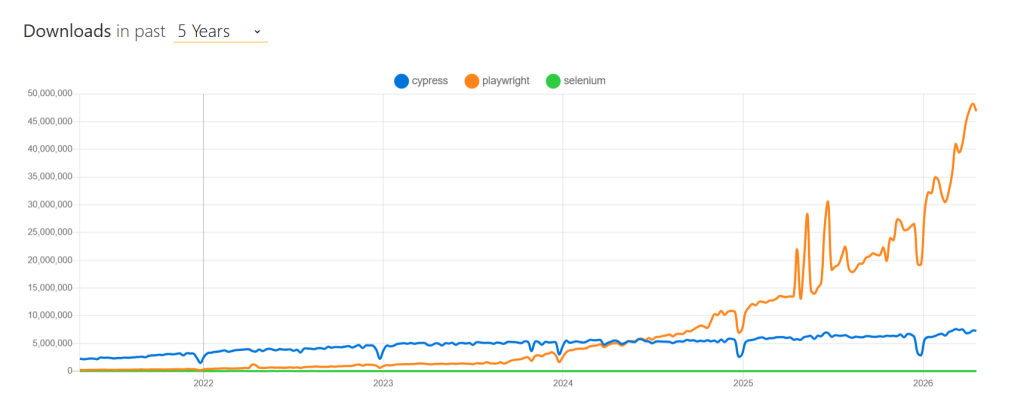
Source: NPMTrends
Comparison of Playwright vs Cypress vs Selenium
Here’s a detailed E2E testing framework comparison. Here we have listed the different features and capabilities of Playwright vs Cypress vs Selenium:
| Criteria | Playwright | Cypress | Selenium |
|---|---|---|---|
| Browser support | Chrome/Chromium, Firefox, and WebKit (Open-source version of Safari) | Chrome, Firefox, and Edge | Chrome, Firefox, Edge, IE |
| Language support | Java, Python, C#, JavaScript, Typescript | JavaScript, TypeScript | Java, Python, C#, JavaScript, Ruby, Perl, PHP, Typescript |
| Framework support | Jest/Jasmine, AVA, Mocha, and Vitest | Supports Mocha, Jest/Jasmine, Cucumber | Mocha, Jest/Jasmine, TestNG, JUnit, Cucumber, NUnit |
| Iframe support | Yes | Yes, via the Cypress iframe plugin | Yes |
| Headless testing | Yes | Yes | Yes |
| Support for CI/CD integration | Yes | Yes | Yes |
| Debugging | Built-in debugging, time travel features | Has robust debugging features | Offers debugging via Selenium IDE |
| Dashboard | Yes | Yes | No |
| Screenshot or video features | Yes | Yes | Screenshot feature available; no video recording functionality |
| Execution speed | High | Moderate | Low |
| Pricing | Free | Starts at $67 per month; free tier available | Free |
Playwright vs Cypress vs Selenium: Which One Is the Right Choice for You?
1. Understand your app architecture: Assess how your app is built (whether it’s a single page, API, or legacy app) before you finalize which of the three is the best test automation framework for you. E.g., Cypress is the best choice for UI heavy apps, Playwright can help you test complex apps well, and Selenium works better for enterprise setups.
2. Look for robust device, browser, and language support: Most apps today are accessed through different devices and browsers; therefore, you need to assess Selenium vs Playwright vs Cypress and check if any of the tools offer cross-platform testing features.
It’s also important to look at the programming language it supports for writing, maintaining, and scaling your tests. This helps your team onboard and collaborate better.
3. Consider your existing tech stack: Always try to select tools that can naturally fit with your testing ecosystem. For that, evaluate Cypress vs Playwright vs Selenium and see if the automation tool can integrate with CI/CD tools, version control systems, reporting frameworks, and test management tools so your test workflows function smoothly.
4. Assess test stability and maintenance needs: You need to evaluate how the tool handles dynamic DOM changes, async behavior, and flaky selectors. Maintenance can become a burden if your tests keep failing because of small UI changes. So, search for auto-waiting, retry-ability, and resilient selector strategies to reduce flakiness in your tests.
5. Evaluate debugging and developer experience: Another very important aspect to consider is how efficiently the automation tool allows you to trace, reproduce, and fix issues. Thoroughly analyze Selenium vs Playwright vs Cypress and pick options that have features like time travel debugging, automatic screenshots or videos, and detailed failure logs.
Selenium vs Playwright vs Cypress: Quick overview
| Choose Playwright if | Choose Selenium if | Choose Cypress if |
|---|---|---|
| You need fast execution and low test flakiness with auto-waiting | You need broad browser support, including legacy environments | Your app is frontend-heavy (React, Angular, Vue) |
| You want built-in parallel execution and scalability | You require multi-language support (Java, Python, C#, etc.) | You want fast feedback with an interactive test runner |
| You’re building for modern web apps and CI/CD pipelines | You already have a large, stable Selenium suite | You prefer a simple setup with minimal configuration |
| You need multi-tab, multi-context, or complex workflows | You need grid-based distributed execution at scale | You’re focused on component or UI-level testing |
| You want advanced debugging (tracing, screenshots, videos) | You need mobile testing with Appium integration | Your team is JavaScript-first |
| You need cross-browser testing (Chromium, Firefox, WebKit) | You’re working in a large enterprise ecosystem | You value developer experience and ease of learning |
Scale Automation and Parallel Testing with TestGrid
If you already have written Selenium, Cypress, or Playwright test scripts, you can easily migrate and execute those tests on scalable AI-powered testing platforms like TestGrid.
This all-in-one platform brings together codeless testing, parallel execution, test automation, rich reporting, and everything that you need to efficiently automate your testing cycles.
Here are some of TestGrid’s best features:
- Create complex tests within minutes with the help of scriptless test authoring
- Execute your tests across a wide range of different real devices and browsers
- Test your native, cross-platform, and hybrid mobile apps using test automation in one unified space.
- Automatically adapt your tests to UI changes, easily debug failures through comprehensive reports, and speed up your release cycles
Simplify test automation and deliver perfect experiences across browsers, devices, and platforms with TestGrid. Request a free trial today.
Frequently Asked Questions (FAQs)
Is Playwright replacing Selenium?
Playwright is not replacing Selenium. Rather, it’s completing it. While you can use Playwright if you have microservices-based web apps, Selenium is preferred more in enterprise environments that have legacy apps and work with multiple programming languages.
Can I use all three frameworks together in the same project?
Yes, you can definitely use all three frameworks together for your project. Cypress can help you run the UI tests. You can leverage Playwright for cross-browser testing. And Selenium can help you test web apps across multiple platforms. However, this approach may increase tool maintenance overhead and complexity.
Which testing framework is easiest to set up among Selenium, Playwright, and Cypress?
Usually, Cypress is easy to set up because it comes with a bundled test runner and built-in configuration. Playwright also has a fairly straightforward installation process through its CLI setup. Selenium can be a bit tricky to set up because you have to configure language bindings and external test runners.
Can I use Playwright, Selenium, or Cypress for mobile testing?
All three tools are basically designed for web testing, so they don’t have native mobile testing features. But you can test your mobile apps via integrations like Appium. Playwright allows you to emulate real devices such as mobile phones and tablets, which you can use for testing mobile web apps.
Which automation tool is best for Angular or React component testing?
Cypress has native component testing support and strong DOM control, and therefore, it can be one of the best test automation frameworks for Angular and React component testing. Playwright can also test components; however, Selenium is less suited for this.
Which tool is better for running tests in a distributed automation setup?
Selenium can be your top pick for distributed execution because it helps you run tests across multiple machines and environments with Selenium Grid and integrates easily with cloud providers and CI/CD tools.
Should You Migrate from Selenium to Playwright?
This depends on what your testing needs are. If you’re building a modern app or microservices architecture UI and want to speed execution, then yes, you should migrate from Selenium to Playwright.