 CoTester 2.0 is LIVE! Your Always-Available AI Teammate for Testing.
Every Selenium script is dependent on one thing: whether it can find the element it needs. You can write the cleanest test logic, but if the locator misses, the test fails before it does anything useful. That is why XPath is crucial in your test scripts. When a button has no id, when three divs share the same class, or when the only thing you can reliably anchor to is a piece of visible text, XPath comes in handy to describe almost any node on the page.
This article is a practical walkthrough of XPath in Selenium. We will start with what it actually is and how it moves through the page. We will look at XPath syntax in Selenium, its types, the functions and axes that make it powerful, and some real XPath examples to make it clear. We will also talk about locator habits that keep the test suites stable over time.
What is XPath in Selenium?
XPath is an abbreviation of XML Path Language, which is a query language that was created to select nodes inside XML documents. An HTML page is represented by the browser as a DOM tree of nested elements, optional attributes, and possibly some text. Because of the similarity, Selenium adopted XPath as one of its locator strategies. When you write By.xpath(“….”), you are providing Selenium with an expression that describes the path to the element you want, and the browser’s engine walks the document to find every node that matches.
Selenium WebDriver supports locator strategies such as id, name, className, tagName, linkText, partialLinkText, cssSelector, and xpath. Of these, XPath is the most expressive because it can navigate both up and down the DOM tree. It is also the only one that can select an element based on the text it displays. This flexibility is the reason why you can see XPath Selenium so much in use in real test suites, even though it is rarely the first locator you should search for.
How XPath Navigates the HTML DOM?
To understand any XPath expression in Selenium, you may assume the Document Object Model as a family tree. The <html> element sits at the top as the root. Inside it are <head> and <body>, and inside those are more elements, each of which can have its own children. Any element directly contained by another is a child of it; the element that contains it is its parent; elements that share the same parent are siblings.
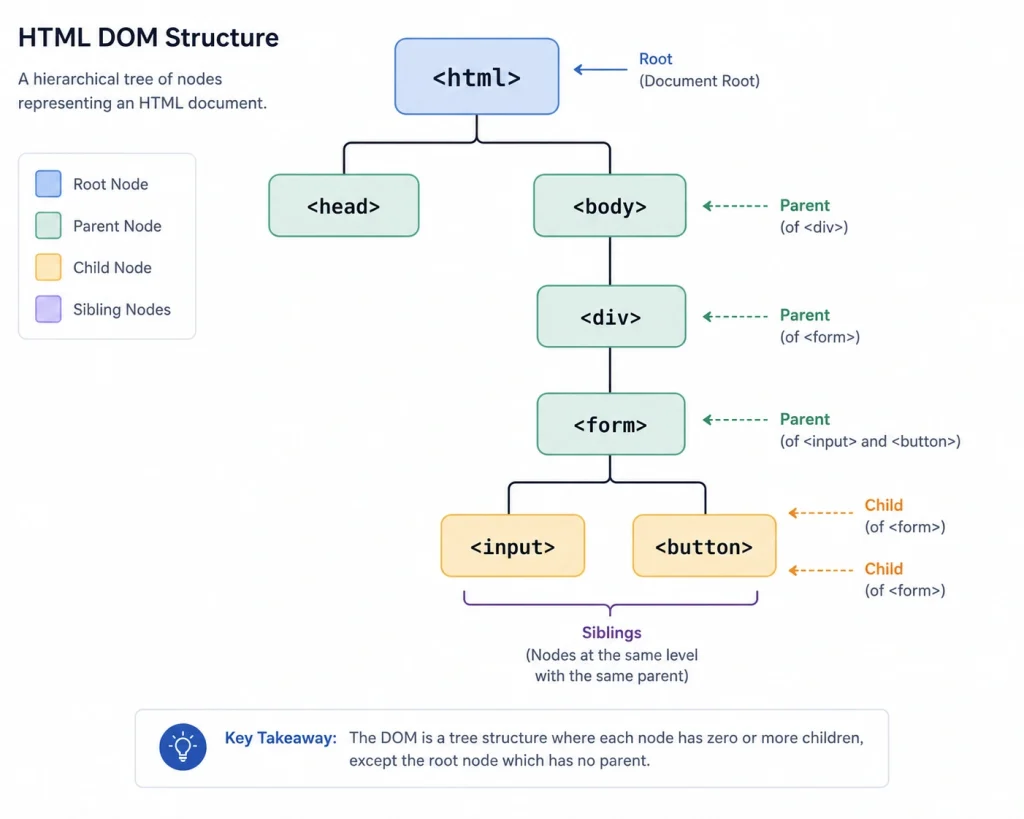
An XPath expression is evaluated against this tree and returns a set of matching nodes. With an XPath expression, you would be using either the single slash or the double slash. A single / selects a direct parent-to-child relationship. An XPath expression is considered absolute only when it starts from the root node. A double // searches through descendants at any depth of the DOM tree, so it can directly jump to a matching element irrespective of how deep it is in the tree. Such an expression is called Relative XPath.
XPath can also address attribute nodes using the @ symbol and text nodes using the text() function, which means a single expression can combine structure, attributes, and content.
When to Use XPath Over Other Locators?
XPath is powerful, but it is important to use it in the right place. A common best practice is to prefer stable locators such as id or name first, then CSS selectors, and use XPath when those options are not practical. An id is unique by definition and the fastest thing the browser can resolve, while CSS selectors are concise and well optimised. XPath selectors become the correct choice in some specific situations like:
- The element has no stable id or name, and the classes it carries are shared with other elements on the page.
- You need to locate an element by the text a user actually sees, for example, a button that reads Submit or a link that reads Forgot Password.
- You need to walk upward from a known element to its parent or an ancestor. CSS selectors cannot travel up the tree, but XPath selectors can.
- You need to combine several conditions, such as matching an element with a specific attribute and a particular sibling or position.
If none of those apply, an id or a CSS selector will usually be shorter, faster, and easier for others to read. Treat XPath as the specialist you call in when the simpler locators run out.
Also Read: How to Use CSS Selectors in Selenium WebDriver
XPath Syntax in Selenium
XPath expressions are built from a small number of building blocks that you combine to describe exactly which node you mean.
Basic XPath Structure(Tag, Attribute, Value)
The most common relative pattern in XPath syntax follows this shape: a double slash, a tag name, and a predicate in square brackets that filters by attribute and value.
//tagname[@attribute=’value’]If you read it left to right, it says that anywhere in the document, find a tagname element whose given attribute equals the given value.
Some examples using this syntax are
//input[@id=’username’]               //an input with id username
//button[@name=’submit’]              //a button with name Submit
//a[@href=’/signup’]                  //a link pointing at /signup
You can also perform class-based lookups using the same structure.
Examples are
//div[@class=’login-form’]                //xpath by class name, exact match
//span[@class=’error-text’]
Note that an exact match on @class can be brittle, because an element often carries several class names in one attribute, such as class=’btn btn-primary active’. An exact comparison fails unless you reproduce the entire string in the same order. We will see how to address that shortly with the contains() function.
You can also use the wildcard * in place of a tag name when the tag itself does not matter:
//*[@id=’username’] //searches any element with id usernameAlso Read: How to Use Relative Locators in Selenium
XPath Operators and XPath Predicates
A predicate in XPath in Selenium is an expression enclosed in square brackets that filters the node set selected by the preceding location step. The simplest predicates are positional. [1] selects the first matching element, and XPath positions are one-based, not zero-based, which might confuse newcomers coming from arrays.
//ul[@id=’menu’]/li[1]                      //first list item/
/table/tbody/tr[3]/td[2]                      //row 3, cell 2
Predicates also support logical operators so you can use more than one condition at the same time. The operators you will use most are and, or, =, and !=, and comparison operators such as >, <, >=, and <= work on numeric values.
//input[@type=’text’ and @name=’email’]
//button[@id=’save’ or @id=’submit’]
//div[@data-status != ‘disabled’]
Types of XPath in Selenium
When people talk about the types of XPath in Selenium, they are almost always referring to two writing styles: absolute and relative XPath in Selenium. They produce similar results: a located element, but they differ sharply in how robust they are. Understanding both, and when each one appears, is one of the most useful things you can learn early on.
Absolute XPath
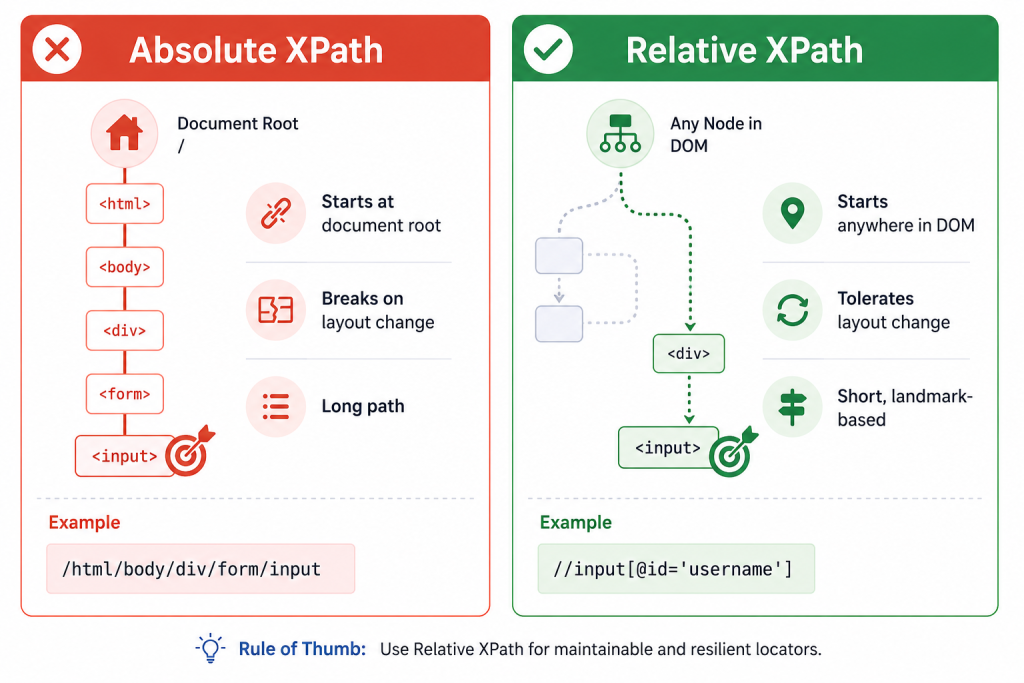
An absolute XPath describes the complete path from the root of the document down to the target element. It always begins with a single slash and lists every step along the way.
/html/body/div[1]/div[2]/form/input[2]This works, and it is unambiguous, but it is also the most fragile locator you can write. If a developer wraps the form in one extra div, inserts a banner above it, or reorders two sections, every index in that path can shift and the locator breaks. Because absolute paths depend on the entire structure above the element, they tend to fail on the very next sprint. They are useful mainly as a quick diagnostic or a last resort when nothing else is available.
Relative XPath
A relative XPath in Selenium is an XPath expression that does not start from the document root. In practice, many relative XPath expressions begin with a double slash (//) to search for matching descendants at any depth. Instead of describing the whole journey, you describe a recognisable landmark.
//input[@id=’username’]
//form[@id=’login’]//button[text()=’Sign in’]
Since the relative XPath is concerned only about the element and a small amount of nearby context, it is generally less affected by layout changes. This is the reason why most of the well-maintained suites use it, and why most of the examples in the guide use it.
Difference between Absolute and Relative XPath in Selenium
| Aspect | Absolute XPath | Relative XPath |
|---|---|---|
| Starting point | Document root (<html>) | Anywhere in the DOM |
| Syntax begins with | Single slash / | Double slash // |
| Example | /html/body/div/form/input | //input[@id=’username’] |
| Length | Long; lists every step | Short; anchors on a landmark |
| Fragility | High; breaks on layout change | Low; tolerates most changes |
| Readability | Hard to read and maintain | Clear and self-documenting |
| Recommended use | Quick check or last resort | Default choice in real suites |
XPath Functions in Selenium
XPath functions turn rigid, exact-match locators into flexible ones that can handle partial values, surrounding whitespace, and dynamic content.
These functions make XPath in Selenium practical on modern pages.
Common XPath Functions (contains, start-with, text)
The most used function is contains(). It checks if an attribute or text value includes a given substring, which neatly solves the multi-class problem we discussed earlier. Rather than matching the whole class string exactly, you match a substring within the class attribute, although token-based matching is generally more reliable for class names.
//div[contains(@class,’btn-primary’)]
//input[contains(@id,’user’)]
//a[contains(text(),’Forgot’)]
The starts-with () function matches values by their beginning, which comes in handy when only the beginning of the attribute is stable.
//input[starts-with(@id,’user_’)]
//button[starts-with(@name,’submit’)]
The text() function matches an element by its visible text content. This is something that a standard CSS selector cannot do, and makes XPath a strong keep in your toolkit. You can pair it with contains() when the text is long or only partially predictable.
//button[text()=’Sign in’]
//label[contains(text(),’Accept the terms’)]
Related read: Locators in Selenium WebDriver: Types of Locators & Examples
Advanced Functions(normalize-space, last)
Text on a page can often contain extra whitespace from indentation or line breaks, so an exact text() match can fail even when the visible text looks identical. The normalize-space() function strips the leading and trailing whitespace and collapses runs of internal spaces into one, hence making text matching far more reliable.
//span[normalize-space(text())=’Order total’]
//button[normalize-space()=’Continue’]
The last() function returns the final node in the set, which can help grab the last row of the table or the last item from a list. position() gives the index of the current node, and count() returns the number of nodes matching an expression, which can be used for assertions.
//table[@id=’orders’]//tr[last()]
//ul[@id=’items’]/li[position()=2]
count(//div[@class=’card’])                                  //number of cards on the page
XPath Axes in Selenium
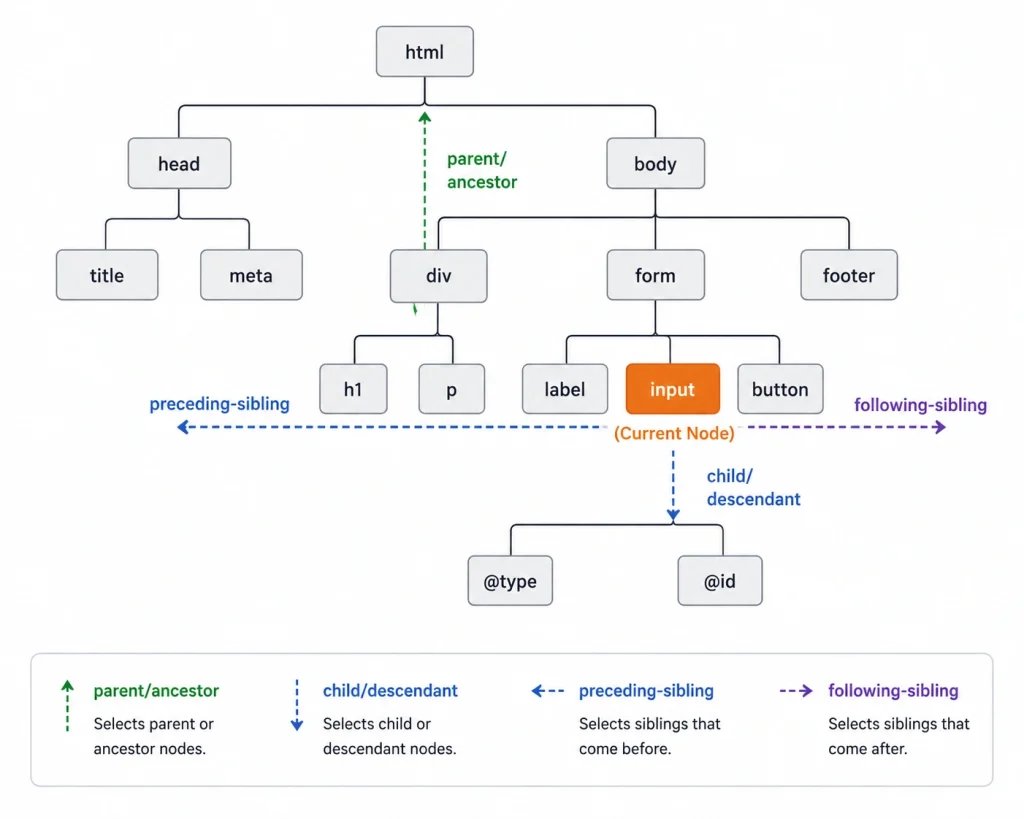
Axes describe the direction of travel through the DOM relative to a starting node. They allow the XPath to move sideways and upward, not just downward. The full syntax is an axis name, two colons, and a node test, written as axis::node.
Common Axes(parent, child, sibling)
The child axis is the default, so //div/p is shorthand for //div/child::p. The parent axis moves one step up. It is very helpful when you can identify a child easily but actually need to act on its container.
//span[text()=’Price’]/parent::div
//input[@id=’qty’]/parent::*                               //the input’s immediate parent
The sibling axes move horizontally among elements that share a parent. following-sibling selects siblings that come after the current node, and preceding-sibling selects those before it. A classic example is reaching a value cell that sits next to a known label cell in a table.
//td[text()=’Email’]/following-sibling::td
//label[text()=’Country’]/following-sibling::select
Advanced Axes(ancestor, descendant)
While the parent moves up by one level, the ancestor axis travels up through every level above the node, so that you can jump from a deeply nested element straight to an enclosing container several steps higher.
//input[@id=’card-number’]/ancestor::form
//a[text()=’Edit’]/ancestor::tr                           // the row containing the link
The XPath descendant axis selects all nodes nested under the current one, at any depth. In fact, // is shorthand for the descendant-or-self axis: //table//td finds every td descendant of a table regardless of intervening tbody or tr elements.
//div[@id=’cart’]/descendant::span[@class=’price’]
//nav//a                                                      // every link inside the nav
There are more axes like following, preceding, ancestor-or-self, and descendant-or-self, but the parent, child, sibling, ancestor, and descendant axes cover the majority of real test scenarios.
How to Use XPath in Selenium?
Using findElement(By.xpath()) in Java
The Selenium by XPath pattern looks like the following:
WebDriver driver = new ChromeDriver();
driver.get(“https://example.com/login”);

//locate a single element
WebElement username = driver.findElement(By.xpath(“//input[@id=’username’]”));
username.sendKeys(“qa_user”);

//locate many elements and iterate
List<WebElement> links = driver.findElements(By.xpath(“//nav//a”));
for(WebElement link : links) {
System.out.println(link.getText());
}
From the above code, there are two things:
- First, findElement() throws NoSuchElementException if nothing matches.
- Second, findElements() will return an empty list if it finds nothing.
So, findElements() is a convenient way to check whether elements are present without triggering a NoSuchElementException, although explicit waits are generally preferred for synchronizing with dynamic content. So while you write tests, make sure that you think about the practices to make your tests more robust.
Also Read: findElement and findElements in Selenium
XPath Examples for Web Elements
| Element | Sample XPath |
|---|---|
| Text input | //input[@id=’email’] |
| Button by text | //button[text()=’Submit’] |
| Link(anchor) | //a[contains(text(),’Read more’)] |
| Checkbox | //input[@type=’checkbox’ and @name=’terms’] |
| Dropdown(select) | //select[@id=’country’] |
| Image by alt text | //img[@alt=’Company logo’] |
| Table cell next to label | //td[text()=’Status’]/following-sibling::td |
| Element by partial class | //div[contains(@class,’alert’)] |
Chained XPath Usage
You can also use the strategy of finding one element and then searching within it.
An example of it is:
WebElement form = driver.findElement(By.xpath(“//form[@id=’checkout’]”));

//search inside the form only
WebElement pay = form.findElement(By.xpath(“.//button[text()=’Pay now’]”));
Chaining comes in handy when a page repeats the same component multiple times, such as a list of product cards. You locate the specific card once, then dig into its button and fields with scoped expressions, avoiding ambiguous matches across the whole page.
Best Practices for Using XPath in Selenium
Writing an XPath that works today is easy, but one that still works after three rounds of UI changes is a real skill. Remember these points while you are building your tests.
- Prefer relative XPath as it is built around an id or a meaningful attribute. It will tolerate the layout shifts that happen every sprint, unlike the absolute XPath that is tied to the full document structure.
- Use stable attributes so that the tests are robust.
- Avoid fragile locators like long index chains(div[2]/div[3]/span[1]) and attributes with dynamically generated values. Also prefer short, stable labels while using text identifiers.
- Avoid starting an XPath expression with //, unless you can scope it to a known parent, and keep expressions as short and specific as the page allows.
Conclusion
XPath in Selenium is one of the most capable tools in a Selenium engineer’s locator toolkit. XPath selectors can reach elements that other strategies cannot, match on visible text, and travel in any direction through the DOM. The trade-off is that this power is easy to misuse, which is why the guiding principles matter: prefer relative over absolute, anchor on stable attributes, lean on functions like contains() and normalize-space() to handle messy real-world markup, and use axes deliberately when you need to move around the tree.
Get those things right, and your XPath in Selenium stops being a source of flaky failures and becomes a quiet, dependable part of your suite
Frequently Asked Questions
What is XPath in Selenium and why do we use it?
XPath is a query language that lets you locate elements in a web page’s DOM. In Selenium, you use it through By.xpath() to find elements by their tag, attributes, text, or relationships. It’s especially useful when elements don’t have stable IDs, when you need to match visible text, or when navigating up the DOM to parents or ancestors.
What are the types of XPath in Selenium?
There are two types: Absolute and relative
1. Absolute XPath – Starts from the document root with a single slash /.
2. Relative XPath – Starts with // and searches descendants at any depth.
Which XPath functions are most commonly used?
The most used XPath functions are contains() for partial attribute or text matches, starts-with() for matching the beginning of a value, text() for matching by visible text, and normalize-space() for handling stray whitespace. last() and position() are also handy for selecting elements by their order within a set.
Is XPath case-sensitive in Selenium?
Yes, XPath is case-sensitive. Tag names, attributes, values, and text must match exactly. For example, @id=’Login’ won’t match id=’login’. When casing is inconsistent, you can use the translate() function to normalize values before comparing.


