CoTester 2.0 is LIVE! Your Always-Available AI Teammate for Testing.
Apple’s iPhone lineup includes multiple models, each with different hardware capabilities, operating system versions, screen sizes, and performance characteristics. And testing across these combinations is important to catch compatibility issues before release.
However, buying multiple iPhones for testing, keeping them updated, and maintaining a device lab can be expensive, particularly for independent developers and small QA teams. So, how do you test an iOS app without iPhones? We’ll explore that in detail in this blog.
Optimize iOS app testing with TestGrid. Request a free trial.
TL;DR
- Testing across iPhone models helps you identify compatibility and performance issues caused by differences in hardware, screen sizes, iOS versions, and networks
- You can test your iOS apps either on iOS Simulator, physical devices, or on a real device cloud
- To test iOS app without device app testing, you can use Xcode Simulator; it’s suitable for early-stage testing, but it can’t exactly reproduce physical device behavior
- Physical iPhones enable you to validate real-world performance, network behavior, and hardware-dependent features
- Real device cloud gives you remote access to supported iPhone models, which allows you to test under realistic conditions but without the burden of maintaining physical device labs
Can You Test an iOS App on a Real iPhone Without a Developer Account?
Yes, you can test an iOS app on an iPhone without a developer account. But you would still need a free Apple Account, a compatible Mac that can run Xcode, and access to an iPhone.
Apple account vs. Apple Developer Program
An Apple account lets you sign in to Apple’s services and development tools. The Apple Developer Program is a paid membership that gives you access to additional capabilities for app development, beta testing, and distribution.
Apple allows you to build and test your apps on your personal devices using Xcode without the need to buy this membership.
So, how does the free provision work?
If your Apple account isn’t associated with the paid membership, then Xcode uses a Personal Team (the default development team) to automatically manage your app’s signing and provisioning requirements.
It allows you to install, run, and test your app connected to your iPhone. If you want to test an iOS app on an iPhone without the Apple Developer Program, you can refer to these steps:
- Install Xcode on a Mac and sign in with your Apple Account. For this, go to Xcode, then Settings, and then Apple Accounts
- Open your iOS project and select your app’s main target from the project settings
- Then, under Signing & Capabilities, enable Automatically manage signing and select your Personal Team
- Connect your iPhone to the Mac and select your iPhone as the main run destination
- Register your device if you’re prompted, enable Developer Mode, and click Run to launch the app
After the app is open on your iPhone, you can interact with it manually, assess its functions, run automated tests, and check for errors.
You now have an idea of how to test an iOS app on an iPhone without a developer account. But before you opt to develop and test with the free Apple account, you must be aware of certain limitations.
- Apple currently allows up to 10 App IDs and three registered devices; these registrations expire after seven days
- After your profile expires, you have to rebuild and reinstall the app if you want to continue testing
- Free provisioning suits well for individual developers who want to check basic functionality on their own iPhones, but registration limits and recurring installations aren’t practical for large-scale testing
iOS simulator or cloud-based testing is beneficial for teams who want to test apps across multiple device models, iOS versions, screen sizes, UI layouts, and compatibility scenarios.
Also Read: iOS App Testing: A Comprehensive Step-by-Step Guide
How to Test iOS App Without iPhone
You can test iOS apps without owning an iPhone. You can use simulators or cloud testing platforms. Each approach comes with different capabilities, so before you make a decision, look at how testing looks with these different methods.
iOS simulator
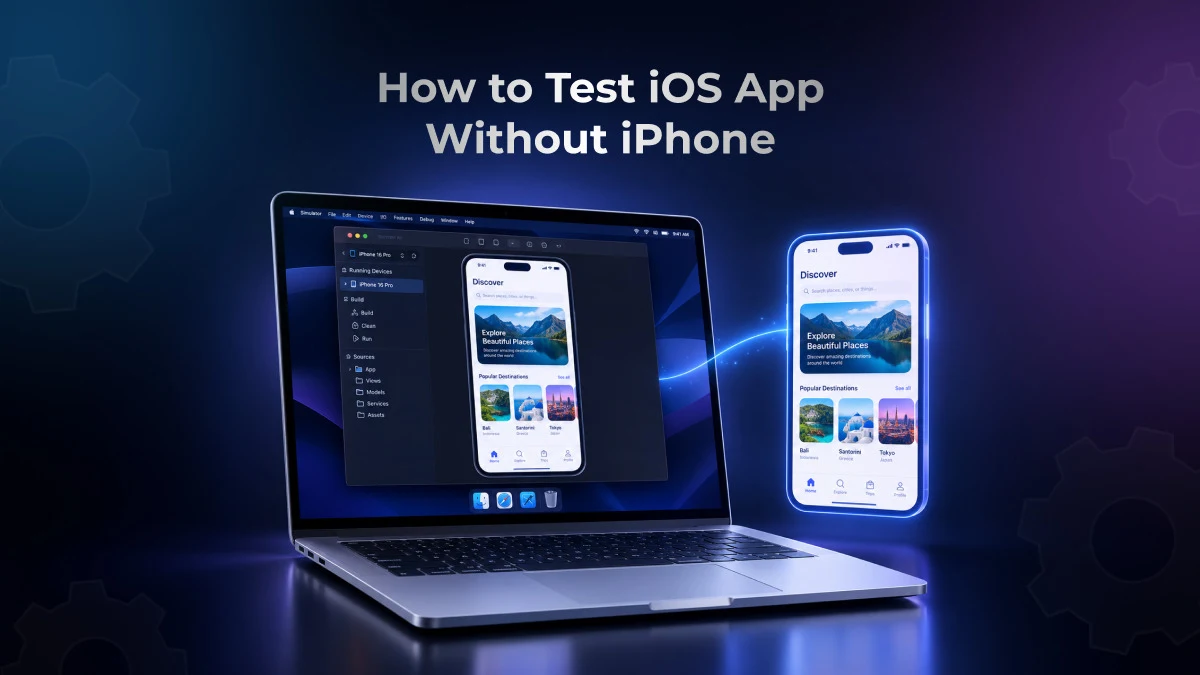
An iOS Simulator allows you to run your app in an iPhone-like environment on a Mac device. For this method, you don’t need to have a physical iPhone. Apple’s Simulator is already included with Xcode.
You can select your preferred iPhone models and iOS versions from Xcode, launch your app, interact with it, and debug in case you find issues. Testing with simulators can be helpful when you want to assess navigation, layouts, and basic functionality during development.
For testing your app in the Xcode Simulator, you can follow these steps:
- Install Xcode on your Mac, open Xcode, and choose your target device from ‘Devices and Simulators’
- You can also configure other models or supported iOS versions if you don’t have your target device on the list. You just have to open Manage Devices and add a simulator
- Open your iOS project or build a new project; then select the app’s build scheme, which tells Xcode what it should run
- Next, select your app and click on Run. Xcode will then automatically compile and launch your app in the simulated device environment. If it fails to compile the app, inspect the reported errors in Xcode’s Issue Navigator
- When your app is open, you can test it. Use your Mac’s pointer, keyboard, and trackpad to interact with the app and evaluate the pages, menu, form inputs, and orientation changes
- If you want, you can even change the default simulated settings, such as appearance and text size
- Analyze your app’s performance and inspect logs and error messages from the debug console. Fix the issues you detect, and rerun your app to validate the changes
Cloud testing platforms
If you want to run iOS apps without a Mac or iPhone, then cloud testing platforms let you test your apps on real iPhones which are hosted remotely without you needing to purchase or maintain physical devices yourself. This reduces the cost and maintenance overhead.
The platform gives you access to real devices through an internet-connected computer. You can download your app on these devices and test features manually or execute automated tests via frameworks such as Appium and XCUITest.
Also Read: Best 15 iOS Testing Tools and Frameworks
Where iOS Simulator Falls Short
We analyzed real user reviews to identify some limitations of iOS Simulator. Developers frequently point out issues with camera access, haptic feedback, performance, and push notifications.
1. Hardware-dependent features cannot be reproduced fully
The Simulator can’t properly mimic physical hardware for testing every feature. Apps that particularly rely on the camera, TrueDepth capabilities, or physical haptic feedback need compatible physical iPhones for precise testing. For example, you may need a real iPhone for accurately testing an app with a face scanning feature.
2. Performance results may be misleading
The Simulator runs on your Mac; therefore, it uses the host computer’s resources and device environment. But its CPU, memory, and graphics behavior might not necessarily match an iPhone’s exact hardware constraints.
And this can significantly affect testing because your app might work correctly on a simulator but consume excessive memory, stutter, or perform poorly on a physical device.
Read More: iOS Performance Testing: Metrics, Tools, and Best Practices
3. Push notifications and integrations vary
The Simulator supports some notification and system integrations, but its capabilities and setup can be different from a physical iPhone.
For instance, if you’re testing push notifications, you may also need to verify device registration, obtain a device token, send it to your backend, and receive notifications through Apple Push Notification service (APNs). You also have to check how the app responds when users tap notifications while the app is running in the background.
A physical iPhone gives you a more reliable validation of end-to-end push notification delivery.
4. Device-specific bugs can go unnoticed
Different iPhone models have different hardware capabilities, screen dimensions, and performance characteristics. One of the reviewers mentioned that an app that worked on an iPhone 11 encountered an issue on an iPhone 15. That’s why it’s critical to check how your app functions on actual devices, not simulated versions.
5. Real-world interactions remain a gap
Interaction methods like mouse clicks, touches, or sensor input, and features involving motion, camera capture, or hardware accessories need to be evaluated on actual devices because this behavior depends on a device’s hardware, sensor accuracy, and operating conditions. Simulators don’t accurately capture this.
Comparing Your iOS Testing Options
Here’s how the different testing options compare. Look at the differences to decide which approach suits your budget, resources, and testing goals.
| Testing Method | Hardware Needed | Best For | Major Limitation |
|---|---|---|---|
| iOS simulators | Mac running Xcode | Early development, UI checks, and debugging across simulated device configurations | Can’t fully reproduce real-device performance or hardware behavior |
| Physical iOS devices | Physical iPhones | Validating real hardware behavior, device performance, sensors, and user interactions | Buying, maintaining, and testing across multiple devices can be expensive |
| Cloud testing platforms | Computer and internet connection; no personal iPhone needed | Testing across multiple iOS devices and versions, executing parallel tests, and accessing remote real-device infrastructure | Paid plans, device availability, and network conditions can limit your testing flexibility |
Also Read: Why Real Device Testing Clouds are Essential for Today’s Enterprises
Testing iOS Apps on Real Devices with TestGrid
Built by TestGrid, TestGrid ONE is the AI operating system that runs quality engineering. It allows you to test your apps on real iOS devices like iPhone 16, iPhone 17, iPhone 18 Pro, iPhone 18 Pro Max, and more.
With TestGrid, you can:
- Reproduce user journeys on a remote iPhone when you need direct control over interactions and device-specific behavior
- Create test cases with Record and Play or AI-assisted authoring, or with code
- Reuse your existing automation suites built with Appium or XCUITest across multiple device and OS combinations without the need for maintaining a separate setup
- Run native, hybrid, and cross-platform apps across selected iPhone models, iOS releases, and screen sizes
- Identify performance or visual issues by checking CPU usage, memory consumption, battery impact, network activity, and UI response times
- Compare baseline and updated screenshots when you also need to investigate interface changes
TestGrid also helps you test for biometric authentication, camera input, image injection, GPS, and network conditions. You can apply profiles such as 2G, 3G, 4G, unstable Wi-Fi, and airplane mode and check your app’s performance under different network conditions.
The platform lets you use Appium Inspector to examine app elements where relevant and capture logs, crash reports, screenshots, and video playback to inspect failed interactions, so you can trace unexpected app behavior efficiently.
To access the complete range of iOS testing features, request a free trial of TestGrid today.
Frequently Asked Questions (FAQs)
Can you test an iOS app’s accessibility without an iPhone?
Yes. You can use Xcode Simulator on a Mac to check whether your app’s buttons, images, and other interface elements have proper accessibility labels and can be navigated using supported accessibility features. However, for a more comprehensive accessibility assessment, you should also consider testing with real assistive technologies.
Can I test an iOS app online for free?
Yes, you can test iOS apps without an iPhone online for free using platforms that offer free trials or limited free plans. Some open-source tools are also available, but running them may require a Mac or access to a compatible testing environment.
Which is better for iOS app testing, a simulator or a real device?
Simulators and real devices are not replacements for each other. For comprehensive coverage, you should use both if you want to test iOS apps without an iPhone. The simulator is better for quick checks during development. Real devices are essential for testing hardware-specific features, actual performance, battery usage, and network conditions.