CoTester 2.0 is LIVE! Your Always-Available AI Teammate for Testing.
- What Is iOS Performance Testing?
- Why Is iOS Performance Testing Important?
- Common iOS Performance Testing Challenges
- How to Perform iOS Performance Testing
- XCTest for iOS Performance Testing
- iOS Performance Metrics
- iOS Performance Testing Tools
- iOS Performance Testing Best Practices
- Optimize iOS Performance Testing with TestGrid
- Frequently Asked Questions (FAQs)
If your customer is halfway through a purchase and your app freezes, there’s a good possibility they might not return to complete the transaction.
Luciq’s report shows that 83.4% of mobile users rate stability as “Extremely” or “Very important.” And 15.4% uninstall an app after a single crash. So, do you see how critical maintaining your app performance is? It doesn’t just create bad experiences. It impacts your revenue.
In this blog, we’ll be specifically focusing on iOS performance testing, why it’s essential, the process, the tools to use, and some effective best practices.
Streamline performance testing on real iOS devices with TestGrid. Request a free trial.

TL;DR
- iOS performance testing checks an app’s speed, stability, and efficiency under varying network conditions and workloads
- For performance testing in iOS devices, outline the user journeys, define metrics, set baselines and thresholds, prepare the test environment and data, execute tests, and analyze results
- Different tools you can leverage for iOS performance testing are TestGrid ONE, XCTest, Xcode, Firebase Performance Monitoring, HeadSpin, and Apptim
- Critical performance metrics include app launch time, CPU utilization, network latency, API response time, recovery time, frame rate, and crash rate
- To optimize iOS performance testing, focus on entire user journeys, use a test pyramid, profile memory allocations, and automate high-frequency and repeatable tests
What Is iOS Performance Testing?
iOS performance testing is the process of evaluating an iOS app’s ability to operate under different usage conditions. It mainly checks if the app can handle expected and peak workloads without excessive freezing, draining resources, or crashing.
The goal is to assess runtime efficiency and verify that the app meets defined performance expectations before and after release.
Why Is iOS Performance Testing Important?
iOS performance testing helps you ensure that your app can stay efficient under production conditions, protect system resources, prevent unexpected interruptions, and maintain a consistent experience.
Testing can:
- Reduce excessive memory consumption and slow startup, which may result in unexpected app terminations
- Minimize battery drain and mobile data usage from unnecessary network requests and background activity
- Maintain responsive interactions during demanding tasks like media processing and data synchronization
- Ensure quality after release. Pre-release tests might not reproduce every usage pattern; field performance data from tools such as Xcode Organizer and MetricKit can surface issues affecting your users
Also Read: iOS App Testing: A Comprehensive Step-by-Step Guide
Common iOS Performance Testing Challenges
1. Performance might vary across devices and iOS versions
Performance can differ across factors like processing power, available memory, display refresh rates, and system behavior.
Your app may run smoothly on the newer models, but might experience slow rendering on older versions. Capturing these varied conditions and ensuring the app functions consistently can be tough.
How to overcome
Assess your app’s usage data, device analytics, and your target users’ device distribution to create a device matrix. Then prioritize the devices users prefer the most.
2. Simulators don’t always represent real device conditions
iOS simulators run on your Mac, which means it doesn’t reproduce an iPhone’s exact hardware and resource constraints. CPU scheduling, memory pressure, battery consumption, and graphics performance can differ significantly from physical devices.
How to overcome
Build an in-house physical device lab, or outsource device testing to specialized teams. They can assist you in executing tests and provide you with detailed reports on device-specific issues.
3. Device temperature and thermal throttling
An iOS device can reduce CPU or GPU performance when its temperature rises to prevent overheating.
This thermal throttling can increase your test execution times and affect UI responses if the tests are prolonged or resource-intensive. Measurements might be inconsistent if a device heats up between runs.
How to overcome
You can run sustained iOS performance tests under consistent starting conditions. Then, monitor thermal state and compare your results across repeated runs. This can help you detect slowdowns from thermal throttling.
4. Replicating network scenarios
Conditions like network bandwidth, latency, packet loss, connection stability, or switching between WiFi and cellular data affect your app’s performance. Controlled lab test environments may not be able to accurately mimic these conditions.
How to overcome
Network conditioning tools like Apple’s Network Link Conditioner enable you to simulate realistic scenarios like bandwidth, latency levels, packet loss, and connection interruptions.
Also Read: Network Performance Testing for QA and SRE: Mobile, APIs, and Real-World Networks
How to Perform iOS Performance Testing
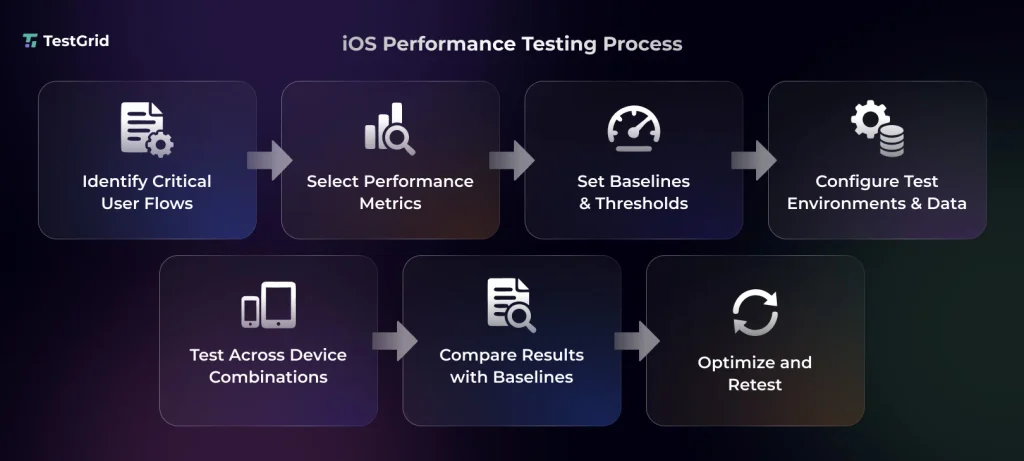
1. Identify the critical user flows
Your tests should cover the user journeys where performance has the highest impact on user experience, such as app launch, login, search, scrolling, media loading, checkout, or data-heavy screens.
You can examine your production telemetry and user feedback to identify such flows. Try to prioritize tests based on frequency of use, business value, and user impact.
2. Define the metrics you will track
Outline the important metrics you’ll use to measure the performance of your app on iOS devices. Some of these can be execution time, CPU usage, memory usage, and UI responsiveness.
These metrics can help you analyze if an operation is slow, consuming more resources, or affecting usability.
3. Establish baselines and performance thresholds
Next, you need to set baselines that represent the expected performance of your app under controlled conditions. You can run a particular test repeatedly on multiple representative devices and assess the results to decide what normal performance looks like.
Then, specify acceptable thresholds for CPU activity, elapsed time, memory, UI hitches, storage, and app launch. This will help you detect regressions and performance degradations early.
4. Configure the test environment and prepare test data
Set up the test environment with real iOS devices as well as simulators.
Control relevant conditions like network type and quality, device state, locale, and connectivity so you can keep test conditions consistent and distinguish performance changes caused by the app from variations in the environment.
Also, create realistic datasets that resemble production volume and complexity, including large records, images, or transactions, resource usage, and API payloads.
5. Run your tests across device combinations
Create and execute your test cases across different iOS versions. At this point, remember to include the older device models, different screen sizes, and configurations with varying resource capabilities.
For extensive coverage, you should test on simulators during the development phase (for fast, repeatable checks and early bug detection), and physical devices to capture real-world CPU, memory, and UI behavior.
Also Read: Test on Real iPhone 18 Pro & 18 Pro Max Devices with TestGrid
6. Compare results against baselines
Analyze your results and measure them against your established baselines to spot performance regressions. Observe if there are any changes in execution time, processor utilization, and energy consumption or battery usage across builds.
If a measurement exceeds its acceptable threshold, investigate to find if it was caused by an issue with the app or environmental variation.
7. Optimize and rerun tests
You can use profiling tools like Xcode Instruments to inspect the root cause of the issues and then make targeted changes.
Based on the evidence you find, reduce unnecessary computations, optimize data processing, or address excessive memory allocations. After that, rerun the test under the same conditions to confirm improvements.
Also Read: A Complete Step-by-Step Guide to Mobile App Performance Testing
XCTest for iOS Performance Testing
XCTest is Apple’s testing framework for iOS apps, which lets developers write and run automated tests and check whether an app is working correctly and performing as expected. You can use it for both functional and performance testing.
For testing with XCTest, you first need to add a test target to your Xcode project and create a test case class. Then you have to write the test methods for critical operations, such as app launch or data processing.
To measure performance, you can apply methods such as measure(_:) to measure execution time or measure(metrics:block:) to collect specific metrics.
This framework also supports metrics for elapsed time (XCTClockMetric), CPU activity (XCTCPUMetric), physical memory (XCTMemoryMetric), UI hitches (XCTHitchMetric), and app launch duration (XCTApplicationLaunchMetric).
You can easily set a baseline and maximum standard deviation. XCTest can flag measurements that exceed your permitted performance variation. If any of your tests fail, you can open it in Instruments from Xcode to examine the root cause.
Before testing, remember to disable the Debug executable setting and turn off code coverage and runtime sanitization. This reduces measurement interference.
This framework is preferred by most development and testing teams because it’s built into Apple’s development ecosystem, integrates directly with Xcode, and helps you run tests and measure outcomes without the need to switch to a separate testing framework.
iOS Performance Metrics
These are some of the most critical performance metrics to evaluate app speed, responsiveness, resource consumption, network reliability, and stability.
| Metric | Category | What it evaluates |
|---|---|---|
| Cold launch time | App launch | Time taken to start the app from scratch when it is not running |
| Warm launch time | App launch | Time it takes to reopen an app that was previously running and remains in memory |
| Time to first draw | App launch or rendering | Time from app launch to the first frame which appears on the screen |
| CPU utilization | Resource usage | Amount of CPU processing power the app consumes during execution |
| Network latency | Network | Time it takes for data to travel between your app and a remote server |
| Peak memory footprint | Resource usage | Highest amount of physical memory the app uses during execution |
| Frame rate (FPS) | UI responsiveness | Number of frames rendered per second; this can indicate how smoothly the interface moves |
| API response time | API performance | Time an API request takes to receive a response from the server |
| P50, P95, and P99 latency | Latency | 50th, 95th, and 99th percentile response times; it shows how slow requests affect the slowest 5% and 1% of requests |
| Request failure rate | Network reliability | Percentage of network requests that fail out of the total requests made |
| Crash rate | App stability | Percentage of app sessions that result in crashes |
| Recovery time | Resilience | Time the app takes to become usable again after a failure or interruption |
| Disk I/O latency | Storage performance | The time your app takes to read data from or write data to storage |
Learn More: Software Testing Metrics: How to Track the Right Data Without Losing Focus
iOS Performance Testing Tools
Compare the top performance testing iOS tools based on their key features, automation support, and pricing to find the right one for your testing requirements and budget.
| Tool Name | Best For | Key Features | Automation Support | Pricing |
|---|---|---|---|---|
| XCTest | Automating iOS performance tests and detecting regressions | Regression detection, built-in metrics, baseline comparisons | Yes | Free (included with Xcode) |
| Xcode Instruments | Profiling CPU, memory, energy use, and UI responsiveness | CPU profiling, memory analysis, time-based analysis | Yes | Free (included with Xcode) |
| Firebase Performance Monitoring | Monitoring app startup, screen rendering, and network performance | Automatic monitoring, custom code traces, performance alerts | Yes | Free and pay-as-you-go |
| HeadSpin | Analyzing iOS app performance on real devices | Network testing, root cause analysis, test automation | Yes | Starts from $39 per month |
| Apptim | Measuring app responsiveness, CPU, memory, and energy consumption | User event measurements, resource profiling, regression detection | Yes | Free |
Learn More: Best iOS Testing Tools and Frameworks
iOS Performance Testing Best Practices
1. Test complete user journeys
Don’t just test the individual functions. Cover entire user journeys. So, for an e-commerce app, you must assess the path from opening an app, logging in, loading data, and completing a purchase. This way, you can detect performance gaps across navigation, data processing, and network requests.
| Pro tip Add signposts for key points in user journeys, such as login, data loading, and checkout. This will help you measure the duration of each operation and pinpoint the flows that cause most delays. |
2. Follow a test pyramid for coverage
Execute frequent performance checks on individual functions and components and fix issues before you integrate. Then, validate integrated workflows and full user journeys. This layered strategy enables you to balance between execution speed, testing costs, and coverage.
| Pro tip You can run focused iOS performance tests for computationally intensive functions and data processing components (image processing, complex calculations, JSON parsing, and dataset sorting) during development before E2E performance tests. |
Learn More: The Testing Pyramid Explained: Benefits, Implementation, and Automation Trends
3. Profile memory allocations
It’s important to track memory allocations in workflows, like loading large images, processing datasets, or navigating between complex screens. That’s because excessive allocations and retained objects can increase memory pressure and lead to slowdowns or app termination.
| Pro tip With the Allocations instrument in Xcode Instruments, you can seamlessly track allocation counts, sizes, and responsible code paths over time. |
4. Automate the high-volume tests
Automating tests for the high-traffic features or frequent code updates can minimize manual effort, speed up the testing process, and support repeatable measurements under consistent conditions. You can integrate your performance testing iOS tools with the CI/CD pipeline and run tests automatically after code commits.
| Pro tip Make your tests independent. Reset the app state and clean up data between runs so you can avoid one execution from influencing the next. |
Optimize iOS Performance Testing with TestGrid
Built by TestGrid, an AI-native testing company, TestGrid ONE is the AI operating system that runs quality engineering. It gives you access to real iPhones across different models and iOS versions for performance testing.
Create and execute automated tests, trigger them through your CI/CD pipeline, and capture execution data alongside logs, screenshots, crash reports, and video playback.
Recreate real-world conditions and identify performance regressions by monitoring CPU usage, memory consumption, battery impact, network activity, and UI response times on physical devices. TestGrid also lets you compare performance across different device and OS configurations.
Run native, hybrid, and cross-platform apps across selected iPhone models, iOS releases, and screen sizes. You can also exercise hardware-dependent flows such as biometric authentication, camera input, image injection, and GPS.
Apply network profiles such as 2G, 3G, 4G, 5G, unstable Wi-Fi, and airplane mode to see how connectivity changes affect application behavior and performance. Request a free trial to start testing.
Frequently Asked Questions (FAQs)
What is the difference between iOS performance testing and load testing?
Performance testing in iOS helps you assess an app’s responsiveness, resource consumption, and stability during use. Load testing is a type of performance testing. It allows you to check how a backend or system handles increasing demand like simultaneous user logins or concurrent requests.
How does backend performance affect iOS app performance?
Backend performance can affect how quickly your app loads data and responds to user actions. Slow database queries, overloaded servers, or inefficient APIs can delay screens, interrupt transactions, make your app feel unresponsive, and lead to poor user experiences.
Can performance testing identify excessive network requests?
Yes. Performance testing in iOS can help you uncover excessive network requests. For that, you must track request frequency, response times, payload sizes, and redundant API calls. These findings enable developers and testers to identify unnecessary data fetching, reduce network overhead, and improve responsiveness and battery efficiency.
Which performance metrics should you track after release?
Metrics like app launch time, crash rate, app hangs, screen rendering delays, HTTP request latency, and resource usage are essential to monitor after release because they allow you to pinpoint performance issues and prioritize fixes based on their impact on real users.