 CoTester 2.0 is LIVE! Your Always-Available AI Teammate for Testing.
- What Is Audio Testing?
- Common Types of Audio Scenarios
- Key Areas to Validate During Audio Testing
- How to Implement Automated Audio Testing
- Enable Automated Audio Validation on Real Infrastructure With TestGrid
- Frequently Asked Questions (FAQs)
- How do you automatically validate actual audio output during testing?
- How do browser autoplay restrictions affect audio testing?
- Why should you test audio routing across different devices?
- Why is monitoring and observability important for audio systems?
- How do microphone permissions impact voice testing automation?
Have you ever been in a scenario where your audio features pass every functional test, yet support tickets keep appearing?
Just imagine: audio drops during live sessions, voice responses lag on specific devices, and playback drifts out of sync after minor network fluctuations.
Because media behavior depends on browser engines, codecs, hardware variation, operating system audio handling, and bandwidth stability, even the smallest differences across environments can create inconsistent results.
The worst part? These issues get missed during basic validation.
That’s where audio testing becomes essential. In this blog, we’ll discuss what it does and how to run automated audio tests on real devices in the cloud.
Run tests on real devices. Request a free trial with TestGrid.
TL;DR
- Audio testing helps teams detect playback delays, synchronization drift, codec incompatibilities, and device-specific issues that often pass standard functional validation.
- Testing audio in the cloud allows teams to execute media tests across real devices, browsers, and operating systems to observe how audio behaves under real-world usage conditions.
- Automated functional testing for audio and video applications validates playback events, buffering behavior, synchronization timing, and voice interaction latency using repeatable scripts instead of manual observation.
- Simulating network conditions such as bandwidth drops, latency spikes, and packet loss helps reveal streaming and real-time communication defects that rarely appear in controlled test environments.
- Running automated media tests on real devices and integrating them into CI/CD pipelines helps teams detect audio regressions earlier and maintain consistent user experience across platforms.
What Is Audio Testing?
It’s a testing technique that verifies an application’s audio features function reliably across devices, formats, and real-world usage conditions.
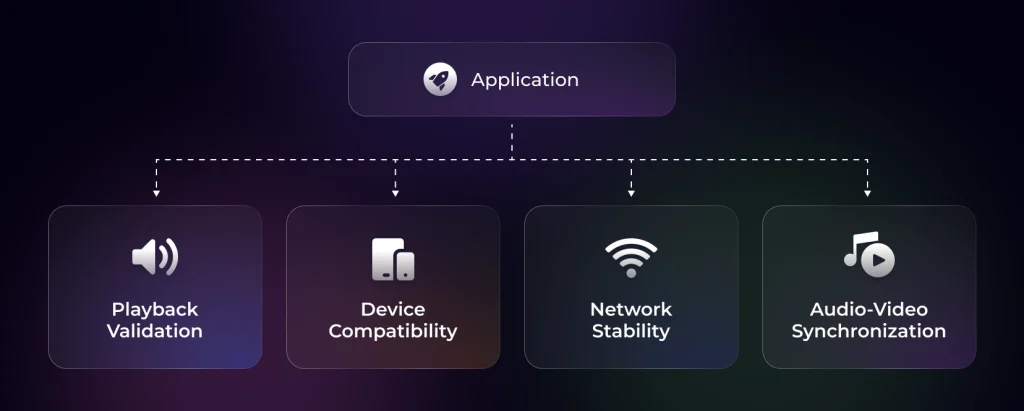
This includes validating playback behavior, AV synchronization, device compatibility, and error recovery. Audio testing also evaluates various performance factors such as latency, jitter, packet loss, and synchronization with video streams.
Common Types of Audio Scenarios
Audio testing varies depending on how sound is delivered and processed within your application. Each scenario introduces different failure points and validation requirements:
1. Voice Applications
Here, you test voice assistants, conversational interfaces, and IVR systems. You check speech-to-text/text-to-speech accuracy, intent recognition, and response latency, and whether the system handles multi-turn interactions across different devices, microphones, and acoustic environments.
Also Read: Why Conventional QA Fails in Telecom App Testing
2. Streaming Audio Delivery
Streaming systems deliver audio through continuous data transfer and buffering logic. You verify playback start time, buffer management, adaptive bitrate switching, and recovery after network disruption. Performance under fluctuating bandwidth becomes a critical factor.
3. File-based Audio Playback
This scenario involves pre-recorded audio files stored locally or on a server, such as media libraries, podcast platforms, and learning modules.
You test format support, codec compatibility, seek accuracy, completion events, and playback controls, including how the system deals with corrupted or unsupported files.
4. Real-time Audio Communication
Applications that support live audio communication often depend on technologies such as WebRTC.
Here, you examine various parameters such as packet loss recovery, echo cancellation, background noise suppression, and transmission latency, especially when audio runs alongside video streams.
Key Areas to Validate During Audio Testing
Audio testing focuses on three core validation areas, each targeting a different class of defects:
1. Network and Performance Stability
Streaming and real-time audio depend on continuous data transfer. Now, under stable bandwidth, playback may appear reliable to you. However, under fluctuating conditions, failures occur rapidly.
Adaptive streaming formats such as HLS or MPEG-DASH allow the player to switch between different bitrate segments based on available bandwidth.
If segment loading thresholds or buffer configurations are misaligned, users experience repeated rebuffering even when bandwidth appears sufficient. It’s also important for end-to-end latency to remain within acceptable thresholds for conversation flow.
Real-time audio systems rely on jitter buffers to smooth these variations, but large fluctuations can still produce gaps, distortion, or delayed playback.
Packet loss can also trigger packet-loss concealment or forward error correction mechanisms, which may introduce distortion or short audio gaps.
Also Read: Digital Experience Monitoring (DEM) – Definition, Benefits & Tools
2. Audio Quality and Format Handling
Audio playback depends on both the container format and the underlying codec.
Common formats such as MP3, WAV, AAC, and OGG must be tested across devices and browsers, as different format and codec combinations can lead to decoding errors, silent playback failures, or inconsistent audio quality.
For example, a file packaged in an MP4 container may use Advanced Audio Coding (AAC), while another may use Opus or MP3.
Since browser media engines and operating systems don’t support every combination uniformly, a mismatch can result in decoding errors, silent playback failure, or poor output quality.
In addition, bitrate configuration affects consistency.
High-bitrate audio may perform well on stable networks but trigger buffering under constrained bandwidth. Incorrect sample rate handling can introduce distortion or pitch variation, especially when devices resample audio internally.
Channel configuration introduces another risk – stereo, mono, or multi-channel audio must be rendered correctly across speakers, headsets, and Bluetooth devices. Testing these transitions is critical, as operating systems may change audio routing, latency, or output behavior.
3. Playback and Interaction Behavior
Audio features must respond predictably to user actions and system events, such as play, pause, seek, and completion callbacks. If event listeners are misconfigured, the UI state may change while playback fails in the background.
Seek behavior introduces precision challenges. Jumping to a new timestamp requires correct buffer alignment and segment loading. In streaming scenarios, improper segment indexing can cause delayed temporary silence or delayed playback.
System interruptions such as incoming calls, notifications, or app backgrounding add further complexity, as they can pause playback, shift audio focus, or prevent proper resume behavior.
Also Read: Enterprise Application Testing (Types, Methodology, and Best Practices)
How to Implement Automated Audio Testing
Understanding where audio failures occur is only the first step. To catch them before your users do, you need to execute automated tests that properly measure real playback behavior under controlled conditions.
But before we do that, it helps to understand how traditional manual testing compares with automated approaches. Their goal may be the same, i.e., to validate audio systems. However, the differences become clear when it comes to scale, precision, and repeatability.
Manual vs Automated Audio Testing
| Parameter | Manual Audio Testing | Automated Audio Testing |
| Playback controls | Tester clicks play, pause, seek, and other controls while observing player behavior | Scripts trigger playback controls and assert media events and player state transitions |
| Audio quality | Human listening identifies distortion, echo, clipping, or other audible artifacts | Signal analysis, waveform checks, and logs identify decoding, rendering, or signal anomalies |
| Buffer behavior | Buffering and playback interruptions were observed during manual sessions | Buffer levels, stall events, and timestamps are measured through player telemetry and monitoring |
| Network variability | Tested across a small set of real network conditions | Simulated using bandwidth throttling, latency controls, and packet loss injection |
| Cross-device coverage | Limited to available physical devices and browsers | Executed across device and browser matrices in parallel environments |
| Regression testing | Test scenarios repeated manually, which is time-consuming | Test suites are executed automatically in CI/CD pipelines for consistent regression coverage |
| Voice flows | The Tester speaks commands and verifies responses manually | Scripts inject audio samples and validate STT output, intent recognition, and TTS response timing |
| Latency measurement | Response delays are estimated during playback or communication | Precise latency is measured using timestamps, synchronization markers, and telemetry |
| Codec and format compatibility | The Tester plays audio files in different formats and observes failures | Scripts run playback tests across multiple codecs and container combinations |
Now, follow this practical sequence to implement automated testing for audio:
1. Define Audio Workflows and Success Criteria
Before writing a single test script, define measurable thresholds. Without numbers, your automation efforts will have nothing to assert against.
Therefore, start with the playback start time. For example:
- Playback must begin within ≤ 2 seconds after a user clicks “Play” on a standard broadband profile
- Under simulated 3G, playback must begin within ≤ 5 seconds
If the action exceeds your threshold, the test fails.
Next, set the audio-video sync tolerance for media applications. For example:
- Sync deviation must remain within ≤ 100 ms during stable playback
- If drift occurs under network fluctuation, it must be corrected within ≤ 500 ms
You can measure this by comparing timestamps between audio and video streams or by tracking divergence in their playback clocks.
Then, fix the buffering tolerance. For example:
- Rebuffering frequency: ≤ 1 event per 5 minutes under stable broadband
- Total buffer time: ≤ 3% of total playback duration
Your automation should log “waiting” events and calculate cumulative buffer time against total playback duration.
Lastly, for real-time voice systems, determine conversational latency. A practical range could look like this:
- End-to-end latency: ≤ 300 ms for natural interaction
- Acceptable upper bound under moderate instability: ≤ 800 ms
You can calculate the latency between audio input capture and response playback start.
2. Automate Media Controls and Verify Actual Playback
After triggering playback, you can access the “HTMLMediaElement” and assert its state directly. For instance:
- Record the timestamp when the “Play” action is triggered
- Wait for the “playing” event
- Measure the time difference and assert it is within your defined threshold (for example, ≤ 2 seconds under broadband)
After that, validate playback progression by checking that:
- “paused” is false
- “currentTime” increases steadily over a short interval (for instance, increases by at least 1 second over a 1.5-second observation window)
- “readyState” indicates sufficient data for playback
This confirms that your media playback is progressing, not just that the UI toggled. Now, monitor key media events:
- “waiting” indicates buffering
- “playing” indicates resumed playback
- “error” indicates decoding or network failure
For instance, “if a ‘waiting’ event is triggered immediately after ‘playing’ under stable network conditions, your automation should flag potential instability.
3. Determine Buffering and Playback Stability
Here, you should attach listeners for the “waiting” and “playing” events. When “waiting” fires, record the timestamp. This marks the start of a buffering pause. On the other hand, when the next “playing” event fires, record the timestamp again and calculate the buffering duration.
Let’s put this exercise into numbers:
If a 10-minute stream buffers 5 times and accumulates 40 seconds of buffering, the interruption rate is about 6.6%. If this exceeds your defined threshold (for example, ≤ 3%), the test should fail.
Also, verify playback continuity. You should track “currentTime” at fixed intervals. If “currentTime” stops increasing without a corresponding “waiting” event, you may face silent playback freezes caused by decoding issues or event handling.
4. Simulate Network Conditions
To do that, you must first define test network profiles and apply them using the browser DevTools protocol or your cloud testing provider’s network throttling tools.
These tools can reproduce bandwidth limits and latency variations to evaluate playback behavior under different connectivity scenarios.
However, browser-level throttling cannot fully replicate real-world radio network instability or complex packet loss patterns, which is why running tests on real devices and networks remains important.
To make this easier to implement, create a network simulation test matrix like the one below:
| Network Profile | Typical Conditions | What Your Tests Should Verify |
| Broadband | 20 Mbps down, 5 Mbps up, ~20 ms latency | Playback begins within the standard threshold (e.g., ≤ 2 seconds) and remains stable without rebuffering |
| 4G | 10 Mbps down, 3 Mbps up, ~50 ms latency | Playback begins within an acceptable startup time and maintains consistent buffer levels |
| 3G | 1.5 Mbps down, 750 kbps up, ~150 ms latency | Playback begins within the fallback threshold (e.g., ≤ 5 seconds) and adaptive streaming shifts to lower bitrate segments |
| High latency | 300–500 ms network delay | Audio-video synchronization remains within tolerance and drift recovers within the defined correction window |
| Packet loss | 2–5% packet loss | Real-time audio degrades gracefully, and reconnection or recovery mechanisms trigger correctly |
By simulating instability deliberately, you can expose audio defects that rarely appear in controlled lab environments.
5. Validate Real-time and Voice Flows
For real-time communication, track the time taken between audio capture and audio playback on the receiving side. Here’s how you can do that:
- Emit a known audio tone or phrase on the sender’s side
- Detect the same signal at the receiver side
- Calculate the time difference
So, your acceptable threshold may be:
- ≤ 300 ms for natural conversation
- ≤ 800 ms under moderate network instability
If latency exceeds this range, conversations begin to overlap or feel delayed. Next, focus on voice application testing.
If your system includes speech-to-text processing:
- Use audio injection to feed pre-recorded audio clips as microphone input instead of relying on manual speech
- Compare the transcription output against the expected text
- Allow a defined tolerance for minor word variance if your system supports fuzzy matching
Acceptable accuracy thresholds are usually defined using Word Error Rate (WER) or token-level similarity.
Example:
- WER ≤ 5–10% depending on the application
Then, measure response timing.
You can record the timestamp when STT processing completes and when text-to-speech playback begins. If your response delay exceeds your defined threshold (for example, ≤ 500 ms after recognition), flag performance degradation.
Lastly, don’t forget to test multi-turn interactions.
You can simulate sequential inputs and verify that conversational context is preserved. For example:
- “Schedule a meeting.”
- “Tomorrow at 10 AM”
Confirm that the system links the second input to the prior context correctly.
Here is a technically accurate rewrite that keeps your structure but removes claims that TestGrid itself performs audio analysis. It clarifies that TestGrid provides the execution infrastructure, while validation logic lives inside the test framework.
Enable Automated Audio Validation on Real Infrastructure With TestGrid
Once measurable media criteria are defined, such as playback start time, buffering behavior, synchronization drift, or voice interaction latency, your next plan of action should be to execute those checks in environments that reflect real user conditions.
That’s where TestGrid, an AI-powered end-to-end software testing platform, can help. For audio and voice use cases, its Audio Testing Platform helps teams automate validation across real devices and browsers.
TestGrid enables automation suites to run across real device testing environments for multiple devices and browsers. Meaning you can easily execute tests against:
- Native Android and iOS devices
- Real device hardware and operating systems
- Real browser engines such as Chrome, Safari, Firefox, and Edge
Because the tests run on real infrastructure rather than emulators, you can observe how application behavior varies across operating systems, browser engines, and device types.
TestGrid also supports executing automation using common testing frameworks and integrating test runs into CI/CD pipelines. This allows media-related tests to run automatically as part of your CI/CD pipeline.. That means you can:
- Trigger media test suites on every build
- Execute tests across multiple devices and browser configurations
- Run tests in parallel to reduce validation time
To find out more, request a free trial with TestGrid and elevate your automated testing workflows.
Frequently Asked Questions (FAQs)
How do you automatically validate actual audio output during testing?
You validate audio output by analyzing the signal produced during playback. You can compare waveforms, detect silence, measure amplitude levels, or generate audio fingerprints to confirm the correct audio was played.
How do browser autoplay restrictions affect audio testing?
Modern browsers often block audio autoplay unless a user interaction occurs. During testing, you must simulate a user gesture such as a click or tap before triggering playback. If automation scripts ignore this policy, audio may remain muted or suspended.
Why should you test audio routing across different devices?
Users frequently switch between speakers, Bluetooth headphones, wired headsets, or external audio devices during playback. You should test these transitions because operating systems may change audio focus, sample rates, or latency.
Why is monitoring and observability important for audio systems?
Testing identifies issues before release, but production monitoring helps you detect problems after deployment. You should track metrics such as playback startup time, buffering rate, latency, and playback failures.
How do microphone permissions impact voice testing automation?
Voice applications require microphone access, which browsers and mobile operating systems control through permission prompts. During automation, you must pre-grant or programmatically handle these permissions so tests can capture audio input.


