CoTester 2.0 is LIVE! Your Always-Available AI Teammate for Testing.
- What Is Mobile App Accessibility Testing?
- Benefits of Mobile Accessibility Testing
- Mobile Accessibility Standards, Guidelines & Compliance Requirements
- Android vs iOS Accessibility Testing: Key Differences and Challenges
- Automated vs Manual Mobile Accessibility Testing
- How to Perform Mobile App Accessibility Testing: Step-by-Step Process
- Common Mobile Accessibility Issues and How to Fix Them
- Mobile Accessibility Testing Checklist
- Mobile Accessibility Testing Best Practices
- How TestGrid Simplifies Mobile App Accessibility Testing
- Frequently Asked Questions (FAQs)
- How often should you perform mobile app accessibility testing?
- What is the role of user testing in mobile accessibility testing?
- What are the main principles of mobile accessibility testing?
- What assistive technologies should be tested on mobile?
- What is the difference between accessibility testing and usability testing?
Mobile accessibility is no longer optional; it’s a legal requirement and a product quality standard. If your app doesn’t work for users with disabilities, you’re excluding a significant portion of your audience and exposing your organization to compliance risk.
In this blog, you’ll learn what mobile accessibility testing is, the standards and methods behind it, and how to integrate it effectively into your development workflow.
To check accessibility behavior across browsers, devices, and resolutions, sign up for a free trial with TestGrid.
TL;DR
- Mobile app accessibility testing ensures apps are usable by people with diverse abilities, including those who rely on assistive technologies.
- Standards like Web Content Accessibility Guidelines define how accessibility for mobile apps supports perceivable, operable, understandable, and robust experiences
- Android and iOS accessibility differ significantly and must be tested separately
- Manual accessibility testing with TalkBack and VoiceOver is essential to catch real interaction issues, automated testing helps scale detection, and real user testing uncovers usability gaps
- Accessibility testing should start early and be integrated into design, development, and QA workflows
- Effective accessibility testing improves usability, reduces legal risk, and results in better products for everyone
What Is Mobile App Accessibility Testing?
Mobile app accessibility testing is the process of verifying if a mobile app can be used by all users, including those with diverse abilities. The testing checks the app’s interface, content, and features to ensure it can be easily accessed by users with visual, auditory, motor, and cognitive impairments.

In mobile accessibility testing, you examine your app’s compatibility with different assistive technologies such as screen readers, voice commands, switch navigators, and alternative input methods.
Also Read: What is Accessibility Testing
Benefits of Mobile Accessibility Testing
Mobile accessibility testing goes beyond compliance. When done consistently, it strengthens your app’s quality, expands your reach, and reduces long-term risk across your development lifecycle.
1. Reaches a Larger Audience: More than 1 in 4 adults in the U.S. has some type of disability, and globally that number exceeds 1 billion people. When your app works with screen readers, voice control, and alternative input methods, you reach users who would otherwise be excluded entirely. The 2025 WebAIM Million report found over 50 million distinct accessibility errors across just 1 million homepages, which means the gap between need and reality is still enormous. An accessible app is a more marketable app.
2. Reduces Legal and Compliance Risk: Laws like the ADA in the United States and the European Accessibility Act mandate accessible digital experiences. Skipping accessibility testing exposes your organization to legal action, fines, and reputational damage. Regular testing helps you document compliance and demonstrate due diligence.
3. Improves Overall Usability for All Users: Accessibility improvements benefit everyone, not just users with disabilities. Features like high-contrast modes, larger touch targets, and clear error messages make apps easier to use for all users regardless of environment, device, or ability. This is often referred to as the “curb cut effect” in design.
4. Catches Issues Earlier and Reduces Rework Costs: Identifying accessibility bugs during design and development is significantly cheaper than fixing them post-release. When accessibility testing is integrated into your QA workflow from the start, your team avoids costly retrofits and regression issues in later sprints.
5. Improves App Store Ratings and User Retention: Users who encounter inaccessible interfaces leave and rarely return. Accessible apps that support assistive technologies tend to receive better reviews, higher ratings, and stronger user trust, directly impacting retention and organic growth.
Mobile Accessibility Standards, Guidelines & Compliance Requirements
1. WCAG Mobile Accessibility Guidelines
These guidelines are created by the World Wide Web Consortium (W3C) and are recognized as the global standard for web accessibility. WCAG 2.1 and WCAG 2.2 state clear principles and practical steps on how to make apps and digital experiences accessible to users with disabilities.
These guidelines are mainly categorized into three levels:
- Level A: This represents the minimum accessibility requirement and helps you address critical barriers like missing labels, non-operable controls, and inaccessible navigation
- Level AA: It’s the most commonly required accessibility compliance for mobile apps; it focuses on issues related to color contrast, text resizing, focus visibility, and error identification
- Level AAA: This provides the highest and most comprehensive level of accessibility; it includes advanced requirements such as simplified language, enhanced contrast, and extended audio descriptions.
App developers typically aim for level AA because it provides the ideal balance between accessibility and feasibility. Level A is too minimal and may leave accessibility gaps, and achieving level AAA might not be practical due to design or technical constraints.
2. ADA Compliance Requirements for Mobile Apps
This is a U.S. civil rights law that prohibits discrimination against people with disabilities. Although initially it was not focused on digital content, court decisions have expanded its reach to include digital accessibility. This means you must ensure mobile apps and digital experiences are easily accessible to people with disabilities.
3. European Accessibility Act (EAA) Requirements for Mobile Applications
EAA is a European Union directive that mandates digital products and services, including mobile apps across sectors such as banking, e-commerce, transportation, and telecommunications, to comply with accessibility requirements for design, testing, and documentation.
Android vs iOS Accessibility Testing: Key Differences and Challenges
Both Android and iOS devices come with robust accessibility support. But they differ in how accessibility features are implemented and experienced. You must understand the differences to design and test interfaces with precision.
| Aspect | Android accessibility | iOS accessibility |
|---|---|---|
| Default assistive technology | The default screen reader is TalkBack | VoiceOver is the built-in screen reader |
| Navigation pattern | Uses linear navigation; swipe gestures that move sequentially through elements | Rotor-based navigation with gesture controls that allow users to jump by headings, links, form controls, or landmarks |
| Focus management | Focus behavior can vary across devices and custom views; may need explicit focus handling for complex layouts | Focus handling is generally more consistent, but developers must manage focus during dynamic content updates |
| Device fragmentation | Multiple variations in devices and OS versions | Limited device models and OS versions |
| System accessibility features | Font scaling, display size adjustment, color correction, and switch access | Dynamic Type, Voice Control, AssistiveTouch, display accommodations |
| Testing challenges | Heavy use of custom UI components, high device fragmentation, and gesture conflicts make testing complex | Incomplete VoiceOver support, dynamic content updates, and multiple accessibility settings make testing hard |
Learn More: Mobile App Testing: A Comprehensive Guide
Automated vs Manual Mobile Accessibility Testing
Effective mobile accessibility testing isn’t about choosing one method over the other; it’s about knowing when to use each and how to combine them for the most complete picture.
- Manual Accessibility Testing: Manual accessibility testing involves a tester directly interacting with your app using assistive technologies, TalkBack, VoiceOver, switch access, and keyboard navigation. Unlike automated tools, it evaluates real interaction quality: whether focus order feels logical, whether screen reader announcements are meaningful, and whether gestures actually work for users with disabilities.
- Automated Accessibility Testing: Automated accessibility testing uses tools and scripts to scan your app’s UI and code for common, measurable violations, missing content descriptions, insufficient color contrast, unlabeled interactive elements, and incorrect ARIA roles. It runs fast, integrates into your CI/CD pipeline, and catches regressions without manual effort.
Here’s the key differences between manual and automated accessibility testing.
| Aspect | Manual Testing | Automated Testing |
|---|---|---|
| Speed | Slower and requires human time and effort | Fast and runs in minutes across multiple screens |
| Scalability | Focused on key flows, harder to scale | Covers all screens and states consistently |
| What It Catches | Interaction quality, context, and real usability gaps | Structural and measurable code-level violations |
| Best For | Pre-release audits and complex user flows | CI/CD pipelines and regression checks |
| Limitation | Can’t scale across every screen and device | Can’t evaluate real user experience |
How to Perform Mobile App Accessibility Testing: Step-by-Step Process
1. Define Accessibility Requirements for Mobile Apps: First, identify the applicable accessibility standards like WCAG or ADA, and map them to your app’s features and user journeys. Determine which accessibility needs you want to support, such as visual, motor, or auditory. And decide which features you need to test, like screen reader compatibility, touch target sizes, or text magnification.
2. Create a Mobile Accessibility Test Plan: A comprehensive test plan helps you structure the testing process and track accessibility issues systematically. In the test plan, include the platforms or devices your app supports (Android or iOS), OS versions, and the assistive tech. Also, add the test data, pass/fail criteria, and the defect severity guidelines so your testers can understand how to evaluate, classify, and resolve issues.
3. Set Up the Mobile Accessibility Testing Environment: Configure physical Android and iOS devices that have built-in accessibility features such as font scaling, display zoom, high-contrast modes, screen readers, and alternative input methods. Now prepare test accounts and sample data that trigger common user flows and error states. Install your target app and ensure all required permissions and OS settings are enabled for testing.
4. Execute Mobile Accessibility Tests: Use a mix of manual testing with screen readers like TalkBack and VoiceOver, automated scanning tools, and real-user testing with people who rely on assistive tech daily. Each method catches different types of issues. For a full breakdown of when and how to apply each approach, see the Automated vs Manual Mobile Accessibility Testing section above.
5. Analyze Accessibility Issues and Prioritize Fixes: Consolidate the findings from automated and manual checks and categorize issues by severity, impacted user groups, and frequency of occurrence. Focus on the bugs that are affecting task completion. Refer to the WCAG and define how to resolve it.
After resolution, retest your app to confirm issues are fixed. Document all identified issues and the steps that were taken to resolve them so you can track progress and maintain an audit trail for future releases.
Also Read: AI Mobile Testing: How to Deliver Flawless Apps with Intelligent QA
Example test case
| Test Case ID | TC006 |
|---|---|
| Test Name | Change the Email Notification setting from OFF to ON using a screen reader |
| Test Category | Accessibility |
| Preconditions | Screen reader (TalkBack or VoiceOver) is enabled. User is logged into the application. Email Notifications are initially set to OFFApp notifications are enabled at the OS level |
| Steps | Navigate to the “Profile” screen using screen reader gestures. Activate the “Notification Settings” option. Move focus to the “Email Notifications” toggle. Listen to how the label and current state are announced. Change the toggle state from OFF to ON using screen reader actions. Navigate away and return to the settings screen. |
| Expected Results | “Notification Settings” is announced as a navigable element. The “Email Notifications” toggle is announced with a clear label and correct state. The toggle can be activated without touch-based gestures. The updated ON state is announced and persists when revisiting the screen. |
| Priority | 1 |
| Status | Pass / Fail |
| Notes | Log any issues related to missing labels, incorrect state announcements, focus order, or failure to persist the updated setting. |
Common Mobile Accessibility Issues and How to Fix Them
1. Missing or Incorrect Accessibility Labels: If your app’s buttons, icons, or form fields don’t have proper labels, screen readers may announce them as “unlabeled button” or just “button”. This issue mainly happens because of icon-only UI designs or when developers depend solely on placeholder text instead of semantic labels.
| Fix Every interactive element must have a clear and meaningful accessibility label that describes its purpose. Try using native labelling mechanisms, not just visual text alone. And make sure your labels are action-oriented, such as “submit order” in place of “button”. |
2. Inaccessible Error States: If your apps visually show error messages, such as a red outline or an inline text, without explicitly telling screen readers or other assistive tech that an error happened, users with cognitive or visual impairments may never know what went wrong. Using only colors for error messages or placing errors outside the focus order creates confusing experiences.
| Fix Associate error messages with relevant input fields so that they’re announced automatically by screen readers. Use specific and actionable error text, such as “Email address is missing” or “invalid input”, and keep them visible until resolved. |
3. Poor Color Contrast: When designers prioritize aesthetics over accessibility and use subtle color palettes or light colors for text, icons, or other interactive elements, it can affect users with low vision or color blindness. They may find it hard to identify text or action elements. Color contrast issues can be seen mostly in secondary text, disabled states, or custom buttons.
| Fix Maintain a minimum contrast ratio of 4.5:1 for normal text and 3:1 for large text, icons, and UI components. Test your app’s contrast across light and dark modes. Use tools like the Colour Contrast Analyser or TestGrid accessibility agent to automatically flag contrast violations. Also, test manually by reducing screen brightness and switching between light and dark modes across different devices to catch issues that tools may miss. |
4. Gesture-only Interactions: Core app functionalities that depend primarily on gestures like swipe, pinch, or long-press can be difficult to access for users with motor impairments. Plus, gesture discoverability is another challenge. Users may not know a gesture exists if it’s not explicitly communicated.
| Fix Always provide alternatives for every gesture-based action. You can use buttons, menus, or controls. And ensure these actions are accessible by screen readers or keyboards. Wherever you apply gestures, communicate them through instructions or onboarding hints. |
Mobile Accessibility Testing Checklist
You can use this mobile accessibility testing checklist to know what to test, which areas to prioritize, and evaluate accessibility for mobile apps.
| Accessibility area | What to test | Practical tips |
|---|---|---|
| Visual | Color contrast, text resizing, alt text, text labels | Maintain a minimum of 4.5:1 for standard text and 3:1 for large text, ensure text resizing up to 200% without loss of context, and use alt text methods like text or icons |
| Motor | Touch target size, spacing, gesture alternatives, time-based interactions | Make sure touch targets are at least 44×44 pixels and 22×22 pixels of inactive space, and avoid short limits for interactions. Provide alternatives like simple taps for complex pinch and swipe gestures |
| Auditory | Audio or video alerts, captions, volume control | Provide text transcripts for audio-only content, captions for all videos, and visual or haptic alternatives |
| Cognitive | Clear language, easy instructions, uniform layout, stepwise task flows, helpful error messages | Maintain consistent navigation patterns and icons, concise language, clear labels, actionable error messages, and simple ways to correct mistakes |
| Assistive tech | Screen readers, text-to-speech tools, and reading assistants | Use ARIA landmarks for better navigation with screen readers, provide programmatic labels for buttons, inputs, and form fields, and ensure compatibility with OS accessibility features like magnification, voice control, and switch access |
Mobile Accessibility Testing Best Practices
1. Prioritize Accessibility Early: Focus on accessibility from the outset. Incorporate accessibility into your team’s culture, not just your checklist. This means accessibility review belongs in design critique, pull request reviews, and sprint retrospectives, not just a final QA pass before release.
| Pro tip Develop accessibility acceptance criteria and add it to user stories and design reviews. Consider accessibility issues as functional bugs and not enhancements, so you can address them during sprint planning rather than deferring them to later releases. |
2. Test on Real Devices: Emulators and simulators may not be able to fully replicate the real usage conditions. Screen sizes, touch sensitivity, hardware buttons, system font scaling, and assistive tech behavior differ from device to device. Real device testing helps you catch accessibility issues that go unnoticed in virtual environments.
| Pro tip Test your app’s accessibility on a diverse set of devices with different OS versions, screen sizes, models, and manufacturers. Verify accessibility using built-in tools like TalkBack or VoiceOver directly on physical devices. |
3. Avoid Assumptions: It’s best not to presume how your users interact with the app or what disabilities they have. If developers assume users can see, hear, or understand complex flows, it will lead to inaccessible designs that cause errors or may confuse users who depend on screen readers and alternative input methods.
| Pro tip Test your app with different accessibility settings such as large text, high contrast, and switch access. Involve real users when testing. Their feedback will help you uncover the interaction barriers and make more inclusive design decisions. |
4. Verify Keyboard Accessibility: Many users depend on external keyboards or switch devices to interact with mobile apps. If your app has poor focus order, gesture-only elements, or inaccessible controls, it can block navigation and restrict users from completing critical actions.
| Pro tip Use only hardware keyboards or switch access to navigate through all the screens of your app without touch. Ensure that all interactive elements are reachable, and visible focus indicators are always present. |
5. Design and Implement Semantic Accessibility Metadata: Semantic accessibility metadata allows you to ensure UI elements show their correct role, name, and state to assistive technologies. Screen readers cannot interpret buttons, alerts, or navigation elements accurately without proper semantics.
| Pro tip Go for the native components over custom ones, because they come with built-in accessibility semantics. In case custom components are unavoidable, define roles, states, and labels explicitly, and verify them using screen readers and WCAG success criteria. |
How TestGrid Simplifies Mobile App Accessibility Testing
You don’t need to switch tools or run separate audits.
TestGrid is an AI-powered software testing platform that brings WCAG-compliant accessibility testing directly into your existing workflow. It’s a real device, and cross-browser testing helps you assess your app’s accessibility across multiple devices and browser combinations under real usage conditions.
If you’re already inside a TestGrid browser session, you can run accessibility checks by clicking the “Accessibility Testing” button in the interface.
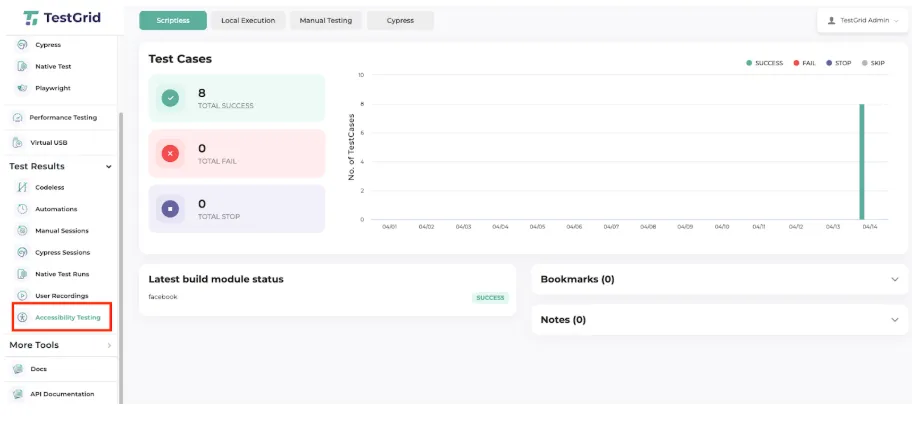
TestGrid’s accessibility testing feature is built around WCAG 2.2 Level A and AA. The platform helps you capture metrics for every page you test and maps them to WCAG guidelines. You can also organize your results and group related tests in your dashboard and reuse the decision details for testing complete user journeys across multiple pages in your app.
TestGrid also offers you an AI accessibility testing agent that analyzes your app during test execution and highlights potential accessibility issues with clear, reviewable evidence.
During execution, this agent evaluates different areas of your app:
- Page structure and semantic HTML
- ARIA roles, labels, and attributes
- Color contrast and visual visibility
- Form labels, error messaging, and focus handling
- Keyboard navigation and focus order
The agent links each accessibility test finding directly to the step you were executing, the specific UI element involved, and the relevant accessibility guideline. This helps you review, prioritize, and remediate issues with transparency and governance.
To see how this AI agent works inside your accessibility testing workflows, start a free trial with TestGrid today.
Frequently Asked Questions (FAQs)
How often should you perform mobile app accessibility testing?
Accessibility testing for mobile apps should be conducted throughout the development lifecycle, starting from design and development through QA and release. After every build, run automated checks and perform manual accessibility audits before major releases.
What is the role of user testing in mobile accessibility testing?
User testing in mobile apps accessibility testing checks how real users interact with an app. This helps uncover the practical usability challenges, unexpected behaviors, and accessibility gaps that automated accessibility testing tools for mobile apps might not be able to detect.
What are the main principles of mobile accessibility testing?
Mobile app accessibility testing follows the POUR principles, which are perceivable, operable, understandable, and robust. The principles state that mobile apps must present content that users can perceive, support multiple interaction methods, remain easy to understand, and work well with different assistive technologies.
What assistive technologies should be tested on mobile?
Some important assistive tech that must be tested on mobile include screen readers, screen magnification tools, voice control, switch access, and external keyboards.
What is the difference between accessibility testing and usability testing?
Accessibility testing examines whether an app can be used by people with disabilities and if it works correctly with assistive technologies by following standards like WCAG. Usability testing assesses how easy and intuitive an app is for all users. Accessibility ensures inclusion, and usability improves overall user experience.