 CoTester 2.0 is LIVE! Your Always-Available AI Teammate for Testing.
- How Search Functionality Works
- Why You Need Effective Search Test Cases
- Important Test Cases For Search Functionality
- 1. Negative test cases for search functionality
- 2. Positive search test cases
- 3. Search box or search bar test cases
- 4. Voice search test cases
- 5. Search results validation test cases
- 6. Auto-suggest and autocomplete test cases
- 7. Search filters and sorting test cases
- 8. Performance and load test cases
- 9. Cross-browser and cross-device test cases
- 10. Accessibility and localization test cases
- How TestGrid Helps Automate Search Functionality Testing
- Frequently Asked Questions
The search feature is probably one of the most critical functions of your app because that’s what allows your users to find a particular product, service, or piece of information.
Irrelevant results, slow response times, broken filters, or missing suggestions can lead users to abandon their search or purchase. Validating search accuracy, relevance, performance, and usability is a critical aspect of your software testing process.
In this blog, we’ll cover the most important test cases for search functionality, including everything from basic searches to performance, accessibility, and cross-browser compatibility.
Execute your test cases across real devices and browsers with TestGrid. Request a free trial.

TL;DR
- Search functionality testing validates query processing, result relevance, performance, usability, accessibility, and security to ensure a reliable search experience
- Test cases for search functionality should include positive, negative, UI, voice search, autocomplete, filtering, performance, and cross-browser scenarios
- Test cases for search functionality with empty inputs, misspellings, special characters, and multilingual queries can help you prevent failures in production
- An understanding of core search components such as indexing, autocomplete, filters, ranking, and pagination enables you to create effective test cases that validate the overall search functionality.
- Comprehensive search testing helps identify potential defects before release, improve content discoverability, and enhance the overall user experience.
How Search Functionality Works
When the user enters a search query into the search bar, your app processes the input and then compares it against a search index.
The search engine then identifies matching records and generates the search results according to keyword matching, metadata, filters, and other search rules.
Lastly, a ranking and relevance algorithm orders the results so that the most relevant items appear first. This helps your users find the exact information or products they are looking for fast.
Common Components of a Search System
- Search bar: The input field where you enter keywords or phrases to search for information or products
- Search results page: This displays the items that match your search query in order of relevance
- Auto-suggest: Recommends popular or relevant search queries as you type
- Autocomplete: It predicts and completes your search query based on the characters you enter
- Search filters: This allows you to narrow search results using criteria such as category, price, brand, or date
- Sorting: Reorders search results based on attributes like relevance, price, rating, or newest first
- Pagination: This divides large sets of search results into multiple pages for easier navigation
- Zero results page: It shows a message and helpful suggestions if no results match your search query
Why You Need Effective Search Test Cases
1. Ensure accurate search results
Search testing helps identify issues with keyword matching, indexing, ranking, spelling tolerance, and query processing while ensuring that users consistently receive accurate and relevant results.
2. Improve user experience
A robust search function enables your users to find expected information or products quickly with minimal effort. Test cases for search functionality let you validate features such as autocomplete, filters, typo tolerance, and result relevance, and minimize search frustration and improve overall navigation and engagement.
3. Validate search performance under load
Search testing allows you to assess how the search engine performs during high traffic, concurrent user activity, and large query volumes. You can detect excessive response times and service failures and ensure the search functionality is fast, stable, and reliable under peak load.
Also Read: Performance Testing Guide
4. Detect edge cases before production
When you test the search functionality, you uncover issues caused by unusual inputs, such as empty queries, special characters, long strings, unsupported languages, and network interruptions. Addressing these edge cases before production helps you prevent unexpected failures.
5. Enable secure searching
Search functionality is also critical because it allows you to detect security vulnerabilities such as SQL injection, cross-site scripting (XSS), and malicious input handling, and block unauthorized access and data exposure.
Learn More: Security Testing from Requirements to Release
Important Test Cases For Search Functionality
1. Negative test cases for search functionality
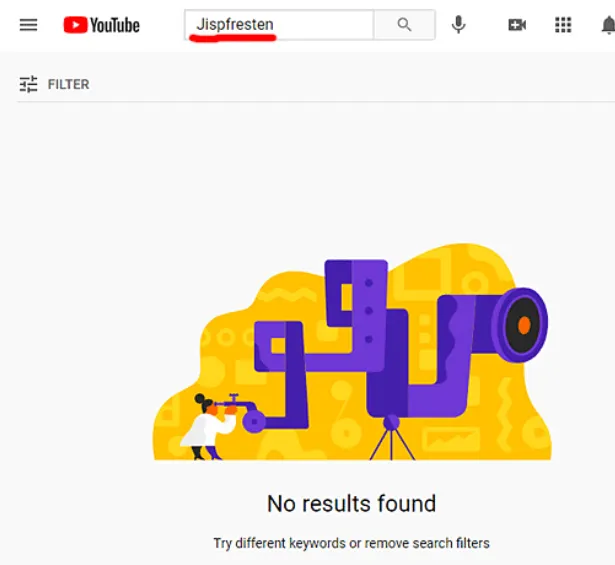
Negative test cases for search functionality help you check how the search functionality handles unexpected, unsupported, or invalid search queries or inputs.
| Scenario | Test case description | Expected result |
|---|---|---|
| Special character | Enter a search query containing special characters (e.g., @#$%^&*) and execute the search | The input is handled safely, and relevant results or a “No results found” message is displayed |
| Empty search | Leave the search bar blank and click ‘Search’ | A validation message or default results as designed |
| Invalid search term | Enter a keyword that does not exist in the database | “No results found” message |
| Non-existent product | Search for a product or term that doesn’t exist in the database | The search results return ‘no matches’ message |
| Exceeded character limit | Attempt to enter a search query longer than the maximum character limit supported | The input is limited or truncated according to the app’s rules without affecting stability |
| Search during maintenance | Perform a search when the search service or website is unavailable due to maintenance | An appropriate maintenance or service unavailable message is shown (Service temporarily unavailable. Please try again later) |
| Interrupted search | Start a search and navigate to another page before the search completes | The search is canceled without errors or crashes |
| Ambiguous search query | Enter a broad search query (‘Apple’) and execute the search | The app shows matching results, suggested alternatives, or query refinement suggestions |
| Expired search session | Execute a search after the user session has expired | The user should be prompted to re-authenticate |
| Reserved search syntax | Enter reserved search syntax characters ({ } [ ] ~ ^) that are not supported by the search engine | The input is safely processed or rejected with an appropriate message |
Also Read: Test Case Template: Free Examples & Formats for QA Teams
2. Positive search test cases
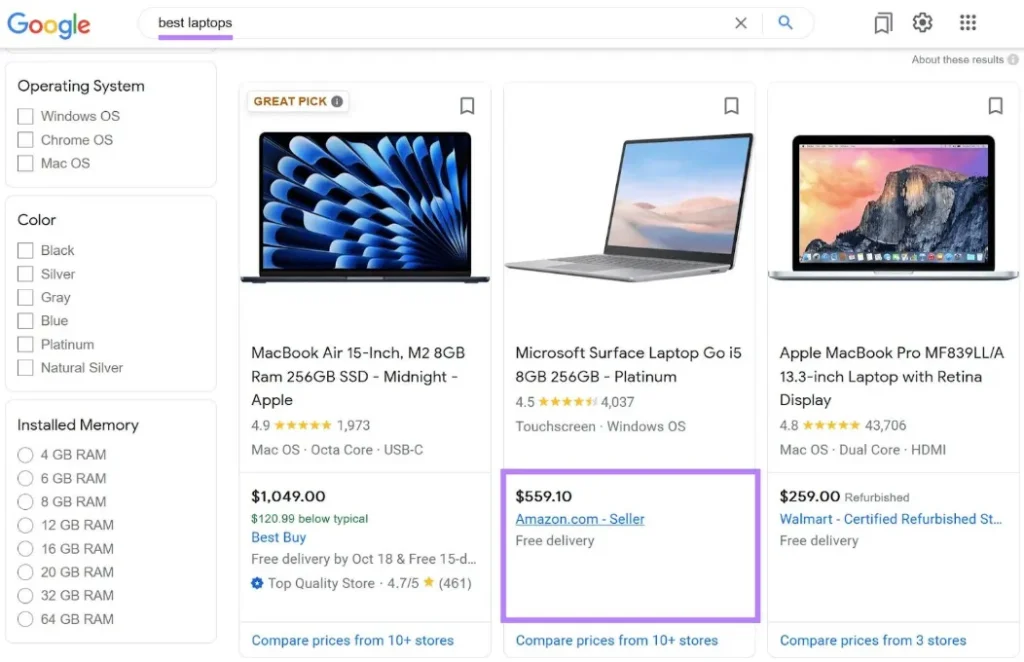
Positive test cases for search functionality evaluate if the search feature can return applicable results for valid user queries, including fuzzy searches like misspellings, typos, or spelling variations.
| Scenario | Test case description | Expected result |
|---|---|---|
| Multiple search terms | Enter a search query containing multiple keywords (‘wireless bluetooth headphones’) and execute the search | Results matching all entered keywords are shown according to the search rules and database |
| Valid search term | Enter a valid search term and execute the search | Only relevant results are displayed without errors |
| Leading and trailing spaces | Enter a valid search term with spaces before and after the keyword | App ignores leading and trailing spaces, and shows matching results |
| Misspelled search term | Enter a misspelled search query (e.g., ‘iphnoe’ for ‘iPhone’) | Relevant results or spelling suggestions are displayed if supported |
| Synonym search | Enter a synonym of an indexed term (‘TV’ instead of ‘Television’) | Search returns matching results if synonym search is supported |
| Internal spaces | Enter a search query with multiple spaces between letters and words | Extra spaces between words are ignored, and matching results are displayed |
| Mixed upper and lower case letters | Enter a search query using mixed uppercase and lowercase letters (‘LaPToP’) | Matching results are displayed regardless of letter case |
| Exact product name | Enter a valid product name and execute the search | The matching product or closely related products are displayed |
| Multiple keywords | Enter a query containing related keywords and run the search | The search should return all results matching the combined keywords |
| Stop words | Enter a query consisting only of common stop words (‘the and of’) | The app should process the query as per the stop-word handling rules without errors |
| Phrase search | Search a phrase with multiple words separated by single spaces (‘wireless keyboard’) | Results should return items related to the phrase and match the search criteria |
| Boolean operators | Input a search query using Boolean operators (‘laptop AND Dell’ or ‘laptop OR tablet’) | Boolean operators are processed according to the app’s supported search syntax |
| Diacritics and accented characters | Search a query consisting of accented characters (‘Café’ or ‘São Paulo’) | Based on the app’s character normalization rules, matching results are shown |
| Numeric search | Enter a numeric search query (‘256GB’, ‘2026’, or ‘12345’) | Search must return relevant results for the numeric search query, if available or a “No results found” message |
| Geographic search | Input a location-based search query (‘restaurants in New York’ or ‘hotels in Paris’) | Only results associated with the specified location are returned |
| Semantic search | Enter a natural language query (‘phones with the best camera’) | Results relevant to the intent of the query are displayed, even if the exact keywords are not present |
Also Read: How to Write Effective Test Cases
3. Search box or search bar test cases
These search test scenarios help evaluate the usability and behavior of the search input field, ensuring that users can easily enter, edit, and submit their queries.
| Scenario | Test case description | Expected result |
|---|---|---|
| Search box visibility | Open the page and verify that the search box is displayed | The search box is visible and accessible on the page |
| Search box input | Click the search box and enter a valid search term | The entered text should display correctly in the search box |
| Homepage search bar | Open the homepage and verify that the search bar is prominent | The search bar is clearly visible and easy to locate on the homepage |
| Search bar placement | Verify that the search bar is positioned consistently on every relevant page of the app | The search bar must appear in the designated location without overlapping or layout issues |
| Input responsiveness | Type a search query rapidly into the search box | All keystrokes are captured without noticeable input delay |
| Search box usability | Enter, edit, select, and delete text in the search box using the keyboard and mouse | The search box should support standard text input operations |
Also Read: How to Write Test Scenarios: Examples, Templates & Best Practices
4. Voice search test cases
Voice search test cases are built to check that spoken search queries are correctly captured, processed, and converted into search results.
| Scenario | Test case description | Expected result |
|---|---|---|
| Voice search availability | Tap or click the Voice Search icon and speak a valid query | The spoken query should be transcribed, and matching search results must display |
| Accented pronunciation | Perform voice searches using the same query with different accents (American, British, or Indian English) | The app should recognize the spoken query accurately and return relevant results |
| Voice search usability | Voice search using a clear query and evaluate the interaction from voice input | The voice search is easy to use, accurately interprets the query, and returns relevant results with minimal delay |
| Voice search permission | Deny microphone access and initiate a voice search | An appropriate permission request or error message should appear |
| Silence detection | Run a voice search without speaking | The app times out and prompts the user to try again |
| Background noise | Perform a voice search in the presence of moderate background noise | The app should accurately recognize the query or prompt the user to repeat it |
| Long voice query | Speak a lengthy search query containing multiple keywords | The complete query is transcribed accurately, and the app returns relevant results |
| Interrupted voice search | Cancel or interrupt the voice search while recording | The recording stops immediately without initiating a search |
Learn More: Audio Testing: How to Automate Functional Testing for Media Applications
5. Search results validation test cases
These test cases for search functionality help you ensure that the returned results are relevant, complete, and displayed correctly. They also verify result ranking, content accuracy, and overall presentation.
| Scenario | Test case description | Expected result |
|---|---|---|
| Search result relevance | Enter a valid search query (‘running shoes’) and execute the search | The displayed results are relevant to the entered query |
| No search results | Search for a non-existent term (‘XYZ123Product’) | The app should show a ‘no results found’ message |
| Product information display | Search for a product and inspect the search results | Each result should return the product image, name, price, and description, if available |
| Result ranking | Search for a specific product (iPhone 16 Pro) | The most relevant matching results appear at the top before less relevant results |
| Result count | Perform a search that returns multiple results | The displayed result count should match the number of search results shown on the page |
| Product images | Search for a product category (Shoes) and verify the displayed images | Each product displays the correct image without distortion |
| Product names and descriptions | Search for a product and review the displayed product details | The product name and description must match the corresponding product |
| Product price | Search for a product with a known price and review the search results | The displayed price matches the product’s current price |
| Product ratings and reviews | Search for products with customer ratings | The correct rating value and review count should be displayed for each applicable product |
| Brand search | Enter a brand name and click on Search | Products only belonging to the specified brand should be shown |
| Quick view | Click the Quick View option for a product displayed in the search results | The Quick View panel opens and displays the correct product details |
| Stock availability | Search for a product and verify if the actual stock matches the current stock | Each product displays its current stock availability accurately |
| Related products | Open a product from the search results and view its recommendations | The app should display related products relevant to the selected product |
| Search result navigation | Click a product link from the search results | The corresponding product detail page opens successfully |
| Add to cart/wishlist | Add a product to the cart or wishlist directly from the search results, if supported | The selected product is added successfully to the chosen destination |
| Search ranking accuracy | Search using a highly specific query (‘Dell XPS 13’) | Exact or closest matching products are ranked ahead of partial or less relevant matches |
6. Auto-suggest and autocomplete test cases
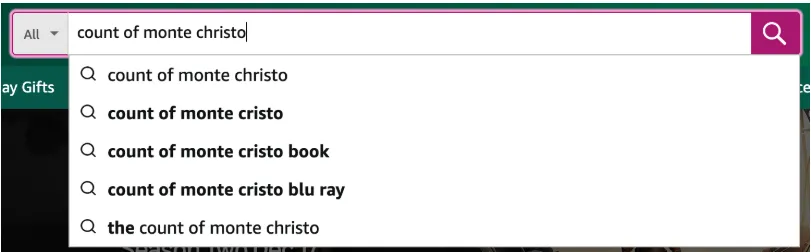
Auto-suggest and autocomplete testing helps verify that relevant suggestions appear as users type, making it easier for them to refine and complete their searches efficiently.
| Scenario | Test case description | Expected result |
|---|---|---|
| Testing the ‘Search As You Type’ feature | Enter the first few characters of a valid search term (lap’ for ‘laptop’) | The app should display autocomplete suggestions as the user types |
| Auto-correction | Type in an incorrect spelling | The search auto-corrects the query or a corrected search suggestion |
| “Did You Mean?” suggestions | Enter a misspelled search query (‘samsng’) and execute the search | A “Did you mean?” suggestion is shown with the corrected term |
| Search history | Click the search box after performing previous searches | Recent search history should appear according to the app’s search history settings |
| Query refinement | Select an autocomplete or suggested query from the dropdown list | The selected suggestion populates the search field and returns the corresponding search results |
| Minimum character threshold | Enter fewer characters than the minimum required to trigger auto-suggestions | Auto-suggestions appear only after the minimum character threshold is reached |
| Suggestion refresh | Modify the search query by adding or removing characters when the suggestion list is displayed | The suggestion list updates dynamically to reflect the current query |
| Selecting a suggestion | Select an auto-suggestion using the mouse or keyboard | The selected suggestion should populate the search field and execute the appropriate search or navigation action |
7. Search filters and sorting test cases
You execute these search functionality test cases to verify that users can effectively refine and organize search results using filters, faceted search, and sorting options.

| Scenario | Test case description | Expected result |
|---|---|---|
| Search filter | Search for a product category (‘Television’), apply a filter (Brand = Sony) | Only products matching the selected filter should be displayed |
| Pagination | Search for a term that returns multiple pages of results and navigate to the next page | The next set of search results appear without duplicates or missing items |
| Sorting options | Search for a product category and sort the results by Price: Low to High | Results show up in ascending order of price |
| eCommerce product filters | Search for ‘running shoes’ and apply multiple filters such as Brand = Nike, Size = 10, and Price = $150-$300 | The results should return only products matching all selected filter criteria |
| Filter persistence | Apply one or more filters, refresh the search results page, and verify the selected filters | The applied filters remain selected, and the filtered results are preserved |
| Filter reset | Apply multiple filters and use the Reset or Clear All Filters option | All applied filters must be removed, and the complete search results are displayed |
| Empty filter results | Apply filters that do not match any search results | A “No results found” message is shown, and the applied filters remain visible |
8. Performance and load test cases
Performance test cases for search functionality basically analyze the speed, responsiveness, scalability, and stability of the search functionality under different traffic and data load conditions.
| Scenario | Test case description | Expected result |
|---|---|---|
| Search speed under high traffic | Perform a search when the app is handling the expected peak user load (10000 users) | Search results return within the app’s target response time (e.g., ≤ 2 seconds) |
| Recommendation engine integration | Search for a product that has personalized recommendations | Recommendations load together without delaying the search results |
| Slow network performance | Search a query over a slow network connection (3G with 400 kbps bandwidth) | Search results return without failures or incomplete content |
| Concurrent search requests | Simulate multiple users performing different search queries simultaneously ( 5000 concurrent users) | All search requests complete successfully without spike in response times |
| Response time under normal load | Execute a search during normal operating conditions (100 concurrent users) | Search results are returned in specified response time ( ≤ 1 second) |
| Traffic spike handling | Simulate a sudden increase in search traffic (100 to 2,000 concurrent users within 1 minute) | The search service remains available and continues processing requests without failures |
| Peak usage performance | Perform searches during a simulated peak shopping event (Black Friday sale) | Search results should remain accurate and response times remain within the defined service-level objective ( ≤ 3 seconds) |
| Scalability with increasing products | Increase the searchable catalog size (10,000 to 1 million products) and execute searches | Search response time should be consistent as the catalog size increases |
| Mobile network performance | Search a query on a mobile device using 3G, 4G, and 5G network connections | Search results load successfully across all supported network conditions |
| Search caching | Search a particular query twice consecutively | The repeated search returns results faster than the initial search when caching is enabled |
| Catalog performance | Run searches after indexing a large dataset (5 million searchable records) | Search accuracy is maintained without a substantial increase in response time |
| Search index update time | Add a new searchable product and run a search after indexing completes | The new product appears in the search results within the expected indexing interval |
| Sustained high-traffic performance | Conduct continuous search requests for an extended duration (1 hour at 1,000 concurrent users) | The search service should stay stable without memory leaks, crashes, or performance degradation |
| Search system scalability | Increase the search request rate incrementally (100, 500, 1,000, and 2,000 requests/second) | The system should scale to process the increased load without request failures or unacceptable response time increases |
Learn More: Load Testing: Process, Tools & Best Practices Explained
9. Cross-browser and cross-device test cases
Since your users search from different browsers, operating systems, screen sizes, and devices, these search functionality test cases enable you to check if search functionality works consistently across these configurations.
| Scenario | Test case description | Expected result |
|---|---|---|
| Responsive search UI | Open the app on a desktop, tablet, and mobile device, then perform the same search on all | The search box, search results, and related UI elements must display correctly and remain fully functional on all device types |
| Browser and device compatibility | Perform a search on different browsers (Chrome, Safari, Firefox, Edge) across desktop and mobile devices | The search functionality behaves consistently, and the displayed results is identical across all browsers and devices |
| Cross-platform search functionality | Search a query by opening the app on different operating systems (Windows, macOS, Android, and iOS) from supported browsers | The search executes successfully, and search features (e.g., autocomplete, filters, and result navigation) function correctly |
| Browser zoom levels | Enter a query after changing the browser zoom level (80%, 125%, 150%) | The search interface remains functional |
| Browser back and forward Navigation | Perform a search, navigate to a result, then use the browser’s Back and Forward buttons | The previous search query and results must restore correctly |
| Mobile virtual keyboard | Input a query using the on-screen keyboard on a mobile device | The search is processed correctly, and the keyboard does not obstruct essential search elements |
| Device orientation change | Perform a search and rotate the mobile device between portrait and landscape modes | The search query and results remain intact after the orientation change |
| Touch interaction | Conduct search actions such as selecting filters or search results using touch gestures on a touchscreen device | All search interactions respond correctly to touch input |
| High-DPI display compatibility | Execute a search on a high-resolution (Retina/4K) display | The search interface and results render clearly without scaling or alignment issues |
| Browser cookie configuration | Search with browser cookies disabled or restricted | The search functionality behaves as expected or displays an appropriate message if cookies are required |
Also Read: Cross Platform Testing: Strategies, Tools, and Best Practices
10. Accessibility and localization test cases
Accessibility and localization testing ensures that search features are usable by people with disabilities and work correctly across different languages, regions, and locale-specific settings.
| Scenario | Test case description | Expected result |
| Mixed-language search | Enter a search query in two different languages | The query should process and return matching results |
| Accessibility | Navigate to the search box using the Tab key, enter a search query using the keyboard, and click the Enter key | The search functionality is fully operable using the keyboard, and the search box is accessible to assistive technologies (e.g., screen readers) |
| Localization | Change the app’s language or region ( English (US) to French (France)) and search for a localized term | Search results are returned according to the selected language or region |
| Visible keyboard focus | Navigate to the search bar and related controls using the Tab key | A clear visual focus indicator is displayed for each interactive element |
| Search error announcement | Submit an invalid search and verify the error message using a screen reader | The screen reader should announce the error message automatically |
| Text scaling | Increase the browser or device text size to 200% and search a query | The search interface stays usable without text clipping or overlapping elements |
| High contrast mode | Run a search when the operating system or browser’s high-contrast mode is enabled | Search controls and results remain readable and distinguishable |
| Localized UI elements | Switch the app’s language and verify the search interface | Search placeholders, buttons, filters, and messages are displayed in the selected language |
| Right-to-left layout rendering | Switch the app to a right-to-left language (Arabic) and perform a search | The search interface, filters, and results render correctly in the RTL layout |
Also Read: Accessibility Testing: Types, Process, Challenges, and Solutions
How TestGrid Helps Automate Search Functionality Testing
TestGrid is an AI-powered end-to-end software testing platform that verifies search behavior across devices, browsers, and operating systems. With its codeless automation and unified test infrastructure, TestGrid streamlines test creation, execution, and maintenance. Intelligent automation, cross-platform coverage, and parallel execution make search functionality testing faster, simpler, and more reliable.
- Automatically generate test cases for various search functionality scenarios like search box, filters, sorting, autocomplete, and pagination with natural language prompts
- Verify that search bars, search results, keyword highlighting, typo tolerance, and voice search work properly across browsers like Chrome, Firefox, Safari, and Edge
- Execute search functionality test cases on real Android and iOS devices to validate responsive layouts, touch interactions, virtual keyboards, and device-specific search behavior
- Simulate different network conditions like 3G, 4G, 5G, or WiFi and check how your search function responds
- Adapt your tests as UI elements and locators update with TestGrid’s AutoHeal Technology
- Capture screenshots, videos, logs, and execution reports for failed search test cases and debug easily
Create your test cases seamlessly with TestGrid’s codeless automation, connect with CI/CD tools like Jenkins, Azure DevOps, and GitHub Actions to execute them automatically, monitor every execution through comprehensive test reports, and detect failures quickly.
Request a free trial of TestGrid to start testing today.
Frequently Asked Questions
Which applications require search functionality testing?
Any app that has a search feature, including e-commerce, SaaS, content management systems, streaming services, healthcare portals, travel booking platforms, and enterprise software, needs search functionality testing to ensure users can quickly find correct and relevant information, products, or services.
Can search functionality testing be automated?
Yes. You can use automation frameworks like Selenium, Playwright, Cypress, or Appium to create tests for search functionality and assess search behavior, filters, sorting, autocomplete, and search results across multiple browsers, devices, and test scenarios.
What test data should be used for search functionality testing?
You should use diverse test data, including valid and invalid keywords, partial matches, misspellings, special characters, numeric values, multilingual queries, synonyms, stop words, and large datasets to create test cases for search functionality.


