 CoTester 2.0 is LIVE! Your Always-Available AI Teammate for Testing.
- What Is Android TV App Testing?
- How Do You Set Up the Environment for Android TV App Testing
- How to Test Android TV Apps with Appium
- Important Android TV App Testing Types
- Optimization Tips for Accurate Android TV App Testing
- Improve Your Android TV Application Testing with TestGrid
- Frequently Asked Questions (FAQs)
Television viewing used to be a passive, one-way experience which centered around scheduled broadcasting.
But that’s not the case anymore. Android TV and Google TV apps now support interactive streaming experiences, 4K and HDR playback, content recommendations, and voice-based discovery where the app and device support those features.
The global smart TV market stood at $247 billion in 2025, with Android TVs making up more than 43% of the total market revenue.
As Android TV and Google TV adoption grows, you need to validate that your app works across device models, OS versions, screen resolutions, remote-control inputs, playback conditions, and unstable network environments.
In this blog, we’ll see how to perform Android TV app testing, the different testing types, and some actionable optimization tips.
Strengthen Android TV app performance and streaming stability with TestGrid. Request a free trial.
TL;DR
- Android TV app testing verifies that a TV app functions correctly, supports D-pad and remote-control navigation, renders properly on large screens, and maintains stable playback across supported devices
- Different types of Android TV app testing include functional, performance, UI/UX, compatibility, and accessibility testing
- To set up an Android TV testing environment, install Android Studio and SDK tools, configure TV emulators, enable Developer Options, and connect physical devices through USB or network debugging with ADB
- You can automate testing for Android TV apps with Appium by creating scripts that validate remote control, D-Pad navigation, UI elements, search functions, and playback features
- Some of the best practices you can follow to optimize Android TV testing include combining emulators with real device testing, integrating with CI/CD pipelines, and replicating real usage scenarios
What Is Android TV App Testing?
Android TV app testing is the process of evaluating apps built for Android TV and Google TV to verify playback stability, performance, remote-based navigation, usability, compatibility, and accessibility.
QA teams usually check remote-control navigation, focus behavior, responsive TV layouts, high-resolution playback, and compatibility across Android TV and Google TV devices, plus Android-based platforms such as Amazon Fire TV when those are part of the release scope.
How Do You Set Up the Environment for Android TV App Testing
1. Install Android Studio, Android SDK, and testing tools
Probably one of the most important steps before you start testing Android TV apps is to install the tools and libraries that you’ll need for testing.
Install Android Studio, then use the SDK Manager to install the Android SDK, platform tools, ADB, emulator images, and other debugging utilities needed for TV testing.
Then choose the right automation framework: Appium or UIAutomator2 for black-box/device-level automation, and Espresso for instrumentation-level UI tests when you can test inside the app codebase.
2. Configure the Android TV emulator
Next, you need to set up the Android TV emulator testing setup, which you can do by creating a dedicated Android TV Virtual Device (AVD) using the AVD Manager. This will involve selecting a TV hardware profile, choosing an Android TV system image, and then configuring the display resolution, memory, and graphics settings.
Here’s a pro tip: you can refer to the Android Developers documentation to select Android TV-optimized AVD profiles and recommended emulator hardware acceleration settings for efficient testing.
3. Enable developer options and USB debugging
Enabling the developer options is important for Android TV testing because it will help your testers establish communication between the Android TV and your testing systems and automation tools.
To enable Developer Options, go to the device’s About section and select the Android TV OS build or Build number repeatedly until developer mode is enabled; the exact path can vary by device and OS version.
Next, go inside the Developer Options and enable USB debugging.
4. Connect your device with ADB
Next, connect the Android TV device to your test machine using ADB over USB or over a network connection.
For network debugging, connect the TV and test machine to the same network, enable debugging on the TV, then use adb connect <device_ip>:<port> or wireless debugging pairing on supported Android versions; verify the connection with adb devices.
This step allows you to send commands from your computer to control the TV while testing.
How to Test Android TV Apps with Appium
1. Set up Appium desired capabilities for Android TV
Your testers first need to define the key device and your app parameters for Appium to initiate an automation session.
Configure W3C-compliant Appium capabilities such as platformName, appium:deviceName, appium:platformVersion, appium:automationName, appium:appPackage, and appium:appActivity so Appium can create an Android automation session and launch the target TV app.
Also Read: Appium Testing Guide for iOS & Android Test Automation
2. Automate remote control and D-Pad navigation
After you initialize the Appium session, you should automate the remote control and D-Pad navigation so you can start interacting with the apps.
For that, testers should simulate Android key events such as KEYCODE_DPAD_UP, KEYCODE_DPAD_DOWN, KEYCODE_DPAD_LEFT, KEYCODE_DPAD_RIGHT, KEYCODE_DPAD_CENTER, and KEYCODE_BACK.
These inputs will help you test focus transitions, menu traversal, and on-screen navigation.
3. Check elements during navigation
Next, use Appium Inspector, UIAutomatorViewer, or accessibility inspection tools to verify focus indicators, button states, content descriptions, focus order, and whether key UI elements are discoverable to automation and assistive technologies.
Automated test scripts can help you examine how focus changes after every remote action and spot laggy navigation flows, hidden elements, or unintended focus traps.
4. Test the search functionality
Search testing should cover text input, on-screen keyboard navigation, remote-based selection, search suggestions, result accuracy, and voice search input where the app or platform supports it.
You can automate many of these interactions with Appium, but your scripts should also cover special characters, empty states, slow API responses, no-result scenarios, and playback launches from search results.
5. Automate the OTT and playback features
Testing OTT and playback features should include video startup, pause/play controls, seeking, resume behavior, subtitle rendering, caption settings, audio track switching, buffering recovery, and playback failure handling.
Appium can automate playback controls and long-duration playback flows, but detecting A/V sync issues, dropped frames, bitrate adaptation problems, or HDR rendering issues usually also requires player telemetry, device logs, network throttling and shaping, and visual or audio validation.
Important Android TV App Testing Types
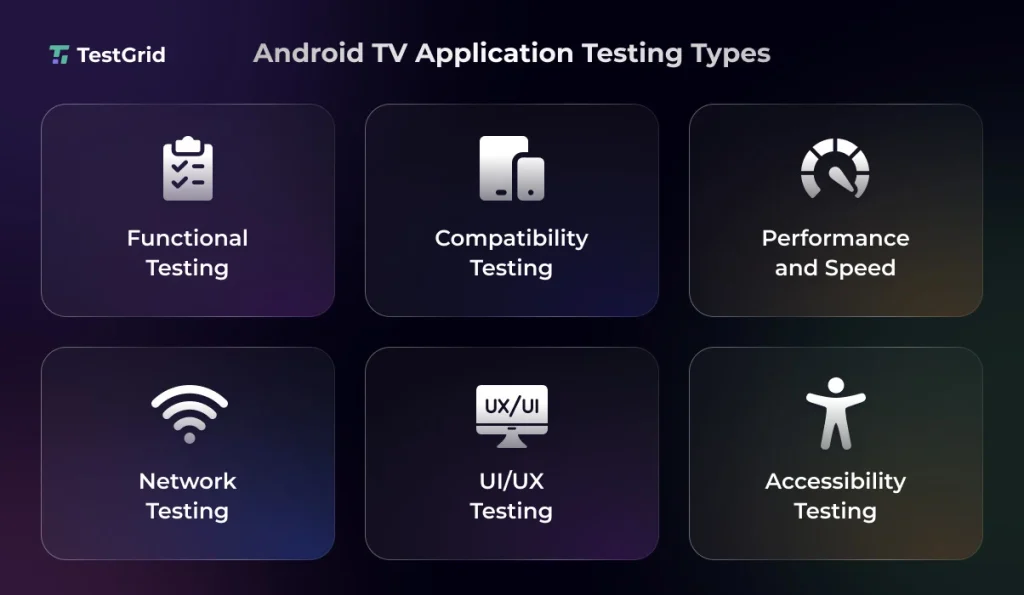
1. Functional testing
Android TV functional testing allows you to validate the core functions of your Android TV apps, such as focus-based navigation, login flows, content discovery, playback controls, search function, and settings.
Here, you also check the button responsiveness and error handling during user actions and ensure navigation is seamless across screens.
2. Compatibility testing
In this Android TV application testing type, you need to verify whether your apps can work consistently across different Android TV models, OS versions, screen resolutions, chipsets, OEM customizations, and HDMI-connected display environments.
Android TV compatibility testing also includes validating the remote compatibility for smart TVs, streaming devices, and set-top boxes.
3. Performance testing
Performance testing is critical to ensure that your Android TV app remains responsive and stable before real users start streaming, browsing, or navigating with a remote.
Organizations that need to validate playback quality, responsiveness, and compatibility across multiple TV platforms often use specialized smart TV testing solutions to execute tests on real devices and identify device-specific performance issues before release.
Some of the best practices for Android TV performance testing you can follow are:
- Measure startup time to see how quickly your app launches and becomes ready for user access
- Track memory usage to monitor your app’s memory consumption and make sure it can function on devices with varying resources without leaks
- Assess frame rendering stability, dropped frames, startup latency, and UI jank to understand how smoothly the app performs during browsing, transitions, and playback
4. Network testing
Network testing allows you to validate that your apps can run reliably under different network conditions, including low bandwidth and unstable Wi-Fi.
Through this testing, you generally evaluate buffering recovery, playback continuity, content loading speed, and reconnection handling when the network fluctuates.
5. UI/UX testing
UI/UX testing examines the visual clarity and usability of Android TV apps built with TV-optimized UI patterns, whether they use Jetpack Compose for TV, Leanback, or custom focusable layouts. This testing usually covers:
- Navigation – checking that menus, cards, controls, tabs, and playback actions are reachable and usable with a D-pad remote
- Focus handling – ensuring that focus highlights the correctly selected item when the user moves through different elements on screen
- Content browsing – testing different categories and filters to deliver smooth browsing experiences
- User interactions – validating actions such as adding content to a watchlist, favoriting items, rating content, switching profiles, or submitting feedback where those features exist
6. Accessibility testing
Accessibility testing lets you confirm that your Android apps are usable for individuals with visual, auditory, or motor impairments.
Your tests should verify TalkBack support, meaningful labels, captions and subtitle behavior, readable text, sufficient color contrast, predictable focus order, and full remote-only navigation for users with visual, auditory, or motor impairments.
Also Read: Mobile Accessibility Testing
Optimization Tips for Accurate Android TV App Testing
Apart from testing the core functions of the app, you can implement these tips to improve coverage across devices, streaming conditions, and release cycles and deliver high-quality experiences.
- Try to include both emulators and real devices for testing Android TV apps. Emulators can help you speed up the early stage testing and debugging, but you need real devices to test real-world hardware behavior and remote interactions
- You must validate the app across 720p, 1080p, and 4K display resolutions to ensure readable text and seamless playback rendering across these screens. You can follow Google’s Android TV guidelines to maintain consistent layouts across screen resolutions
- Integrate Android TV app testing into your CI/CD pipelines so your team can automate regression checks and run tests continuously after every feature update and deployment build
| From August 1, 2026, Android TV apps distributed through Google Play must support both 64-bit architectures and 16 KB page sizes, so QA teams should include compatibility checks for native libraries, SDKs, and build artifacts before release. |
- Test your app against interruptions such as Home/Back button presses, system dialogs, app backgrounding, sleep or standby mode, playback pauses, network drops, and network reconnection. This will enable you to verify playback recovery and session persistence in unexpected connectivity situations
Improve Your Android TV Application Testing with TestGrid
As Android TV ecosystems continue expanding across device models, OS versions, display resolutions, and playback environments, maintaining reliable test infrastructure becomes increasingly difficult.
TestGrid is an all-in-one AI-powered testing platform that enables you to execute Android TV automation on real devices using your existing Appium workflows without managing large internal device labs.
You can validate remote-control navigation, playback behavior, focus handling, buffering recovery, and UI responsiveness across different Android TV environments while running tests in parallel across multiple devices and OS versions.
You can also integrate Android TV testing directly into Jenkins, GitHub Actions, GitLab, and Azure DevOps pipelines to continuously validate application stability during release cycles.
When debugging failures, TestGrid gives you access to ADB commands, logs, crash reports, Appium Inspector integration, network monitoring, and video playback recordings so you can diagnose playback issues, navigation inconsistencies, and device-specific failures more efficiently.
Instead of relying only on emulator-based validation, you can test Android TV applications under real-world conditions using real-device cloud infrastructure designed for scalable mobile and OTT testing workflows.
Deliver flawless Android streaming experiences with TestGrid. Request a free trial.
Frequently Asked Questions (FAQs)
1. What is the difference between Android TV and Google TV in app testing?
Android TV testing focuses on app behavior, D-pad navigation, playback quality, accessibility, performance, and compatibility across Android TV devices and OS versions. For Google TV, you may also need to test content discovery surfaces, watchlist behavior, recommendations, and launcher visibility when your app integrates with Google TV features or metadata surfaces.
2. Can Android TV apps be tested without a physical smart TV?
Yes, you can start Android TV app testing without a physical smart TV by using Android TV emulators, but production readiness still requires validation on real devices. Emulators help with early debugging and automation, but they cannot fully replace real-device testing for remote behavior, hardware decoding, performance, HDR playback validation, network behavior, and OEM-specific issues.
3. Which programming languages are commonly used for testing Android TV apps?
Java, Kotlin, Python, JavaScript, and TypeScript are commonly used in Android TV test automation, depending on whether the team uses Appium, UIAutomator, Espresso, or other test frameworks. These languages are commonly used because they are supported by Android testing frameworks or Appium client libraries and integrate well with CI/CD pipelines and test reporting tools.
4. How can you check video quality during testing of Android TV apps?
To evaluate video quality, combine automated playback scenarios with player telemetry, network shaping, device logs, dropped-frame metrics, bitrate checks, subtitle validation, HDR-capable device testing, and manual or visual inspection where needed.


