 CoTester 2.0 is LIVE! Your Always-Available AI Teammate for Testing.
- What Is Native App Testing?
- Native App Types
- Native App Testing Methodologies
- Native App Testing Process
- Security and Compliance Considerations for Native App Testing
- Native App Testing Types
- Where to Test Native Apps – Emulators, Simulators, or Real Devices?
- Best Native Mobile App Testing Practices
- Test Your Native Mobile Apps with TestGrid Real Devices Testing
- Frequently Asked Questions (FAQs)
Native apps are generally built to help users benefit from their platform-specific capabilities. But the close connection with operating systems and device hardware can create more variables for you to test.
A study shows that native apps held 52.10% of the mobile application testing services market in 2025. This means a large share of mobile testing demand is focused on verifying native apps.
Another report found that 77.5% of mobile app users say repeated performance issues damage their perception of a brand. Therefore, thoroughly testing apps is important to ensure they deliver reliable and responsive experiences across the platforms and devices they support.
In this blog, we’ll learn about native app testing, its types, process, tools to use, and best practices to optimize the process.
Leverage robust AI-powered mobile app automation with TestGrid. Request a free trial.

TL;DR
- Native app testing helps you verify that apps built for Android or iOS work correctly on their target platforms and devices
- Native apps are typically Android native and iOS native
- The different types of native app tests include unit, integration, performance, security, usability, compatibility, regression, and exploratory testing
- To conduct native mobile app testing, understand your app’s architecture, define test requirements, create test cases, build a device-OS matrix, prepare test data and environment, choose testing tools, run tests, and record results
- Native apps can be tested on real devices, emulators, or simulators, each with different advantages and disadvantages
- Some best practices you can follow for native app testing are prioritizing critical user journeys, tracking performance against baselines, staying up to date with OS releases, and checking accessibility settings
What Is Native App Testing?
Native app testing is the process of evaluating apps that are built for specific mobile operating systems and verifying the implementation, integrations, and behavior to ensure they meet the defined functional and quality requirements.
Your testing should ideally include assessing the app across multiple device models (including standard smartphones, foldable devices, tablets), screen sizes, resolutions, aspect ratios, and form factors.
Also Read: What Is Mobile App Testing?
Native App Types
1. Native Android apps
These apps are specifically designed for the Android operating system, usually using Kotlin or Java with Android’s native SDK and APIs. They leverage Android platform capabilities like sensors, cameras, biometrics, notifications, and background services.
For testing native Android apps, you need to account for Android-specific behavior, device fragmentation, OS versions, screen configurations, and hardware specifications.
2. Native iOS apps
Native iOS apps are developed particularly for Apple platforms, using Swift or Objective-C with Apple’s SDKs and frameworks. They have features like Face ID, Apple Pay, location services, cameras, and notifications.
iOS app testing should consider iOS versions, supported iPhone and iPad models, screen configurations, permissions, and Apple-specific behavior.
Native App Testing Methodologies
1. Automated testing
Native app automation testing involves leveraging automation scripts (written with automation frameworks) to execute predefined checks and verify UI behavior, functional workflows, regression scenarios, and user interactions at scale.
This methodology helps execute repetitive tests continuously across builds, devices, or OS configurations.
2. Manual testing
Here, testers interact with your app directly, without relying on any automation scripts, and perform usability assessments, detect visual inconsistencies, and spot unexpected interactions.
Manual testing can be effective for observing how your app responds to actions such as tapping, swiping, rotating the device, switching between screens, or interrupting an activity.
Native App Testing Process
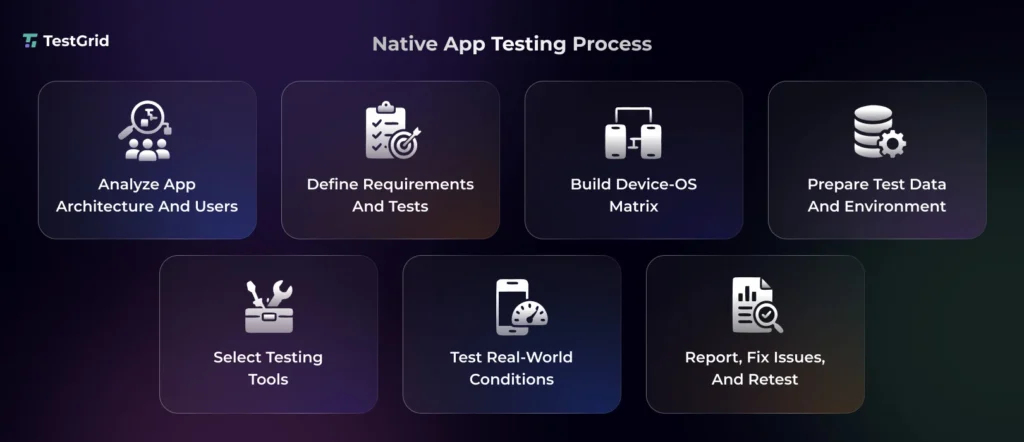
1. Analyze your app architecture and its users
You need to first understand how your app is built and who will be using it. Identify whether it’s an Android native, iOS native, or cross-platform native app (built with frameworks such as React Native or Flutter).
Then you have to map its core components, dependencies, APIs, device capabilities, and critical user journeys. Also analyze your target audience, supported platforms, OS versions, devices, and usage patterns.
Noting this information at this stage will help you decide which devices, configurations, workflows, and real-world conditions you need to prioritize in your test strategy.
Also read: Mobile App Testing Strategy: Step-by-Step QA Guide
2. Define requirements and test cases
Next, you need to write functional and non-functional requirements and turn them into testable conditions. Create test cases with clear preconditions, steps, test data, expected results, and configuration details.
When you’re designing the test cases, prioritize scenarios based on user impact and business criticality, and include positive, negative, boundary, interruption, and permission scenarios where relevant.
3. Create a device and OS test matrix
A device-OS matrix allows you to map the supported devices against OS versions and decide exactly which combinations you should be testing. You can build it from your target user distribution, supported OS versions, device popularity, hardware differences, and risk areas.
The matrix should record the device models and OS versions because the same OS can behave differently across different hardware configs.
Here’s a sample of how a device-OS matrix looks:
| Platform | Device | OS version |
|---|---|---|
| iOS | iPhone 12 | iOS 14 |
| iOS | iPhone 13 | iOS 16 |
| iOS | iPad | iPadOS 16 |
| Android | Samsung Galaxy S21 | Android 11 |
| Android | Google Pixel 3 | Android 9 |
| Android | Google Pixel 5 | Android 11 |
4. Prepare your test data and environment
When preparing test data, include both real and simulated test data, using production-like data (with proper masking or anonymization) or synthetic data to represent realistic user scenarios and edge cases. And make sure you keep the datasets controlled so your tests remain reproducible and independent.
For your test environment, set up emulators and simulators for fast, repeatable testing. Some options you can explore are Android Studio Emulator, Genymotion, iOS Simulator, and Ripple Emulator.
Also use real devices to validate hardware-dependent behavior. A physical or cloud-based device lab can help you expand coverage across devices and OS versions.
Learn More: What Is Test Data Management?
5. Choose the right tools and frameworks for testing
Now, based on your app, test scope, automation needs, and development workflow, you need to select the native app automation testing software and framework for the QA process.
- Test automation frameworks like Appium, Espresso, and XCUITest can help you write scripts for mobile native app automation testing
- CI/CD tools (Jenkins, Travis CI, GitHub Actions) can integrate automated test suites into build pipelines and allow you to run tests automatically when app code changes
- Defect management platforms like Jira let teams record, prioritize, assign, and track defects
- Collaboration tools like Slack and Teams facilitate communication and notifications about test results, failures, and issues
- Debugging and log analysis systems (PID Cat) filter Android logcat output to simplify debugging
- Device observation and recording platforms such as Vysor mirror and control Android devices, and QuickTime Player records iOS device screens to visualize test behavior
Also Read: Best 9 AI Tools for Mobile App Testing
6. Execute tests under real-world conditions
Test your app in realistic conditions. This can include different network strengths and transitions, battery levels, device orientations, screen sizes, incoming calls, notifications, app interruptions, background or foreground transitions, and device resources.
In case your app uses location, camera, Bluetooth, or biometrics, validate behavior with the corresponding hardware and permissions enabled or denied.
7. Analyze results, fix issues, and retest
After testing, document the defects or bugs you found in detail so your developers can easily reproduce and investigate them. Conduct a Bug Bash before release to have your testers exercise the app and uncover unexpected issues.
Create a bug report that includes the important details like:
- Device name (Google Pixel 7)
- OS version (Android 14)
- Screen resolution (1080 × 2400 pixels)
- App version (Version 3.2.1)
- Steps to reproduce (Open the app, select Transfer, enter an amount, tap Send)
- Expected (transfer completes successfully) vs actual behavior (App displays ‘something went wrong’)
- Screen recordings and captured exceptions
As per this information, your developers have to analyze the reported defect, identify its underlying cause, and implement the fix.
Rerun the original test case under the same conditions to confirm that the defect is resolved and run regression tests to ensure the change hasn’t created any new problems.
Lastly, before distribution, verify the build’s installation and upgrade behavior, permissions, app metadata, signing configuration, and compliance with the platform requirements of the Google Play Store and Apple App Store.
Security and Compliance Considerations for Native App Testing
Native app Security testing should assess both the mobile app and the data flows around it. Your testers must align the security controls with recognized mobile standards, applicable privacy regulations, and the risks associated with third-party libraries and SDKs.
- Examine the security gaps: Use the Open Web Application Security Project (OWASP) and OWASP Top Ten to identify risks like insecure storage, weak authentication, and unsafe network communication.
- Check privacy controls: Examine data collection, processing, retention, deletion, and sharing against applicable requirements, including the GDPR (General Data Protection Regulation) and CCPA (California Consumer Privacy Act).
- Protect health data: If your app belongs in the healthcare domain, test safeguards for electronic protected health information (ePHI) under HIPAA (the Health Insurance Portability and Accountability Act).
- Test third-party components: Check SDKs, libraries, and APIs for vulnerabilities, outdated dependencies, excessive permissions, and unexpected data transmission.
Native App Testing Types
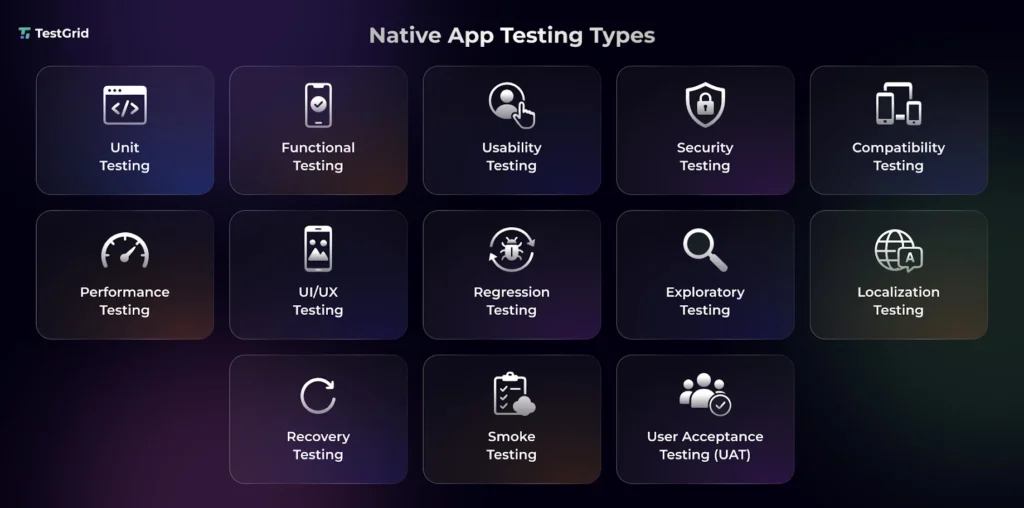
1. Unit testing
Testing individual components or functions of your native apps in isolation is critical to verify that they behave as expected. Your developers perform unit tests using frameworks such as XCTest for iOS and JUnit for Android to catch incorrect calculations, invalid inputs, and unexpected function behavior.
2. Integration testing
Integration testing helps you check whether individual components of your app work correctly when combined, such as UI components interacting with APIs, databases, authentication services, or device features. You can detect interface, data flow, and communication issues precisely.
3. Functional testing
Functional testing allows you to assess if native app features behave according to their specified requirements and user workflows. You generally cover testing actions like login, navigation, form submission, payments, and notifications, and ensure the app returns expected results across all supported devices and operating systems.
4. Usability testing
It’s important to ensure that your users can use the app easily. Usability testing is done to assess how intuitive the app is by examining the navigation, interface clarity, touch actions, readability, accessibility, and overall user experience, and identifying friction points that can make tasks difficult or confusing.
5. Compatibility testing
In compatibility testing, you check if your app functions consistently across supported devices, screen sizes, hardware configurations, and operating system versions. This allows you to identify issues from specific features, OS differences, screen dimensions, orientations, or manufacturer customizations.
6. Performance testing
Native mobile app performance testing assesses how an app responds to different workloads and operating conditions and detects slowdowns, excessive resource usage, crashes, and responsiveness issues before release.
Some important performance testing types you should conduct are:
- Load testing: Test app performance under expected levels of concurrent users, requests, or transactions to determine whether it stays stable under normal workloads
- Stress testing: Push the app beyond expected workload limits to find its breaking point and see how it works under extreme conditions, like unusually high traffic
- Endurance testing: Run the app under a sustained workload for an extended period to detect problems like memory leaks, battery drain, and performance degradation
7. UI/UX testing
With this test, you analyze your app’s interface and its layouts, navigation, touch interactions, readability, responsiveness, spacing, fonts, colors, icons, forms, and accessibility across devices and screens.
Learn More: UI Testing: Guide to Techniques, Tools, & Best Practices
8. Regression testing
Executing regression tests is critical after you make code changes, bug fixes, or add new features. It enables you to check if these changes affected any existing functionalities or introduced unintended issues.
9. Exploratory testing
Exploratory testing is generally manual in nature. Here, your testers explore the different features and user flows of the app and investigate edge cases, incorrect app behavior, broken workflows, and unexpected state changes.
10. Localization testing
If your app is intended for multiple countries and regions, then localization testing lets you ensure that it’s adapted for specific languages, regions, and cultural conventions.
You verify translated content, right-to-left (RTL) layouts, 12-hour/24-hour clock formats, date formats (MM/DD/YYYY vs DD/MM/YYYY), and measurement units (miles vs kilometers and Celsius vs Fahrenheit). Internationalization ensures your app’s architecture supports such adaptations.
11. Recovery testing
Your app should be able to recover correctly from failures, crashes, network loss, interrupted sessions, or unexpected shutdowns. Recovery testing inspects whether data, user state, and functionality are restored without corruption or requiring unnecessary manual intervention.
12. Smoke testing
Here, you perform a quick set of critical tests to determine if the app build is stable enough for more detailed testing. Smoke testing usually verifies essential functions such as app launch, login, navigation, and core workflows.
13. User acceptance testing (UAT)
In UAT, end users or business stakeholders test the app and its features to confirm if it’s ready for production, supports intended use cases, and meets business requirements and real user expectations before release.
Also Read: 30+ Key Software Testing Types Every QA Needs to Know
Where to Test Native Apps – Emulators, Simulators, or Real Devices?
Native testing can be done on emulators, simulators, and physical devices, but each environment provides different testing capabilities. The choice of test environment generally depends on factors such as the platform, hardware features being tested, test coverage, and the level of fidelity required.
| Aspect | Emulators | Simulators | Real devices |
|---|---|---|---|
| Description | Emulate Android device configurations and OS behavior on a computer | Simulate Apple platform environments on a Mac | Run the app on the actual target hardware and operating system |
| Test speed | Generally fast and easy to reset or recreate | Fast for iterative development and debugging | Slower to provision, reset, and execute at scale |
| OS coverage | Useful for testing different Android API levels without the need to own each device | Useful for testing supported iOS/iPadOS versions available through Xcode | Validates the exact OS/device combinations users actually have |
| Hardware-dependent features | Can simulate some sensors and device conditions, but not all physical behavior | Some hardware-specific features may not be available | Best choice for cameras, biometrics, sensors, haptics, Bluetooth, NFC, and other hardware-dependent functionality |
| Network condition simulation | Can simulate conditions such as network speeds, location, rotation, and some sensors | May support controlled simulation of certain inputs, such as location | Validates behavior under actual connectivity, hardware, and environmental conditions |
| Best suited for | Broad Android configuration coverage and repeatable functional and UI tests | Rapid iOS/iPadOS development, UI checks, and debugging | Final validation and scenarios requiring actual hardware or production-like behavior |
Learn More: Emulator vs Simulator vs Real Device
Best Native Mobile App Testing Practices
1. Focus on the critical user journeys
Prioritize test coverage around workflows where failure would most affect users or business outcomes. This can include onboarding, authentication, payments, or core transactions. Assess each journey by usage frequency, business impact, failure potential, and technical complexity.
| Pro tip Reassess critical journeys whenever you add features or change core app flows, so your highest priority tests reflect current user behavior and business risk. |
2. Track performance against baselines
Establish performance baselines for key metrics such as app launch time, screen-rendering latency, API response time, memory consumption, CPU utilization, and battery usage. Then compare subsequent builds against these benchmarks to detect performance degradation.
| Pro tip You should run baseline measurements multiple times and use the median or average as your reference value to reduce the effect of temporary CPU, memory, or network fluctuations. |
Also Read: What is Benchmark Testing?
3. Stay updated with OS releases
It’s important to monitor the upcoming OS releases, beta versions, release notes, API changes, and behavior changes to uncover API incompatibilities early. Make sure you test the app before users receive the update. Apple recommends testing every beta release, and Android recommends proactive compatibility testing during previews.
| Pro tip Maintain an OS release calendar and start compatibility testing during beta phases. This will give your developers time to address platform changes before the release reaches users. |
4. Test accessibility settings properly
Test your app with accessibility features enabled. Validate VoiceOver on iOS and TalkBack on Android, along with larger text, increased contrast, color filters, reduced motion, captions, and switch/voice controls. Your content must be readable, controls should have meaningful labels and logical focus order, and critical tasks have to remain accessible.
| Pro tip Check mobile accessibility after major UI changes, not just at the end of development. This is because changes in layouts, labels, navigation, or controls can affect screen reader focus and keyboard or switch navigation. |
Test Your Native Mobile Apps with TestGrid Real Devices Testing
Native mobile app testing on physical devices is essential because device hardware, operating system behavior, and real user interactions can affect app behavior in ways that emulators and simulators may not fully reproduce.
TestGrid is an AI-powered end-to-end software testing platform that enables your team to test apps across diverse device configurations without maintaining an extensive physical device lab.
- Test on real Android and iOS devices, and check performance, gestures, UI behavior, network conditions, and device-specific flows
- Run existing Appium, Cypress, or Selenium scripts in parallel across priority browser, OS, and device combinations with TestGrid mobile automation
- Record user interactions and convert them into reusable automated test cases with codeless automation
- Capture screenshots, videos, execution logs, network logs, and test reports to investigate failures and support defect reporting
- Diagnose issues faster with Appium Inspector, ADB commands, browser DevTools, Charles Proxy workflows, network capture, HAR files, and crash reports
You can perform manual testing and also integrate with Jenkins, GitHub Actions, GitLab, and Azure DevOps for automated native testing.
The platform supports deploying on-premises or using private and dedicated infrastructure with capabilities such as VPN connectivity, MDM, and access controls for controlled testing environments.
Incorporate TestGrid into your existing QA workflows and give your team a centralized way to manage native mobile app testing. Request a free trial today.
Frequently Asked Questions (FAQs)
What is the difference between native app testing and mobile app testing?
Mobile app testing is a broader practice of testing apps that are designed particularly for mobile devices, including native, hybrid, and mobile web apps. Native app testing is a subset focused specifically on apps built for a particular platform, such as Android or iOS. It therefore emphasizes testing platform-specific behavior, APIs, UI components, and device capabilities.
What are some of the best native app testing tools?
If you want real device testing, native framework support, parallel execution, network simulation, and performance monitoring, TestGrid is your best option. Other top native app testing tools include Appium for cross-platform automation, Maestro for UI testing, Espresso for Android, and XCUITest/XCTest for native iOS testing.
What should be tested when a native app is updated?
When you update a native app, test the upgrade path, along with the features. Verify that existing user data is preserved or correctly migrated, authentication and settings remain intact, and previously working functionality still operates.
What challenges can you encounter during native mobile app testing?
Some of the factors that can make native mobile app testing challenging include device and OS fragmentation, differences in hardware and platform behavior, limited access to physical devices, and test-environment variability. You can overcome them by prioritizing representative configurations, using suitable virtual and physical devices, and maintaining controlled environments.


