
Codeless/Scriptless Mobile App Test Case Writer
The test case is a set of conditions that determines if the application or one of its modules is behaving as expected. You can write multiple test cases in a single module. Test cases are executed in alphabetically ascending order of test case names.
Actions
These are the actions we use to write our test cases. The following are the definitions and a few examples of when each action would be used.
1.Wait For:
- This action is for Android, iOS, and Web.
- This action will delay the test case for a specified amount of time (in seconds) or until a certain condition is met before continuing to the next step.

2. Type In:
- This action is for Android, iOS, and Web.
- This action is used to enter text into text fields. The auto-hide keyboard feature can be set to true or false.

3. Type Encrypted:
- This action is only for the Web.
- This action is used to type text in the text fields in encrypted format. The auto-hide keyboard feature can be set to true or false.

4. Tap on:
- This action is for Android, iOS, and Web.
- This action is used to Click on any element. We can also specify the number of taps and the number of touches to perform.

5. Check:
- This action is for Android, iOS, and Web.
- We can specify assertions using the Check action. It can “Check” if a specified condition is true. The check action will also “Check” the value of any element.

6. Start If, Start Else, End If:
- This action is for Android, iOS, and Web.
- This action works as a conditional IF and Else statement like in any other programming language. We can check if the element is visible before we perform the “tap on” action on it.

7. Scroll to:
- This action is for Android, iOS, and Web.
- This action is used to scroll the screen until the element is at the top of the screen.

8. Swipe:
- This action is for Android, iOS, and Web.
- This action is used to perform a directional swipe gesture. We can specify any of the four directions, and the swipe will happen in the middle of the screen. We can also specify the container that we wish to swipe in.

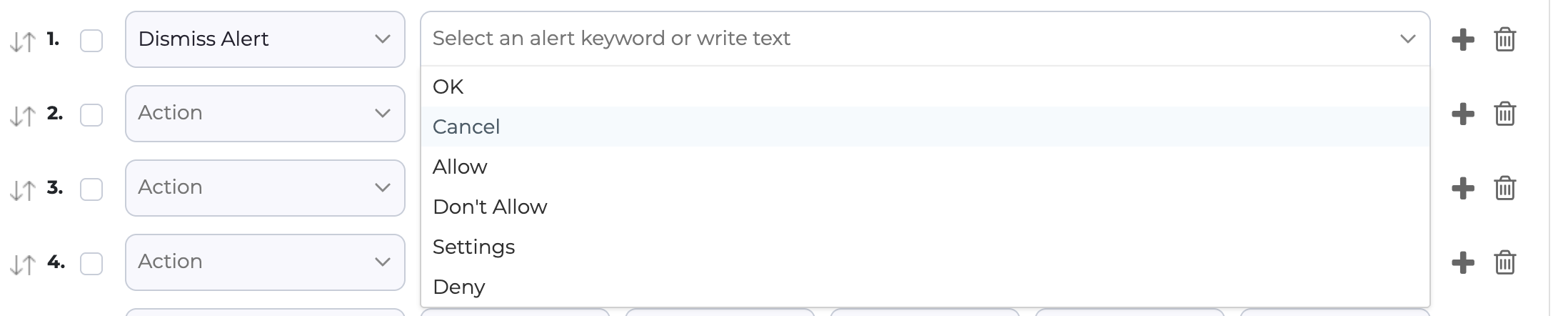
9. Dismiss Alert:
- This action is for Android and iOS.
- This action is used to accept or dismiss device alerts or system pop-ups.
10. Call Test Functions:
- This action is for Android, iOS, and Web.
- This action is called a declared test function.

11. Variable:
- This action is for Android, iOS, and Web.
- This Action is used to declare a variable. We can also specify its datatype (String, integer or JSON)

Read more about this – https://testgrid.io/docs/document/using-global-variables-in-test-cases-and-functions/
12. Save to Variable:
- This action is for Android, iOS, and Web.
- This action is used to assign value to the already declared variable.

Read more about this – https://testgrid.io/docs/document/using-global-variables-in-test-cases-and-functions/
13. Pull Down To Refresh:
- This action is for Android and iOS.
- This action can do a pull to refresh by swiping down from mid of screen to bottom of the screen with using specific element.

14. Print Log:
- This action is for Android, iOS, and Web.
- This action will print the parameter you give it in the detailed log (i.e., typing “Hello World” will print “Hello World” in the detailed logs)

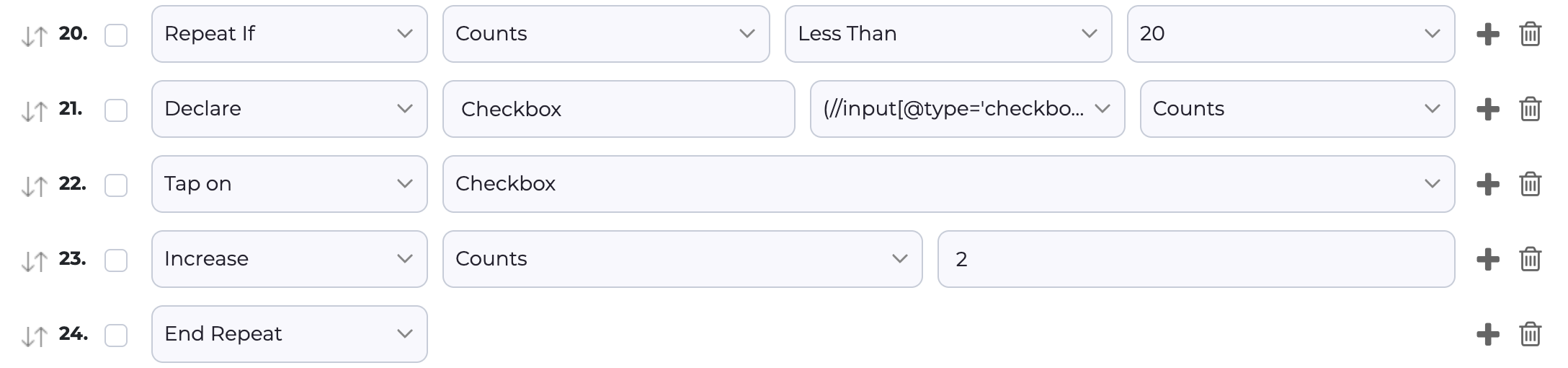
15. Repeat If, End Repeat:
- This action is for Android, iOS, and Web.
- This action performs a repetitive action based on the condition set by the user.

16. Increase:
- This action is for Android, iOS, and Web.
- This action increases the value of an integer variable

17. Declare:
- This action is for Android, iOS, and Web.
- This action is used to declare elements while writing test cases.
Read more about this – https://testgrid.io/docs/document/handling-dynamic-elements-with-declare-keyword/
18. Call Network Assert:
- This action is for Android, iOS, and Web.
- This action calls the network assert test case inside the UI test case.

Read more about this – https://testgrid.io/docs/document/network-assertions-writing-and-execution/
19. Clear Network Log:
- This action is for Android, iOS, and Web.
- This action ignores the network calls that were made before this step in the network assert test case.

20. Comment:
- This action is for Android, iOS, and Web.
- This action has no effect on the test case running. Commenting is used as a way to make notes for the user.

21. Custom Expression:
- This action is for Android, iOS, and Web.
- This action is used to handle complex test scenarios by incorporating code snippets within test steps.

Read more about this – https://testgrid.io/docs/document/integrating-java-selenium-appium-code-snippets-into-scriptless-test-cases-using-custom-expressions/
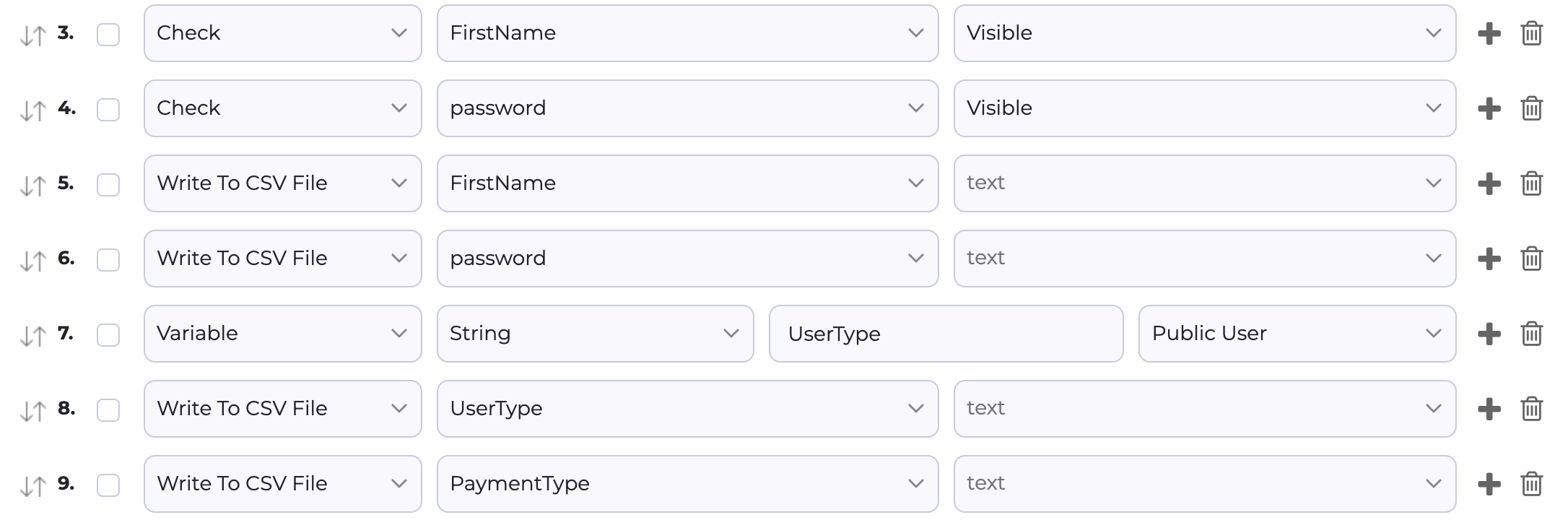
22. Write to CSV file:
- This action is for Android, iOS, and Web.
- This action is used to write text in CSV. You can select an action, an element, or the text.
23. Tap By Image:
- This action is for Android, iOS, and Web.
- This action is used to perform a click on an element by matching and using the image of the element on the screen.

24. Page Load Start & Page Load End:
- This action is for Android, iOS, and Web.
- This action is used to capture page performance summary metrics by marking the beginning and end of a page load.

25. Activate App:
- This action is for Android and iOS.
- This action is used to launch the application associated with the provided bundle ID.

26. Deactivate App:
- This action is for Android and iOS.
- This action is used to close the application associated with the provided bundle ID.

27. Print Page Source:
- This action is for Android, iOS, and Web.
- This action is used to capture and print the current page’s source code during test execution.

28. Set Orientation:
- This action is for Android and iOS.
- This action is used to change the device orientation (such as Portrait or Landscape).

29. Clear App Data:
- This action is for Android and iOS.
- This action is used to reset the application associated with the provided bundle ID.

Test Functions:
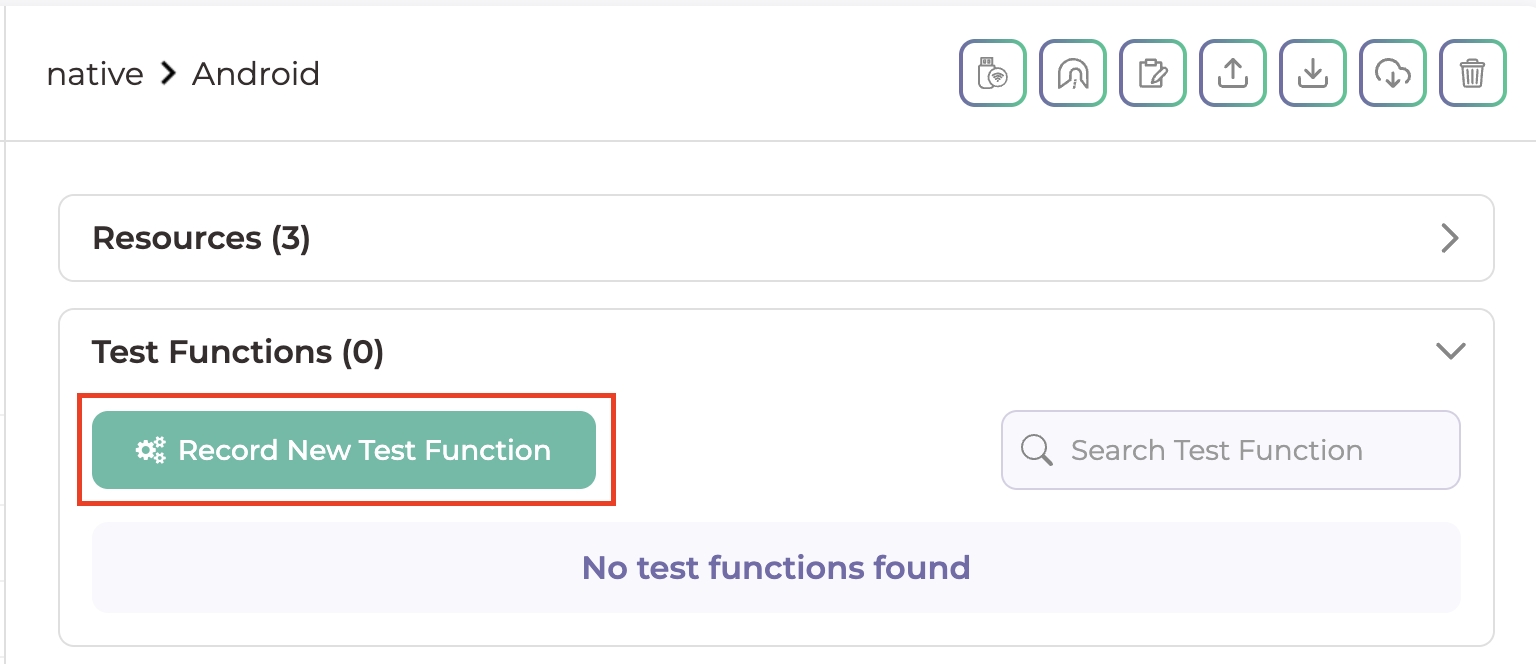
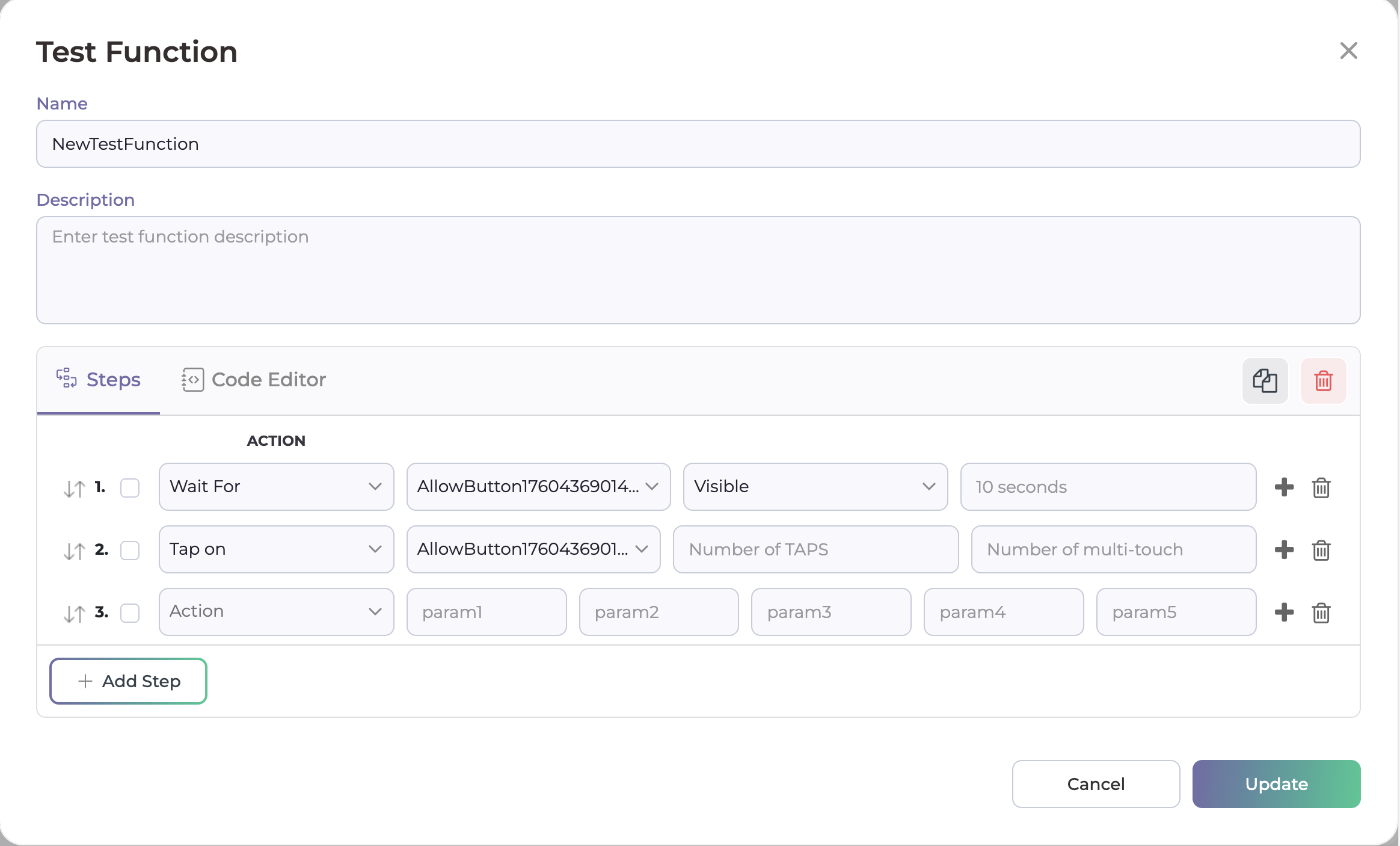
- Test Function is a set of commands that performs a specific action. You can create a Test Function for any repetitive actions.
- Click on the “Record New Test Function” button.
- If you have the same scenario in many test cases then you can create one function for that and use it in every test case.
- Add a Test Function Name and Description.
- Add steps.
- Click on the Save button.
Use Test Function In TestCase:
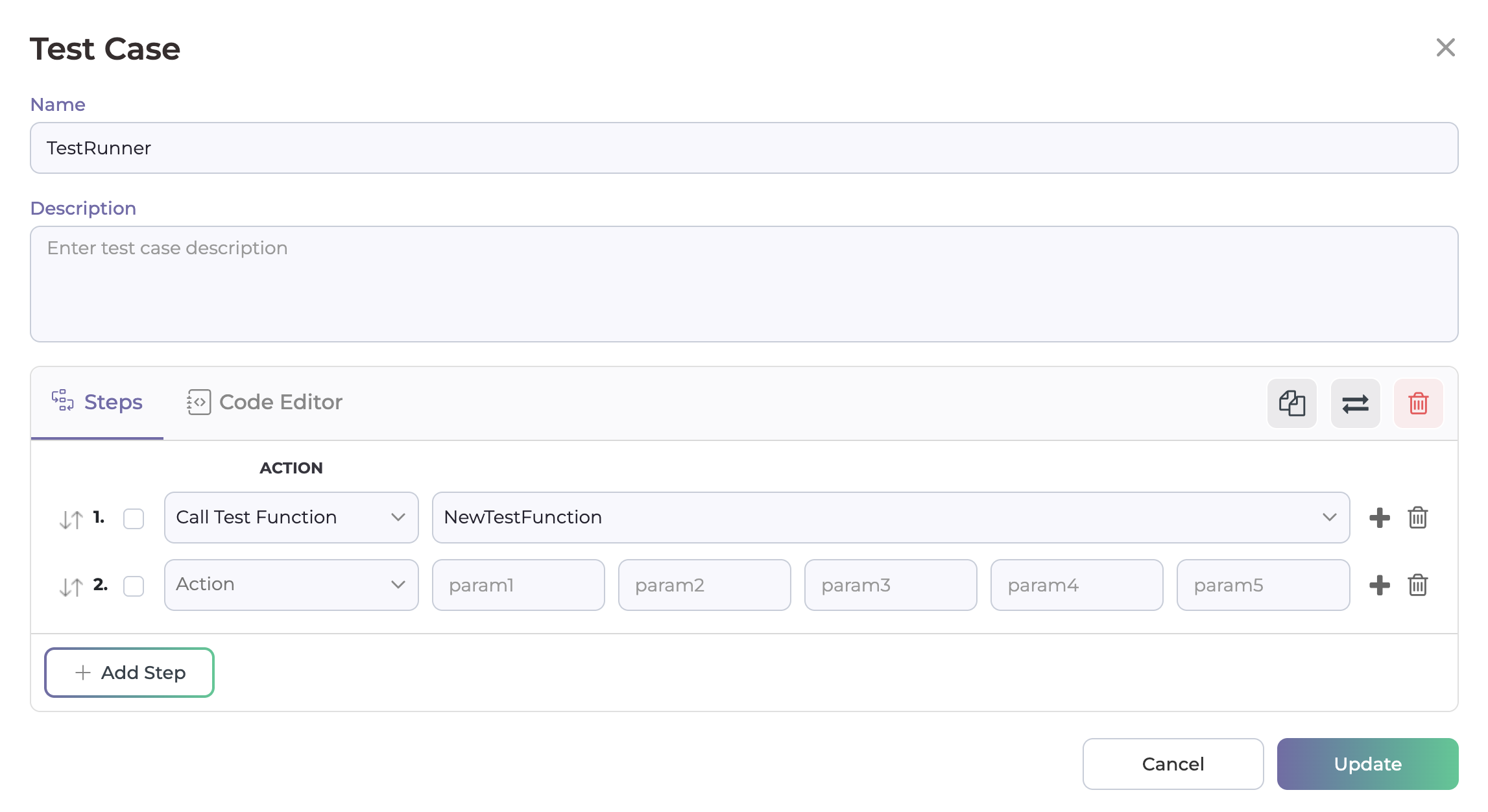
- Open your test case.
- Select the Call Test Function.
- Now, you can see your test functions in the right field and select the function from the drop-down list.
 Autosave
Autosave is a functionality designed to automatically save your test cases at regular intervals or specific events during the testing process. This ensures that all progress is preserved in real time, significantly reducing the risk of data loss due to unexpected disruptions, such as system crashes or power failures.

How Autosave Works
During the codeless generator session, you can modify your test case by adding steps. If you lose power or close the generator tab without saving, you can restart your test cases. When you reopen, you’ll see an “Autosave Test Cases” box with two alternatives:
A) Yes, Retrieve Saved:
If you accidentally close the tab or forget to save the test case for any reason, selecting “Yes, Retrieve Saved” will restore all the test steps you added in the scriptless generator.
B) No, Discard It:
If you choose not to retrieve the saved test case, select “No, Discard It.” This option will discard all the unsaved test steps, allowing you to start fresh.
By leveraging the Autosave feature, you can ensure that your work is always protected and easily recoverable, allowing for a smoother and more efficient testing process.
As simple as that! Happy Testing 