Codeless Figma Visual Testing with TestGrid
Overview
This feature allows users to utilize Figma for visual testing scenarios within the TestGrid environment.
Step 1: Log in with your credentials and navigate to the codeless module.
- Navigate to the scriptless section and to the specific project and version where the test case is to be added.
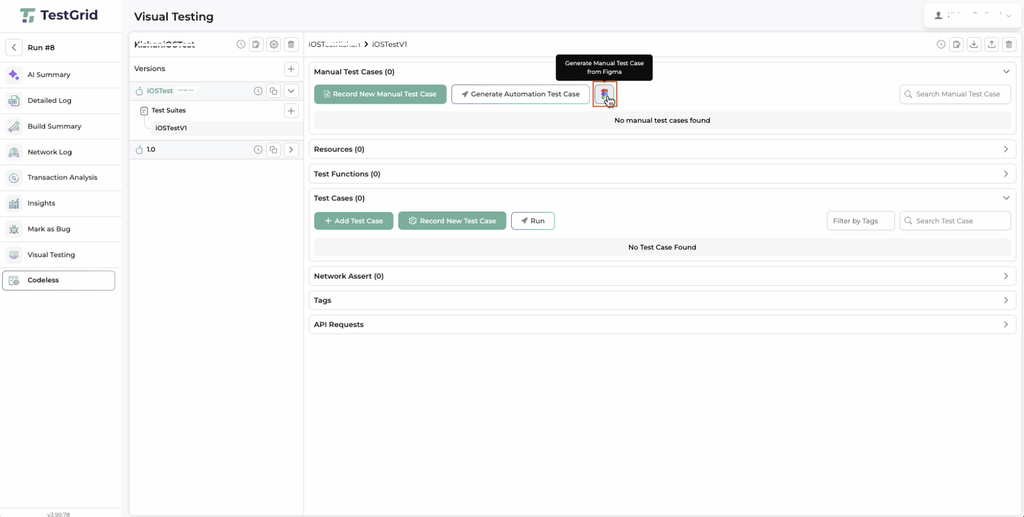
Step 2: After navigating to the project, navigate to the Manual Test Cases section and tap on the Generate Manual Test Case from Figma button.
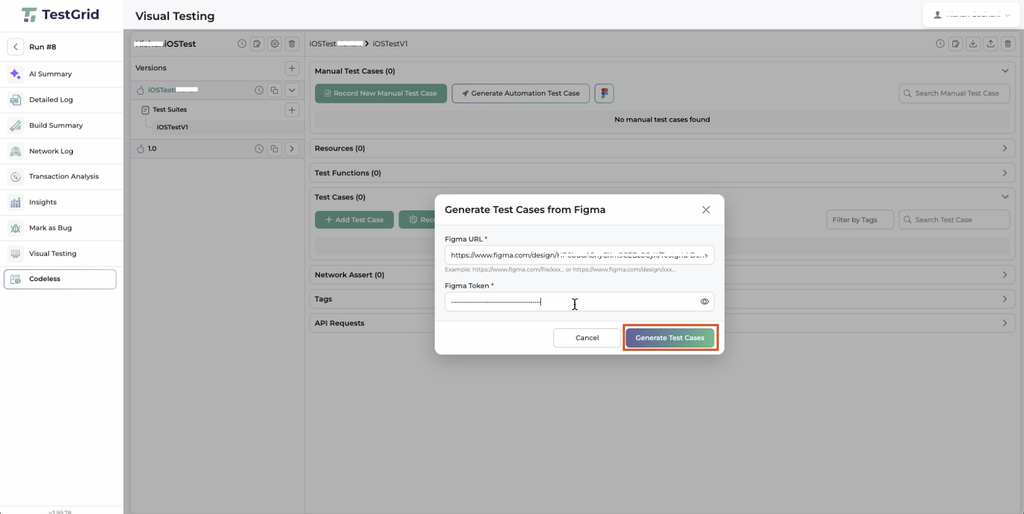
Step 3: Provide appropriate Figma credentials and tap on the Generate Test Cases button.
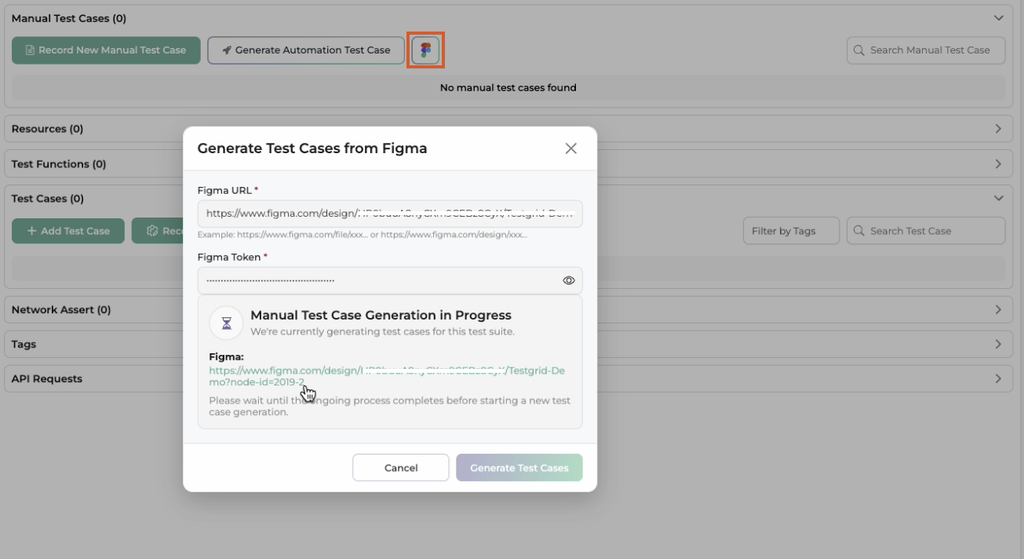
- You can tap on the Generate Manual Test Case from the Figma button as highlighted below to review the configuration.
Step 4: Click on the view Figma design button to review the Figma configuration for the test cases.
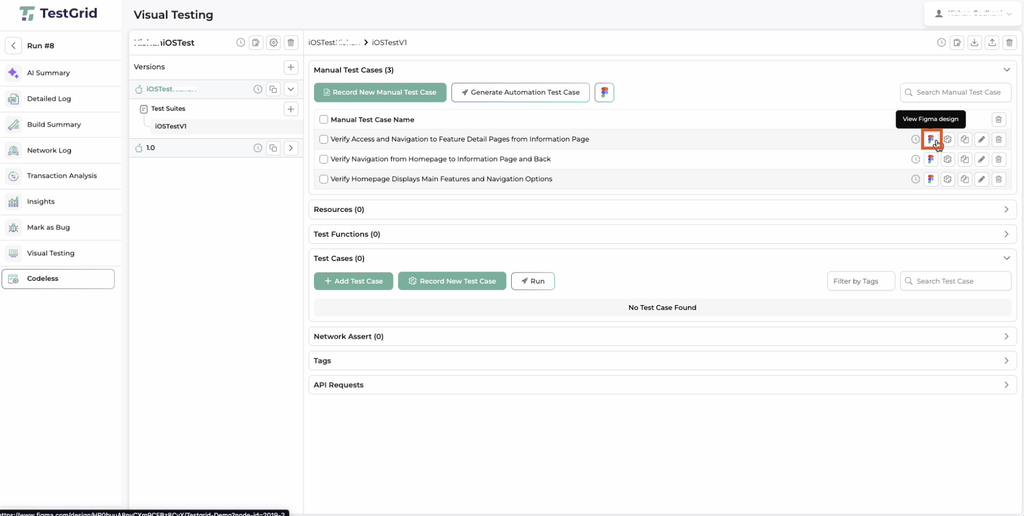
-
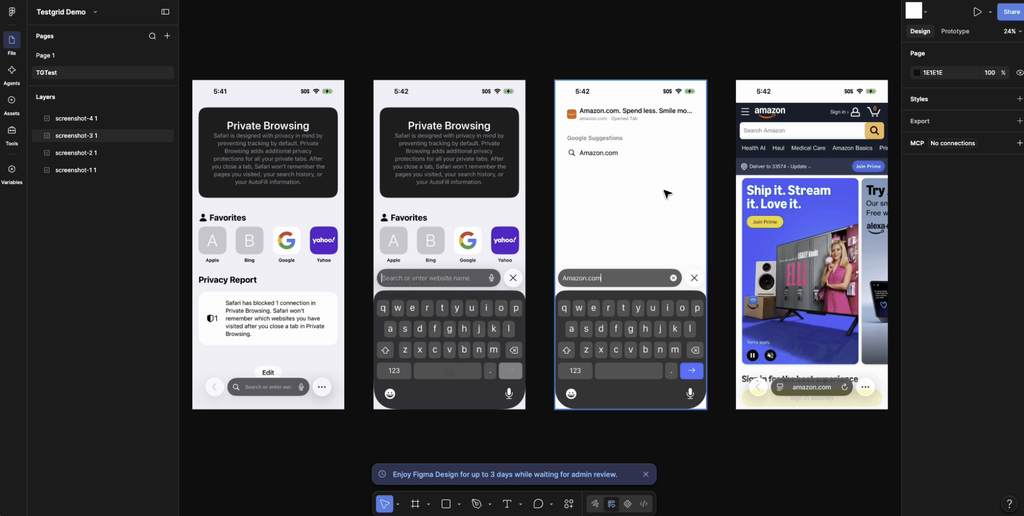
- Upon clicking, the visual testing UI can be viewed in Figma.
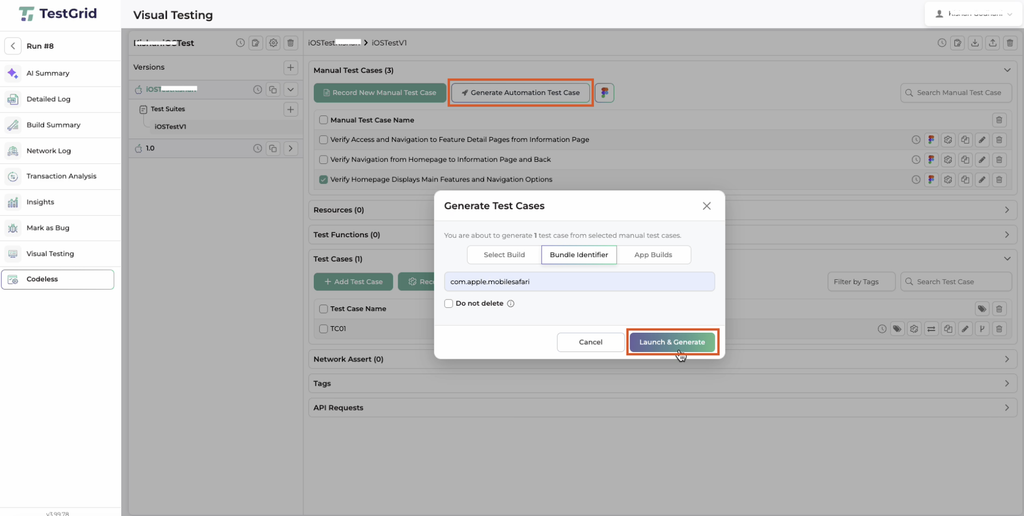
Step 5: To create a new Figma test case, click on the “Generate Automation Test Case” button, provide an appropriate bundle ID or upload a specific build, and tap on the “Launch and Generate” button.
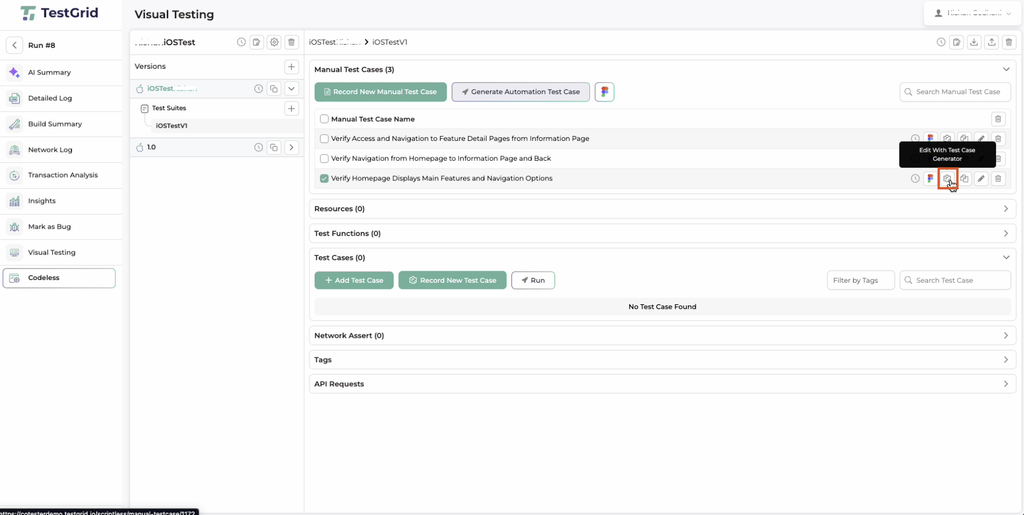
- Similarly edit already created Figma test cases, navigate back to the project screen, and click on the “Edit with Test Case Generator” button for the respective test case.
Step 6: Following this the codeless section will open for the respective test cases to be edited or created.
- Now create the respective test cases using codeless by utilizing appropriate testgrid capabilities, including Co-Tester and Record & Play functionalities.
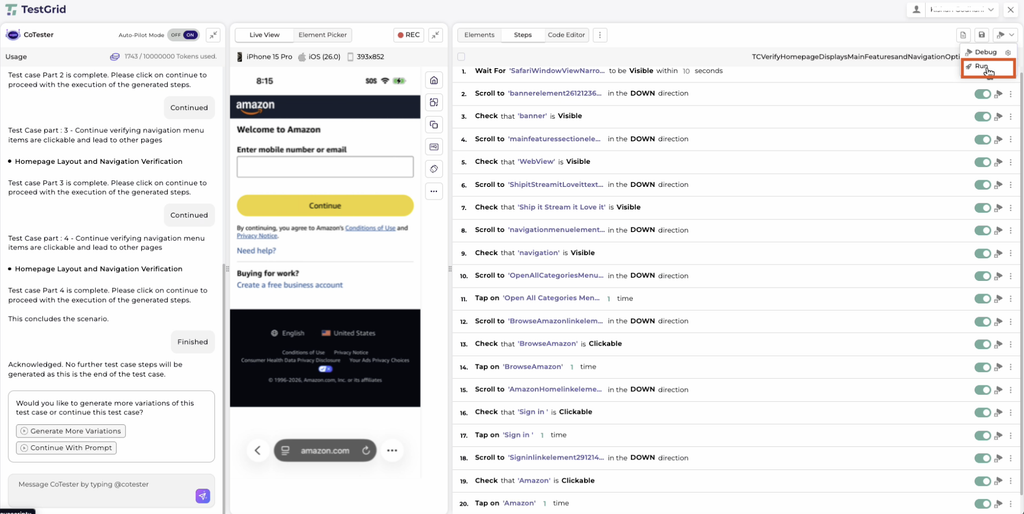
- After a test case is created, tap on the run button to execute the respective test case. As depicted in the below screenshot.
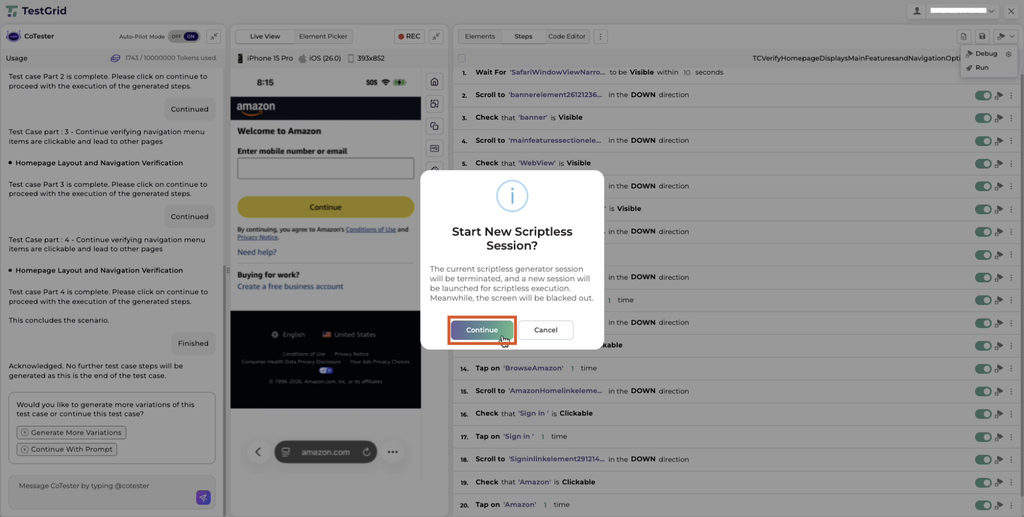
- Click on the “Continue” button to start the execution of the test case on the respective device.
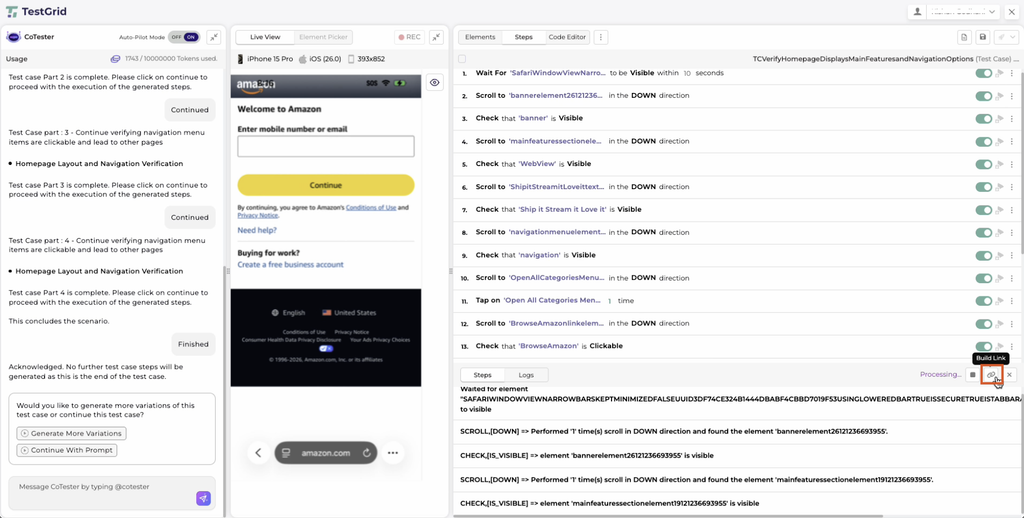
- Once the execution starts, you can click on the Build Link button as depicted below; this will navigate you to the execution screen.
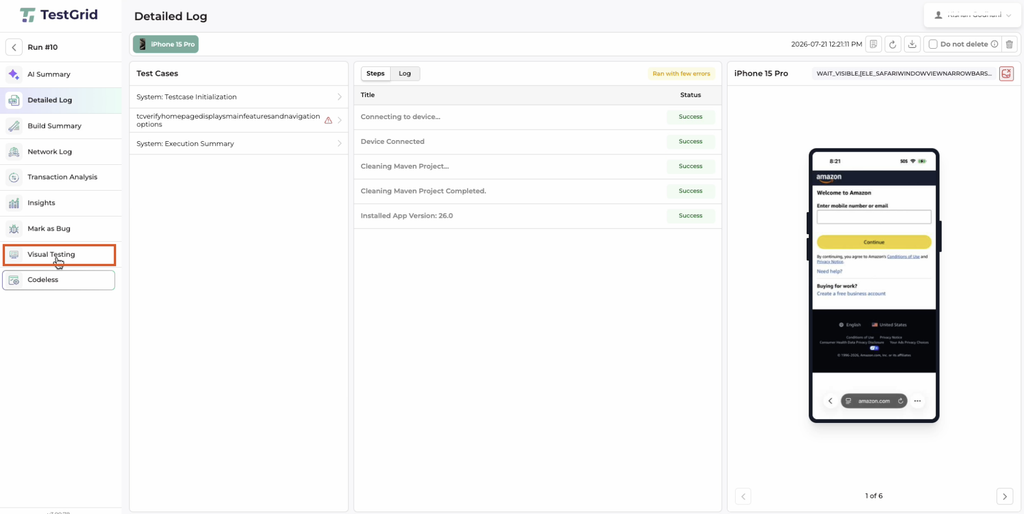
Step 7: Once the execution completes, navigate to the Visual Testing section as highlighted in the below screenshot.
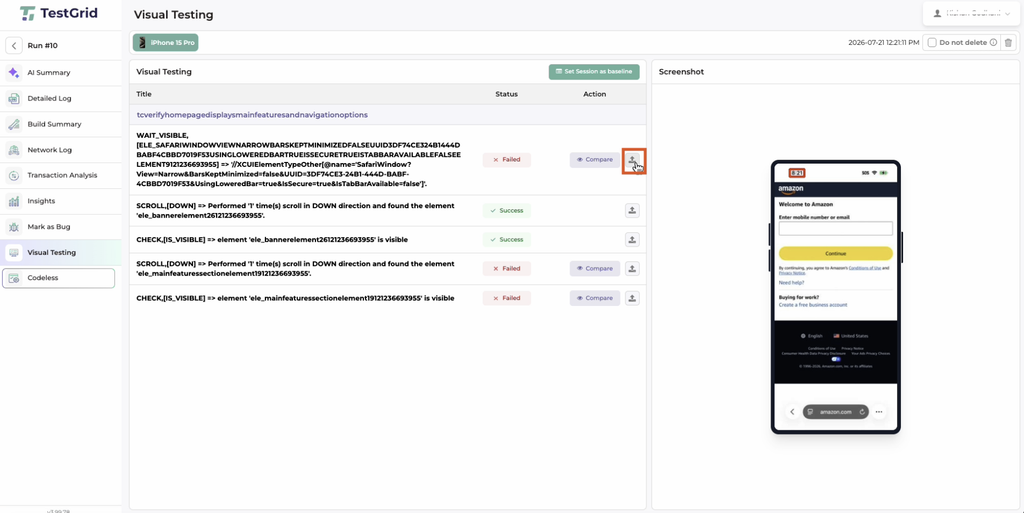
Step 8: After navigating to the Visual Testing section, click on the button next to each visual test step as highlighted in the below screenshot.
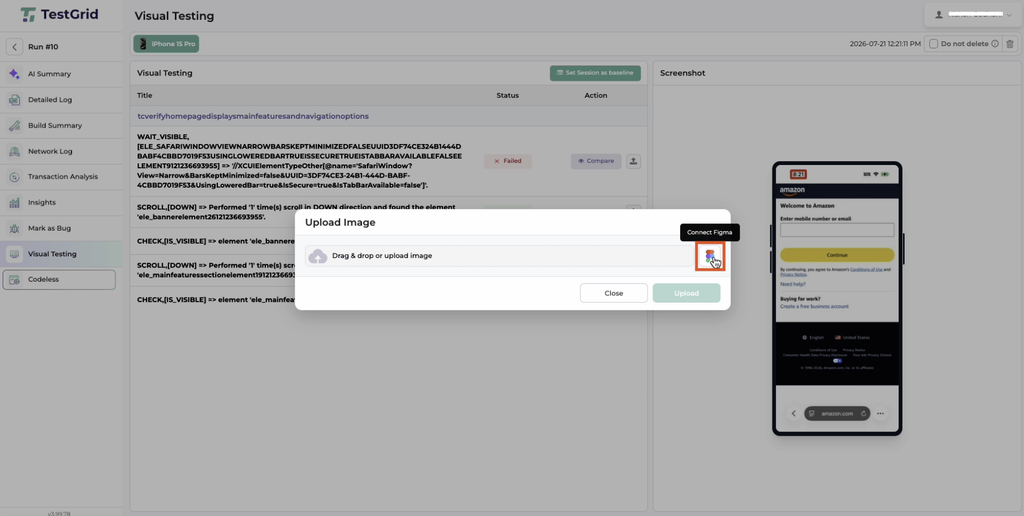
Step 9: Click on the “Connect Figma” button as depicted in the below screenshot.
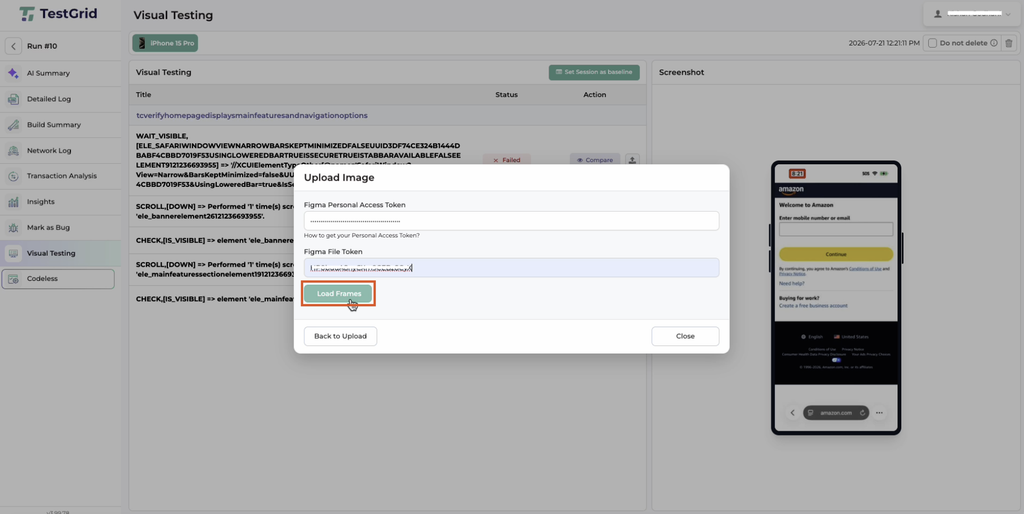
Step 10: Provide appropriate Figma credentials and tap on the load frames button as highlighted below.
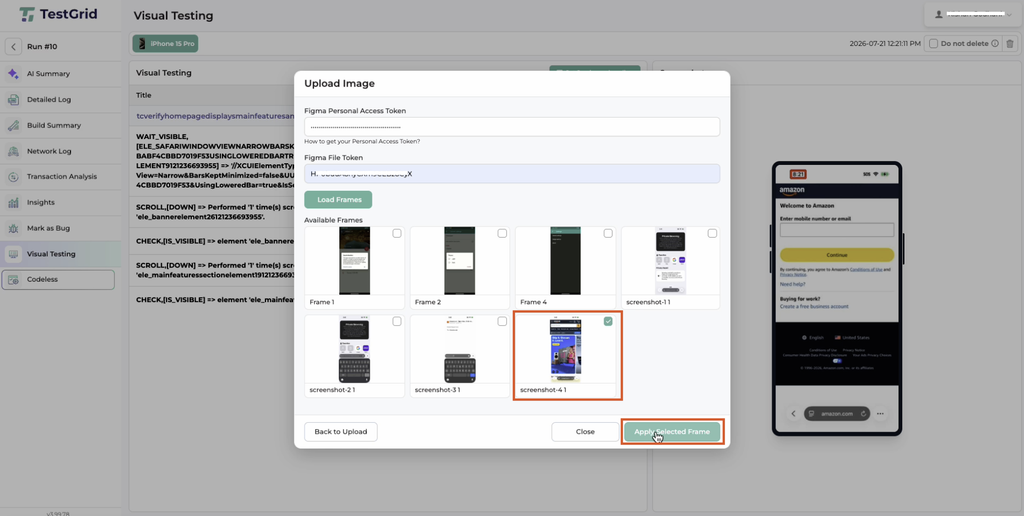
Step 11: Select a specific screenshot to perform visual testing and click on the Apply Selected Frame button as highlighted below.
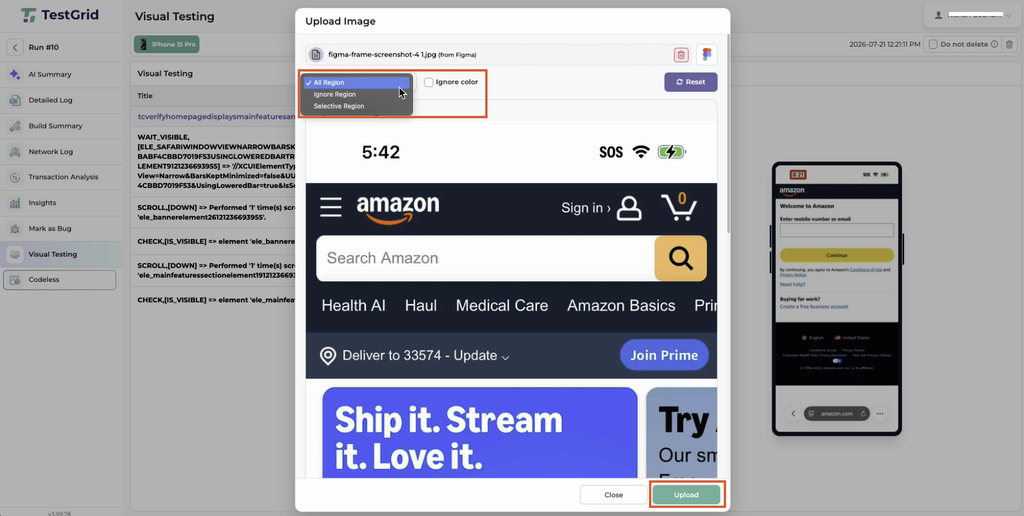
Step 12: Configure visual test parameters for each respective screenshot for ignoring or comparing specific regions for each screenshot of the test step.
- Finally, once configuration is completed, click on the upload button as highlighted in the below screenshot.