
Parameterizing a Test Case with a Database Source in TestGrid Scriptless
1. Overview
This guide walks through how to parameterize a Test Case in TestGrid Scriptless using live data pulled from a database. Instead of hardcoding a single test value (e.g., “iPhone 17”), the Test Case is converted into an Iterative Test Case that runs once per row returned by a database query — with each row’s column values available as reusable #TGITVAR variables inside the test steps.
By the end of this guide you will be able to:
-
Open the Test Data Parameterization panel for a Test Case.
-
Enable Iterative Test Case mode.
-
Connect to a database and execute a query to load test data.
-
Select which columns become reusable variables.
-
Map a variable into a test step (e.g., a Type In action).
-
Run the test and review per-iteration execution results.
2. Prerequisites
-
A TestGrid project/version with at least one existing Test Case (e.g., TC001SearchForDevice).
-
Database connection details: host, database name, username, and password.
-
A valid SQL query that returns the rows you want to iterate over.
-
Network access from TestGrid to the target database instance.
3. Step-by-Step Instructions
STEP 1 Open the Test Case list in Test Explorer
Navigate to Test Explorer, select the relevant Version and Test Suite, then expand the Test Cases section. Locate the Test Case you want to parameterize.
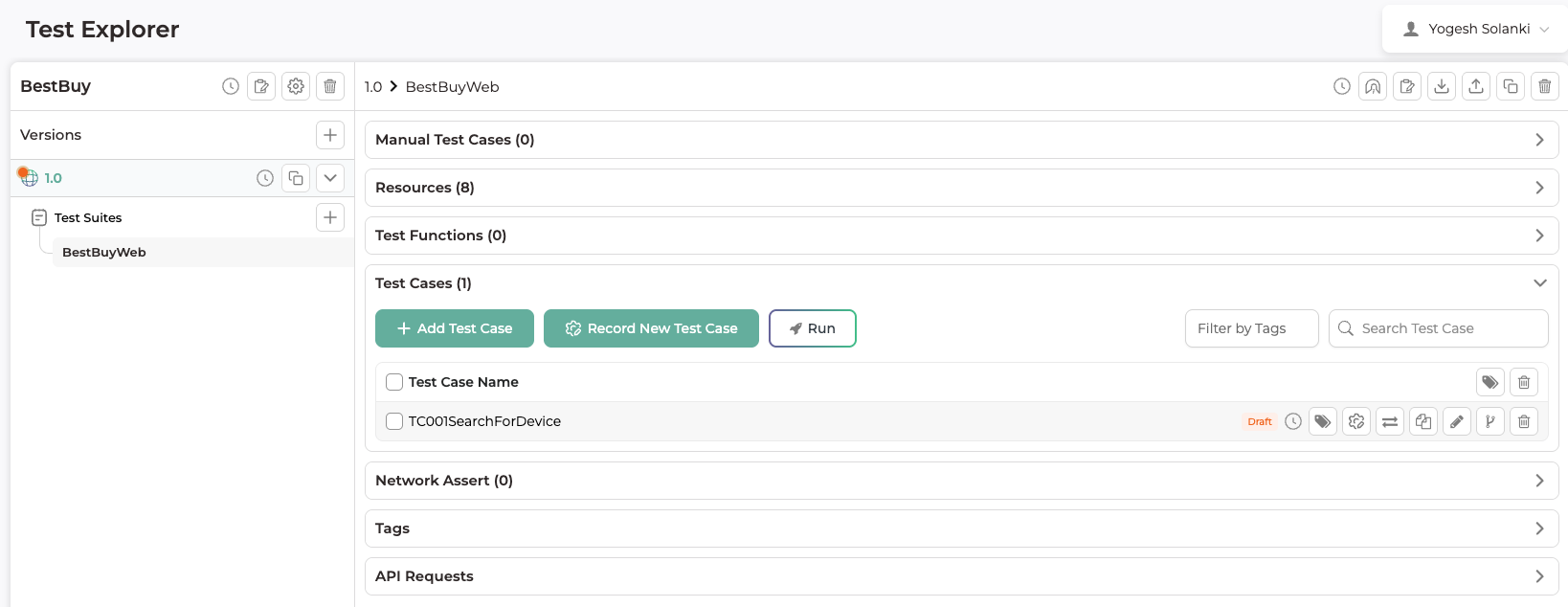 Figure 1 — Test Explorer with the target Test Case (TC001SearchForDevice) listed under Test Cases.
STEP 2 Launch Test Data Parameterization
Hover over the row-level action icons next to the Test Case. Click the icon labeled “Edit Test Data Parameterization” (the funnel/flag icon) to open the parameterization panel for that Test Case.

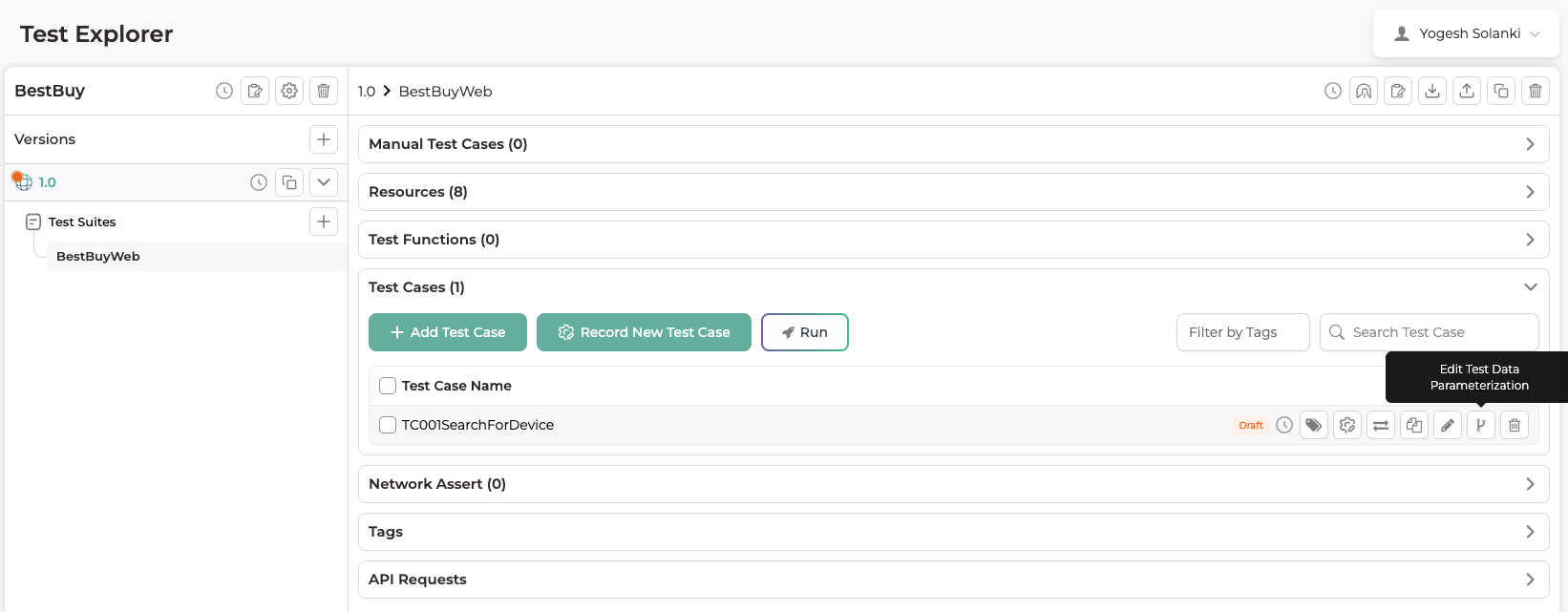 Figure 2 — Hovering over the action icons reveals the “Edit Test Data Parameterization” option.
STEP 3 Enable “Is Iterative Test Case?”
The Test Data Parameterization dialog opens. By default it is empty. Toggle “Is Iterative Test Case?” ON in the top-right corner — this switches the Test Case into iterative mode, where it can run once per data row.

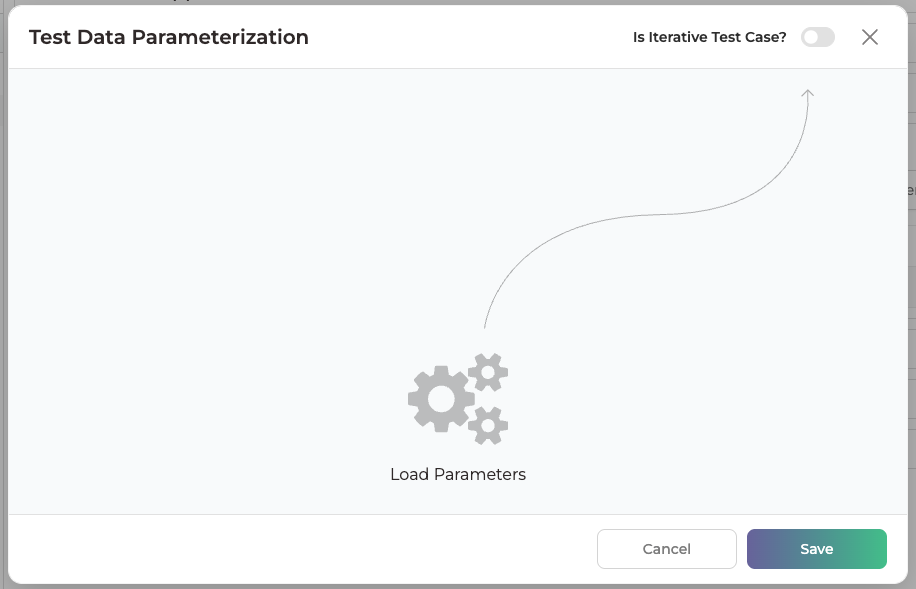 Figure 3 — Test Data Parameterization dialog before enabling iteration.

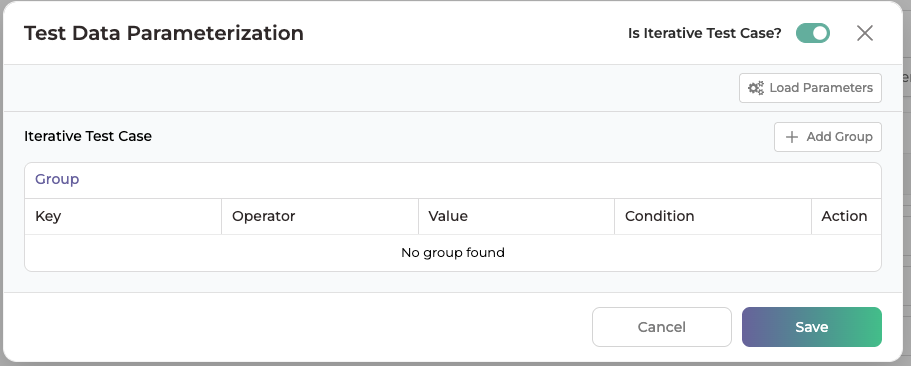 Figure 4 — With the toggle enabled, the panel shows the Iterative Test Case grid and an “Add Group” option, along with the “Load Parameters” button.
STEP 4 Open “Load Parameters” and select the Database source
Click “Load Parameters.” In the Load Parameters dialog, choose the “Database” tab (as opposed to JSON File or API). Select the Database Type from the dropdown (e.g., MySQL) and fill in the connection fields.

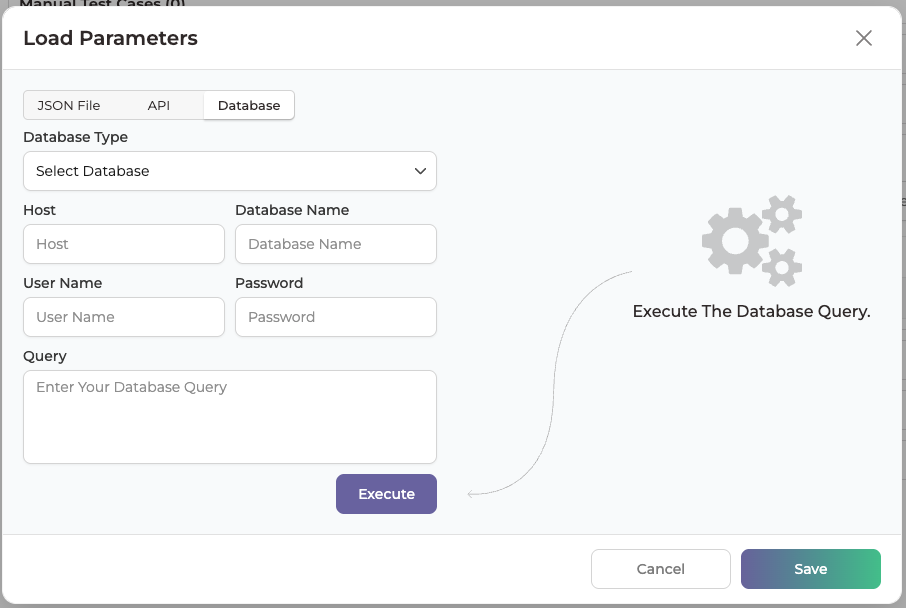 Figure 5 — Load Parameters dialog with the Database tab selected and connection fields empty.
STEP 5 Enter connection details and run the query
Fill in the following fields, then enter your SQL statement in the Query box:
-
Database Type — e.g., MySQL
-
Host — e.g., localhost
-
Database Name — e.g., tg_test
-
User Name — e.g., root
-
Password — your database password (leave blank if none)
-
Query — e.g., SELECT * FROM devices
Click “Execute” to run the query. On success, the columns returned by the query appear on the right under “Select Keys” (name, type, status, created_at).

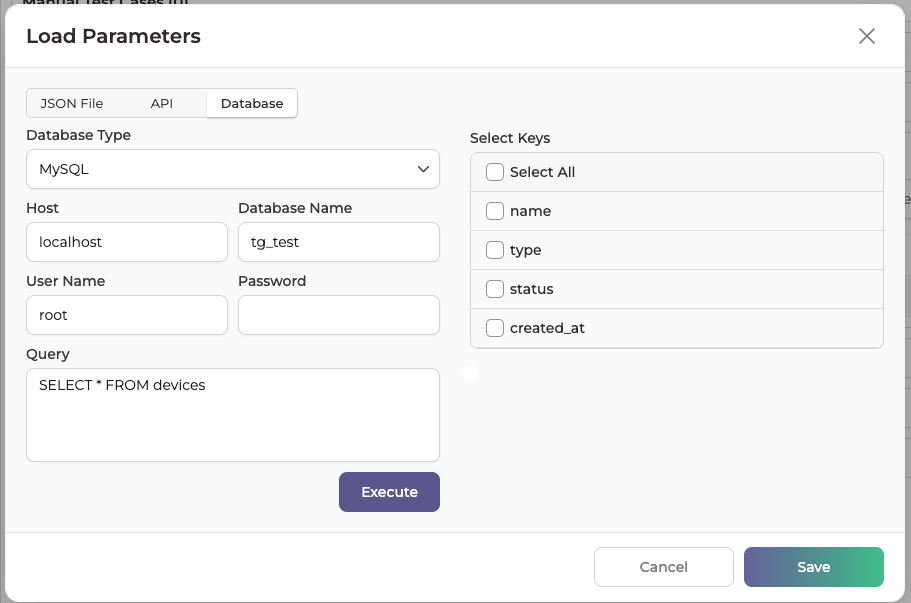 Figure 6 — Connection details filled in and query executed; available columns are listed under Select Keys.
STEP 6 Select the columns to use as variables
Check “Select All” (or pick individual columns) to choose which returned columns should become test variables. Each selected column will be exposed later as a #TGITVAR.<column_name> variable inside the Test Case.

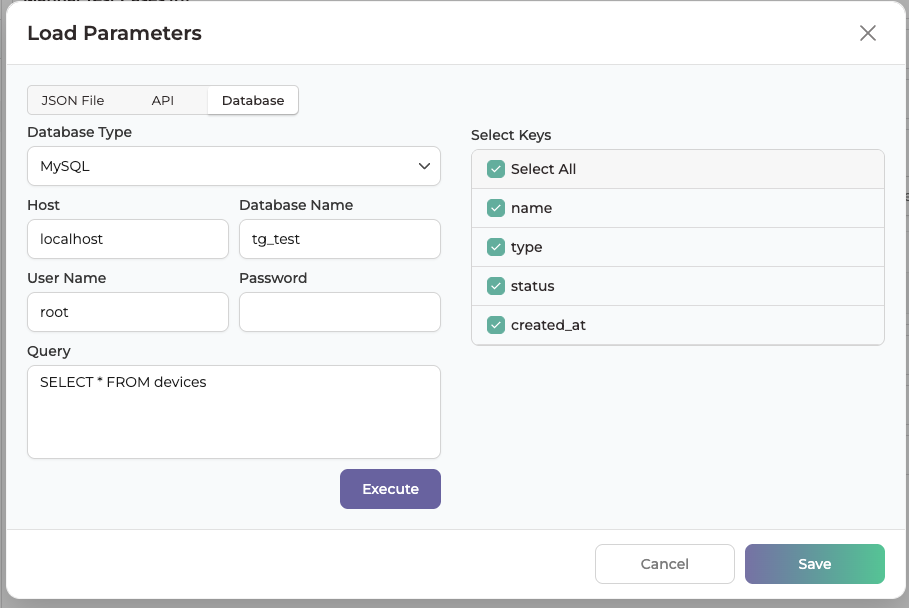 Figure 7 — All available keys (name, type, status, created_at) selected.
Note: Only select the columns you actually plan to reference in your test steps — unused columns simply appear as unused variables and add clutter.
STEP 7 Save the parameterization
Click “Save” in the Load Parameters dialog to return to the Test Data Parameterization screen. The selected columns now appear as tags at the top (name, type, status, created_at), confirming the data source is linked. Click “Save” again to persist the iterative configuration on the Test Case.

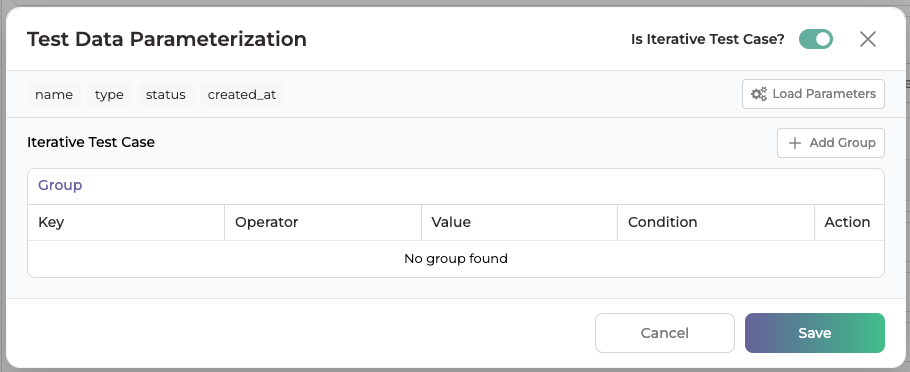 Figure 8 — Test Data Parameterization panel showing the loaded variable tags (name, type, status, created_at) with iteration enabled.
STEP 8 Map a database variable into a test step
Open the Test Case for editing. Find the step where the value was previously hardcoded — for example, a “Type In” action on the search bar element (searchbest473) that types “iPhone 17”. Click into the value field to open the variable dropdown.

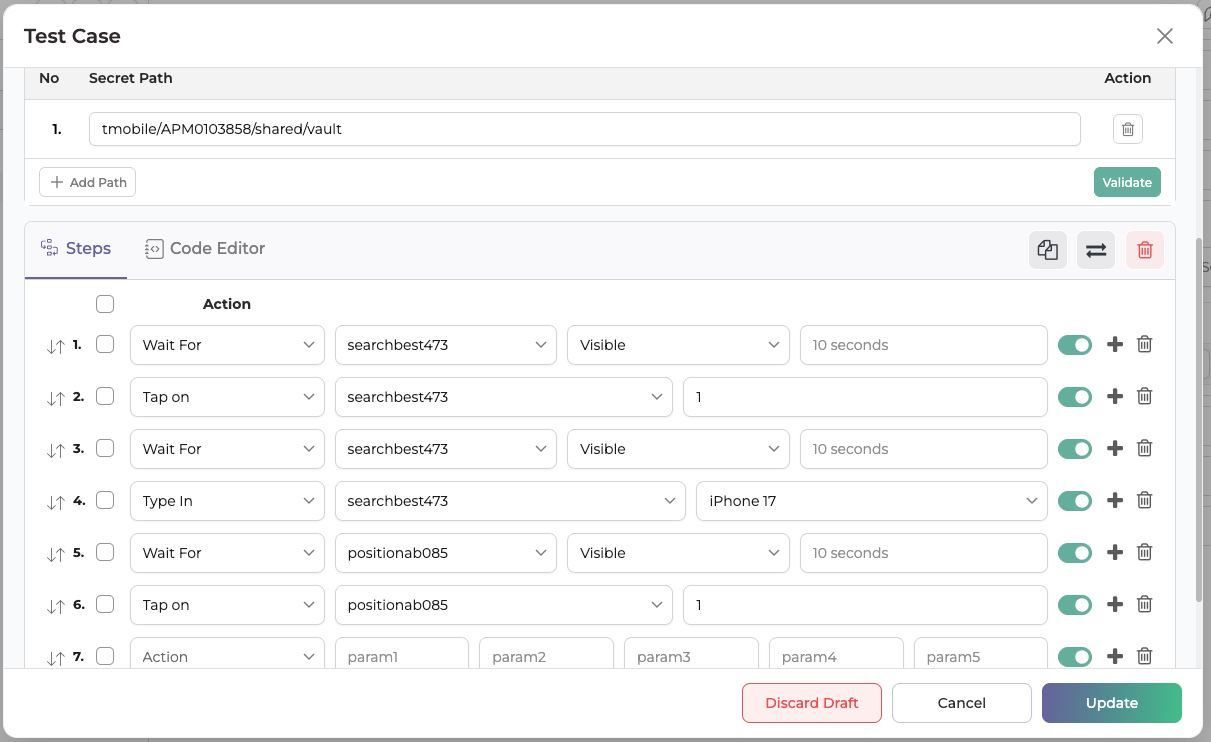 Figure 9 — Test Case editor showing the Type In step with the static value “iPhone 17” before parameterization.

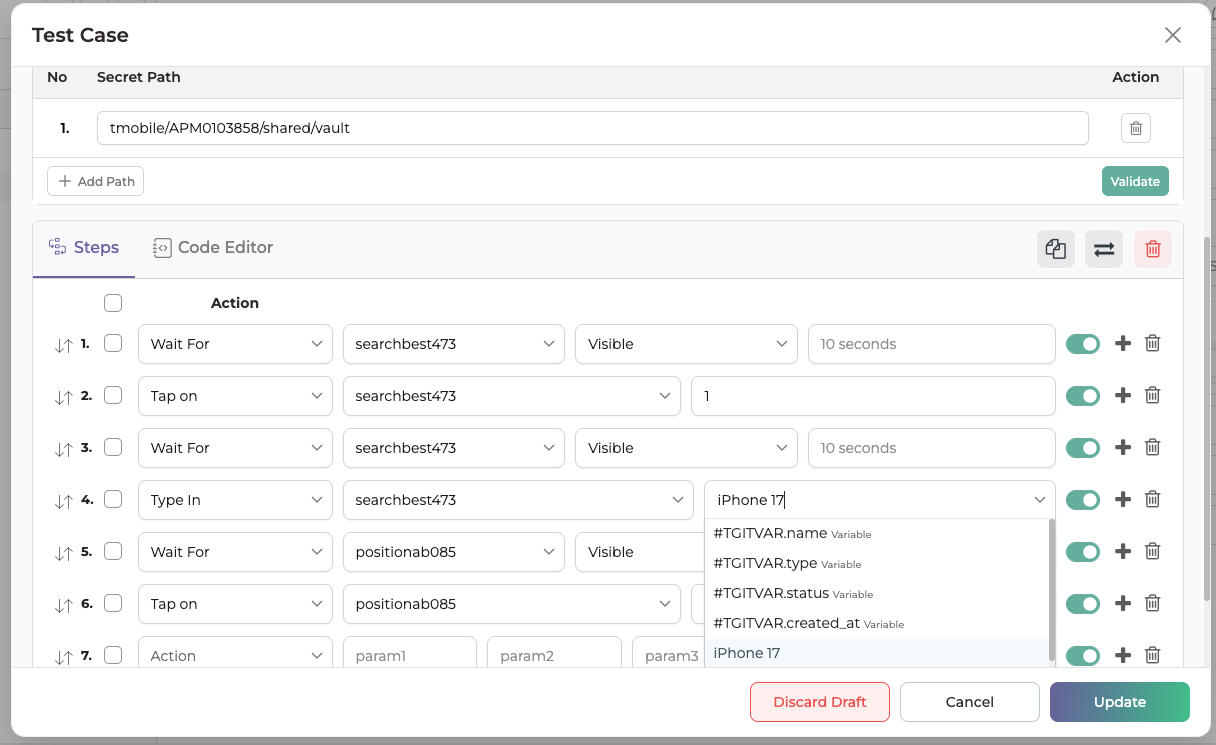 Figure 10 — The Type In step’s value dropdown lists the loaded database variables (#TGITVAR.name, #TGITVAR.type, #TGITVAR.status, #TGITVAR.created_at) alongside the current static value.
Select #TGITVAR.name from the list to replace the static value. The step will now pull a different value from the “name” column on every iteration.

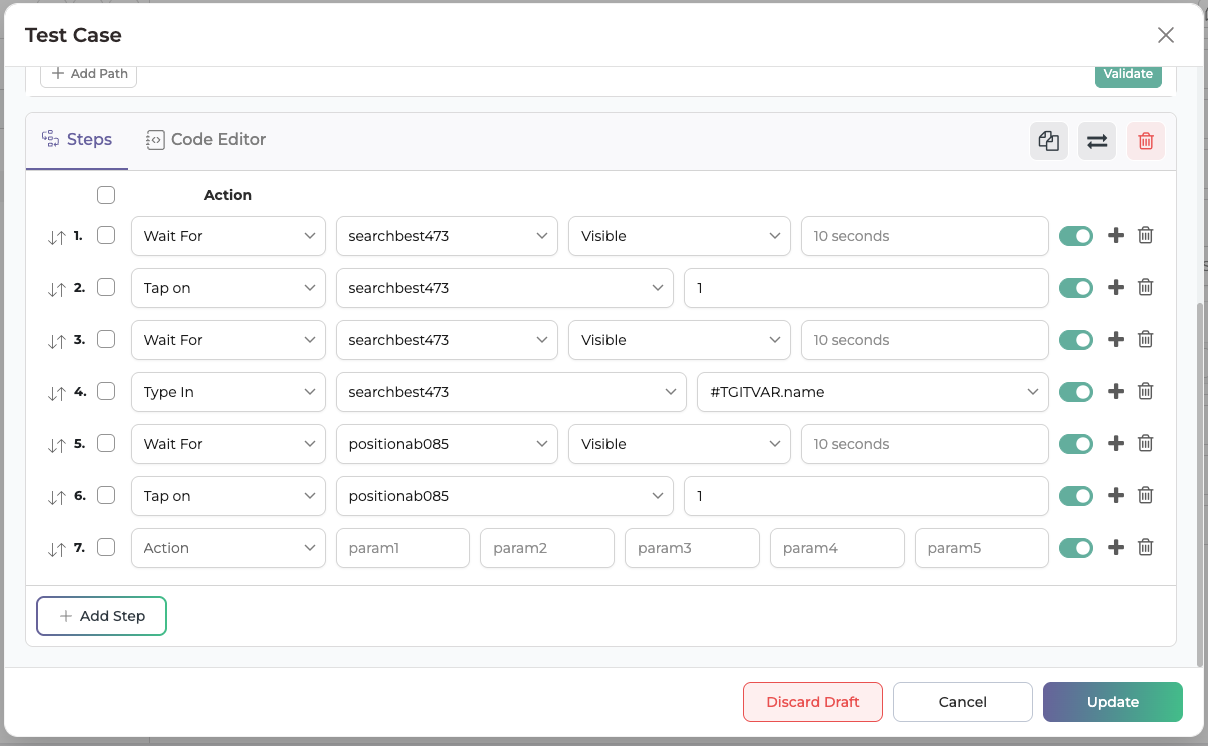 Figure 11 — Step 4 (Type In) now references the dynamic variable #TGITVAR.name instead of a hardcoded string.
STEP 9 Run the Test Case and validate results
Trigger a run from Test Explorer. Because the Test Case is iterative, TestGrid executes it once per row returned by the query, generating one sub-run per iteration (e.g., TGIT01 through TGIT05, one per device record).

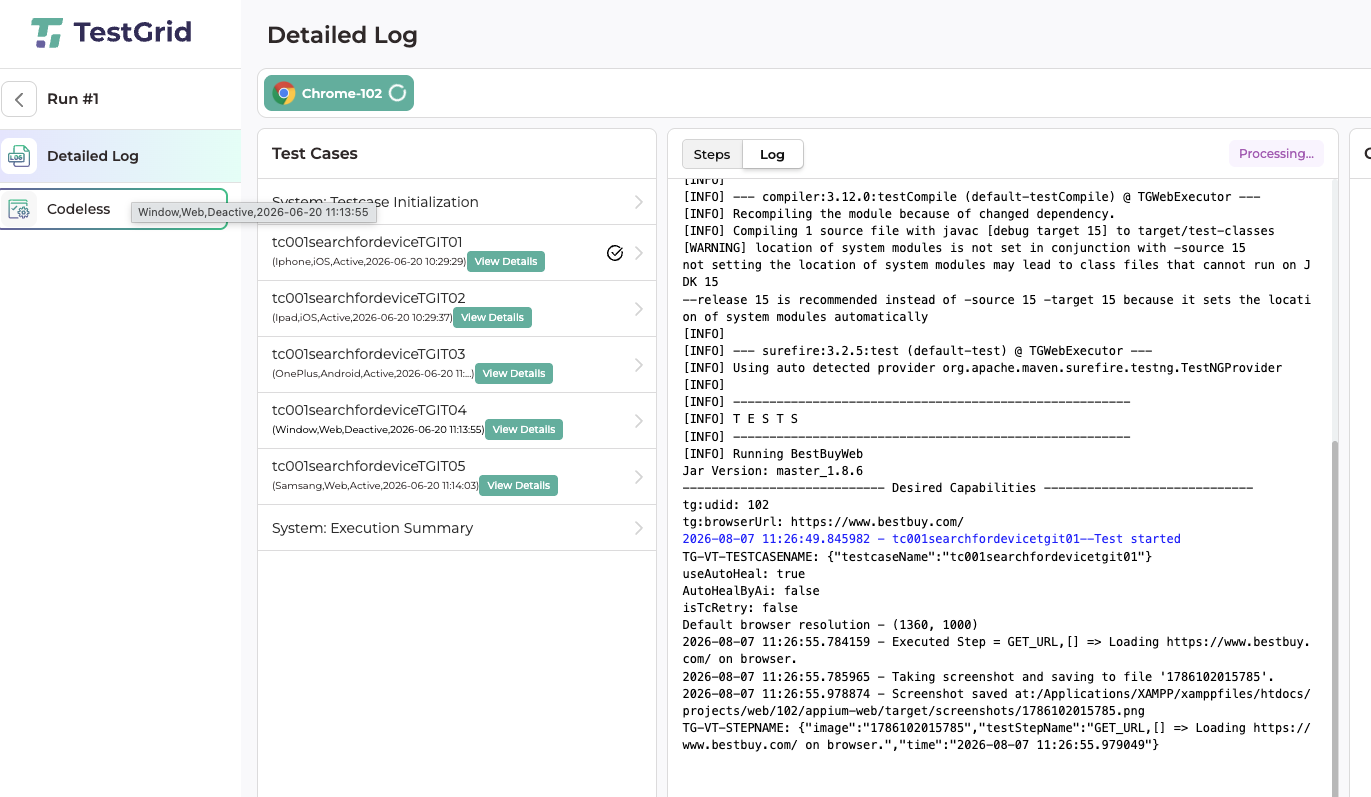 Figure 12 — Detailed Log view showing the iterative sub-runs (tc001searchfordeviceTGIT01–05), each tagged with the device and status pulled from the database.
Click “View Details” on any iteration to inspect the exact row of data that was used for that run.

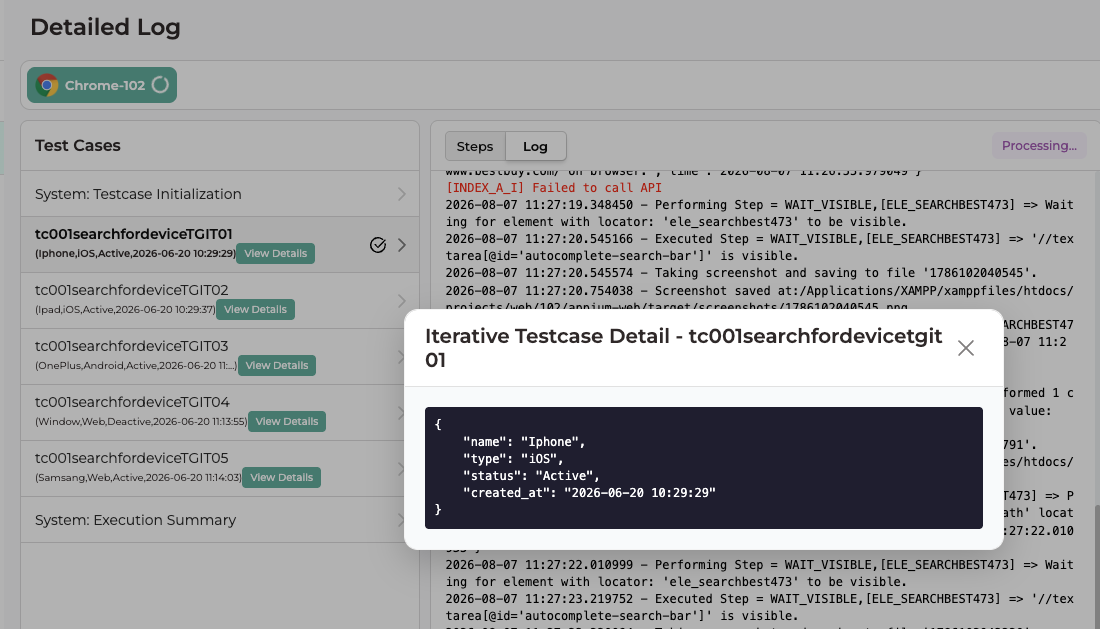 Figure 13 — “Iterative Testcase Detail” popup showing the raw database row consumed for that iteration, e.g. { name: “Iphone”, type: “iOS”, status: “Active”, created_at: “2026-06-20 10:29:29” }.
Once execution finishes, confirm all iterations completed successfully (green check marks) and review the consolidated log.

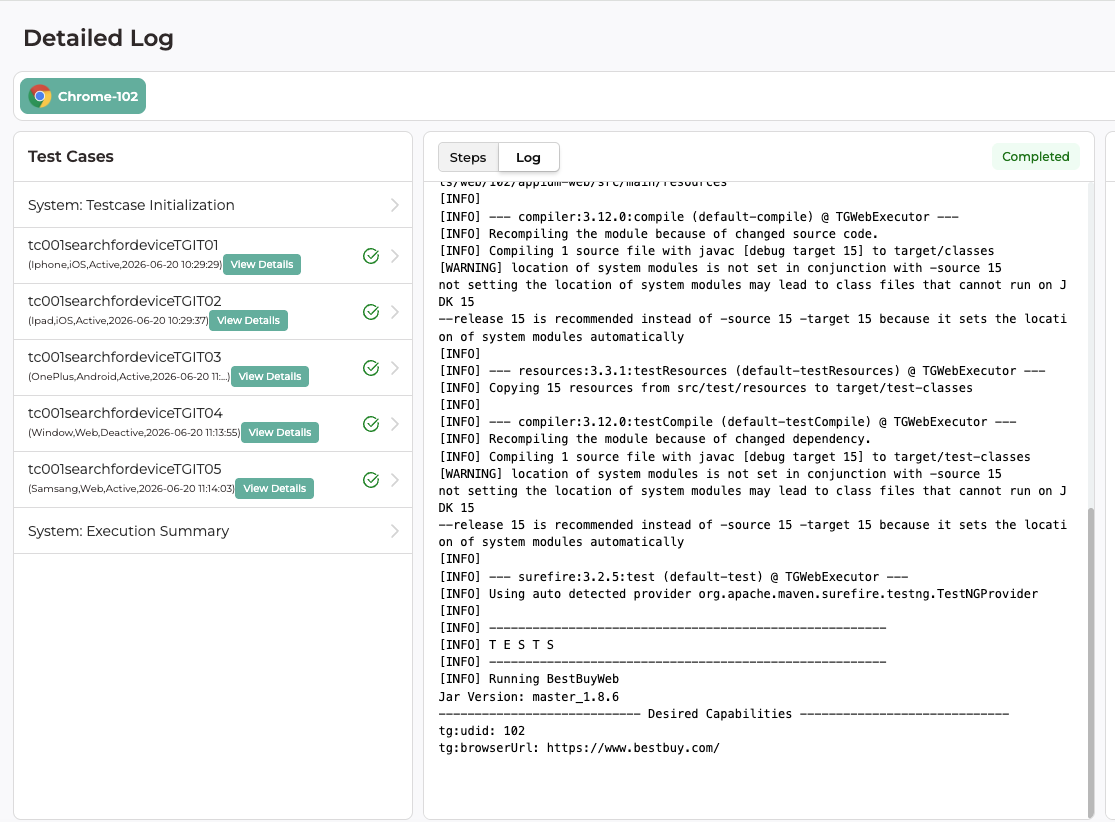 Figure 14 — Completed run: all five iterations (TGIT01–TGIT05) passed, each shown with its own device/browser/status context.
4. Summary
Once configured, this parameterization pattern lets a single Test Case validate multiple data-driven scenarios automatically:
-
The Load Parameters → Database flow pulls live rows via a SQL query.
-
Selected columns become #TGITVAR.<column> variables scoped to that Test Case.
-
Any step field (Type In, Save To Variable, etc.) can reference those variables instead of static values.
-
The Test Case runs once per returned row, producing one sub-run per data record with its own logs and screenshots.
Note: If the database schema or query changes, reopen Load Parameters, re-execute the query, and re-select keys to refresh the variable list — existing variable references in steps will keep working as long as column names are unchanged.